To securely access a remote desktop over the internet without using a VPN, you need a method that balances security, ease of use, and cost. Here’s a quick breakdown of the main options:
- Port Forwarding: Simple but risky. Exposing RDP (port 3389) directly to the internet makes you vulnerable to cyberattacks, such as brute force and ransomware.
- Remote Desktop Gateway (RD Gateway): A safer choice that routes RDP traffic through HTTPS (port 443). However, it requires complex setup, licensing, and ongoing maintenance, which may overwhelm smaller teams.
- Third-Party Remote Access Tools: Tools like AnyDesk or Chrome Remote Desktop are user-friendly but can pose data security and compliance risks, especially for sensitive business environments.
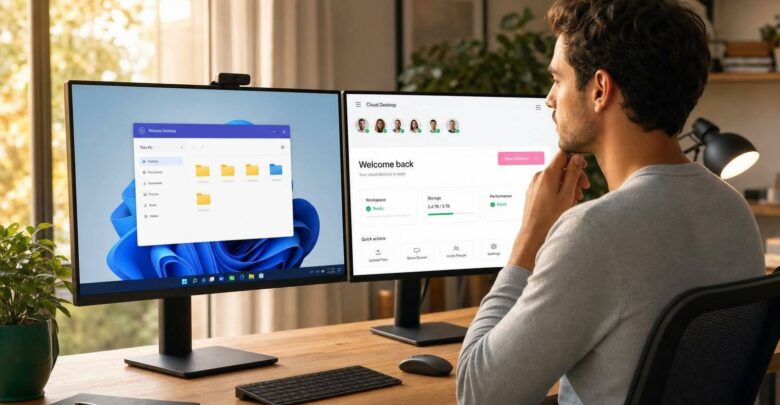
- Cloud-Based Desktops (e.g., flexidesktop): A modern solution offering preconfigured secure access via an encrypted VPN tunnel. It eliminates setup headaches and provides predictable costs, making it ideal for those who want simplicity and security without managing infrastructure. See also: 5 reasons to replace your on-premise RDP with cloud desktops.
Quick Takeaway:
Avoid port forwarding due to its security risks. RD Gateway is secure but complex. Third-party tools are convenient but may not meet high-security standards. Cloud desktops like flexidesktop provide a secure, hassle-free option for remote access.
Setup Remote Desktop from Anywhere & Change Secure RDP Port Access (Your PC over the Internet)
Option 1: Port Forwarding for RDP (Not Recommended)
Port forwarding might seem like the simplest way to enable remote desktop access over the internet, but it comes with serious risks. By using this method, you’re directly exposing your computer to the internet, which opens the door to significant security vulnerabilities. While it may be convenient, the potential dangers far outweigh the benefits.
How Port Forwarding Works
Port forwarding creates a direct connection between your device and an external network, allowing remote access to your PC from outside your local network [4]. To achieve this, your router’s public IP address and a specific port are linked to your computer within the local network.
For Remote Desktop Protocol (RDP), this typically means forwarding TCP port 3389, the default port for RDP connections [4]. Setting this up requires several details: your computer’s internal IPv4 address, your router’s public IP address, the port number (usually 3389), and administrative access to your router’s settings [4].
To configure port forwarding, you’ll log into your router’s admin panel and create a rule that directs incoming traffic on port 3389 to your computer’s internal IP address. Once this is done, you can connect to your PC remotely using the router’s public IP address [4]. Some users also use Dynamic DNS (DDNS) services to assign an easy-to-remember domain name, as public IPs can change over time [4]. While this setup may sound straightforward, it introduces major security risks, which we’ll discuss next.
The Security Risks of Port Forwarding
The biggest issue with port forwarding for RDP is that it exposes your router’s public IP address and port directly to the internet. This makes your system an easy target for cybercriminals who actively search for open RDP ports [5][4][3]. Once the port is accessible, automated tools can quickly detect and exploit it.
RDP has long been associated with security issues, including vulnerabilities that stem from weak passwords and unrestricted access [2]. A stark example is the BlueKeep vulnerability (CVE-2019-0708), discovered in 2019. This flaw allowed attackers to execute code remotely without authentication, simply by sending a specially crafted request to an RDP port [2]. What made BlueKeep particularly dangerous was its ability to spread automatically across networks without user intervention. Attackers could exploit this vulnerability to gain unauthorized access, move laterally within networks, escalate privileges, and even deploy malware [2].
RDP has also become a common vector for ransomware attacks. Variants like Ryuk, Conti, and DoppelPaymer have earned RDP the grim nickname "Ransomware Delivery Protocol" among security professionals [2]. Given these risks, port forwarding is not a viable option for secure environments, especially in business contexts.
When Port Forwarding Should Be Avoided
Microsoft itself advises against using port forwarding for RDP, stating:
"You’re opening your PC up to the internet, which isn’t recommended. If you must, make sure you have a strong password set for your PC. It’s preferable to use a VPN."
This warning highlights the inherent risks of port forwarding, especially for environments where sensitive data is involved. The method lacks critical security features like encrypted authentication traffic, detailed logging, and the ability to restrict access based on user or time. These shortcomings make it unsuitable for organizations that prioritize security.
Instead of relying on port forwarding, IT professionals should explore safer alternatives that provide remote access without exposing systems to internet-based threats.
Option 2: Remote Desktop Gateway (Secure but Complex)
Remote Desktop Gateway (RD Gateway) offers a more secure alternative to port forwarding, but it comes with added complexity. This Microsoft technology creates a secure channel for Remote Desktop Protocol (RDP) connections by routing traffic through HTTPS, making it much harder for attackers to intercept or exploit. However, this enhanced security comes at a cost – both in terms of setup complexity and ongoing expenses.
How RD Gateway Secures RDP Traffic
RD Gateway secures RDP traffic by encapsulating it within HTTPS, using port 443 – the same port used for secure web browsing. Instead of exposing the vulnerable RDP port (3389) directly to the internet, all remote desktop traffic is routed through a gateway server. This server acts as a middleman, handling communication between external users and internal resources.
This approach provides several key security benefits:
- Encryption: The HTTPS tunnel encrypts all communication, protecting it from eavesdropping and man-in-the-middle attacks.
- Connection Policies: Administrators can enforce strict access rules, such as requiring users to meet specific criteria like group membership or device compliance.
- Dual Authentication: RD Gateway requires users to authenticate before the RDP session begins, adding an extra layer of protection beyond the target machine’s login credentials.
By combining encryption, access controls, and dual authentication, RD Gateway significantly reduces the risk of unauthorized access – even if one layer of security is compromised.
Requirements and Setup Complexity
Setting up RD Gateway involves a considerable amount of infrastructure and technical know-how. Here’s what’s needed:
- Windows Server Installation: RD Gateway requires a Windows Server environment, which must be properly configured and maintained.
- SSL Certificates: Commercially issued SSL certificates are recommended to avoid security warnings, as self-signed certificates are not suitable for production use.
- Network Configuration: The gateway server needs to be placed in a demilitarized zone (DMZ) and configured with precise network rules.
- Licensing: Each user or device requires a Remote Desktop Services Client Access License (RDS CAL), adding to the overall cost.
Beyond the initial setup, ongoing maintenance is essential. Windows Server and RDS components require regular updates, SSL certificates must be renewed before they expire, and connection logs need to be monitored to detect potential issues. These operational demands can be a challenge, especially for smaller organizations with limited resources.
Is RD Gateway Practical for Small Teams?
For small IT teams, RD Gateway can present a tough balancing act between security and simplicity. While it offers robust protection, the costs and administrative burden can be significant. Beyond the licensing fees, organizations must account for expenses related to server infrastructure, SSL certificates, and the time required for ongoing maintenance.
Additionally, deploying RD Gateway demands expertise in areas like Windows Server administration, Active Directory, network security, and certificate management. Smaller businesses often lack these specialized skills in-house, which means they may need to hire external consultants or managed service providers – further driving up costs.
Troubleshooting is another hurdle. When RDP connections fail, administrators must investigate multiple layers of potential issues, such as client settings, network connectivity, gateway server performance, SSL certificate validity, and internal resource availability. This complexity can make diagnosing problems time-consuming and frustrating.
Scalability is also a factor. As organizations grow, they may need additional licenses, upgraded hardware, or even extra gateway servers to handle the increased load. These changes require careful planning and can sometimes disrupt service during the scaling process.
For smaller teams or businesses with limited expertise in Windows Server, the operational demands of RD Gateway might outweigh its security benefits. In such cases, simpler solutions might offer a better balance between security and manageability, without the heavy administrative workload.
When organizations need secure remote access without dealing with complicated infrastructure, third-party tools often become the go-to solution. These tools remove the need for exposing ports or setting up intricate server configurations. However, they come with their own set of compliance and security challenges.
Tools like AnyDesk, Chrome Remote Desktop, and Parsec handle authentication and encryption through their cloud-based systems, eliminating the hassle of manual network setup. By installing client software on both the host and connecting devices, users can establish remote connections quickly. These connections are routed through the vendor’s cloud infrastructure, meaning there’s no need to adjust firewall rules or deploy additional servers. This simplicity allows users to get started in minutes, without requiring extra licenses or technical know-how.
Limitations for Business Use
While these tools make remote access straightforward, they can pose serious risks, especially for businesses handling sensitive data. For instance, they may expose critical business information, increasing the likelihood of data breaches. Under regulations like GDPR and CCPA, companies are still responsible for any mishandling of customer data by third-party vendors. This can result in hefty fines and damage to a company’s reputation [6][8].
Compliance challenges also arise for industries with strict data protection rules. For example, healthcare organizations governed by HIPAA or financial institutions adhering to stringent standards may find that these tools fall short of their compliance needs. Moreover, inconsistent security practices among vendors can introduce vulnerabilities that violate industry regulations [8][10].
Another issue is the lack of transparency from some vendors regarding their security protocols and development practices. This makes it hard for IT teams to evaluate risks and ensure the tools meet organizational security requirements [8]. Vulnerabilities in these tools can open the door for attackers to inject malicious code, leading to data breaches, network disruptions, or even unauthorized access to privileged systems [8][9].
Insider threats and unmanaged devices add another layer of complexity. Employees may unknowingly grant excessive permissions, exposing more data than necessary. Additionally, outdated software or unsecured personal devices used for remote access can create weak points in the system [6][7][8][10].
There’s also the risk of vendors discontinuing support for their tools. If a product becomes outdated or is suddenly pulled from the market, organizations may be left scrambling for alternatives while dealing with ongoing security vulnerabilities [6].
For businesses with high security standards, strict compliance obligations, or sensitive data to protect, the risks associated with third-party remote access tools often outweigh the convenience they provide.
sbb-itb-bea6502
Flexidesktop stands out from port forwarding, RD Gateway, or third-party tools by combining security and ease of use into a fully managed cloud desktop solution. For organizations seeking secure RDP access without the headaches of on-premises infrastructure, flexidesktop offers a streamlined, cloud-based alternative. Instead of juggling local servers and complex setups, this service provides a managed Windows virtual desktop environment accessed through a preconfigured secure VPN connection. It’s a straightforward answer to the operational challenges discussed earlier.
How flexidesktop Ensures Secure Access
Flexidesktop uses a preconfigured VPN to establish an encrypted tunnel between your device and the cloud desktop. This method keeps RDP traffic safely within the tunnel, eliminating exposure to the open internet. By bypassing the need for self-managed VPNs or gateway configurations, it minimizes the risk of security missteps caused by human error.
The service also takes care of all the underlying infrastructure. Users gain access to dedicated resources – like CPU, optional GPU (available in European data centers), RAM, and SSD storage – without needing to manage VPN servers, firewall settings, or SSL certificates.
Benefits of Choosing flexidesktop
One of the standout advantages of flexidesktop is reducing the operational burden on IT teams. There’s no need to handle intricate network setups or ongoing maintenance, as the service provider manages the entire secure access infrastructure. Secure daily backups are included, adding an extra layer of data protection. By removing the need for manual server configurations and upkeep, flexidesktop offers a modern solution to traditional RDP access.
Another key benefit is cost predictability. Instead of dealing with expenses for Windows Server licenses, RDS CALs, and SSL certificates, flexidesktop operates on a straightforward subscription model. Plans range from $19 to $109 per month, catering to both basic and high-performance needs. The service supports multiple Windows versions (Windows 10 and 11) and offers an optional Microsoft Office 2024 Pro Plus integration for an additional $5 per month.
Other notable advantages include:
- Global Accessibility: With data centers located in various regions, users enjoy optimized performance no matter where they are.
- Full Administrator Control: Users can install custom software and tailor their desktop environment to suit business requirements, all while benefiting from VPN security.
- Simplified Setup: The connection process is designed to be quick and easy, requiring minimal technical knowledge.
Security Best Practices for Remote Desktop Access
Protecting your systems and data when using remote desktop access is critical. Whether you’re using port forwarding, an RD Gateway, third-party tools, or cloud-based desktop solutions, implementing the right security measures is essential.
Use Strong Passwords and Limit Account Access
Strong, unique passwords are your first line of defense against unauthorized Remote Desktop Protocol (RDP) access [1]. To reduce vulnerability, assign these passwords to custom usernames rather than default ones like "Administrator", which are frequent targets for attackers [1]. A strong password combines uppercase and lowercase letters, numbers, and special characters.
Beyond passwords, limit access to only those who need it. Keep user privileges minimal – grant each user only the permissions necessary for their tasks. Regularly updating credentials further reduces the risk of unauthorized access.
Keep Software Updated
Make sure your operating system and all associated software are up to date. Installing updates and patches promptly helps close security gaps that attackers might exploit. Microsoft frequently releases updates to address RDP-related vulnerabilities, so enabling automatic updates or following a consistent patching schedule is key.
Don’t stop at the operating system – ensure remote access tools and security software are also current. This reduces potential entry points for attackers and strengthens your overall defense.
Monitor Remote Access Activity
Monitoring connection logs is a crucial part of maintaining security [11]. Windows Event Logs, for instance, provide useful details about RDP sessions, such as successful logins, failed attempts, session durations, and disconnections. Keep an eye out for unusual activity like logins during off-hours, connections from unexpected locations, or repeated failed login attempts – these could indicate unauthorized access or brute-force attacks [1][11].
To enhance security, implement account lockout policies after multiple failed login attempts and set up alerts to notify administrators of suspicious activity. Automated tools can assist by providing real-time alerts, helping you respond quickly to potential threats. Continuous monitoring not only boosts security but also supports compliance with regulatory requirements [12]. This proactive approach is especially vital for addressing fast-moving threats like ransomware attacks, allowing you to act swiftly and restore security as needed.
Conclusion: Simplifying Secure Remote Desktop Access
Finding the best method for remote desktop access means weighing security, ease of use, and cost. Each option we’ve discussed comes with its own set of pros and cons, which IT teams and small businesses need to carefully evaluate.
Port forwarding, while straightforward to set up, is the most vulnerable choice. It exposes systems directly to the internet, making them prime targets for automated attacks. This makes it a poor fit for any business setting.
RD Gateway offers encrypted RDP traffic through HTTPS, but the complexity of its infrastructure and licensing requirements can overwhelm smaller IT teams. Managing this setup demands significant expertise and resources.
Third-party remote access tools are user-friendly but often fall short in providing the robust security and compliance features that industries with strict regulations need. They may be convenient, but they don’t always meet the demands of highly regulated environments.
This is where a modern solution steps in. flexidesktop provides a fully managed cloud desktop platform that simplifies the entire process. It eliminates the need for complex configurations by offering a preconfigured VPN profile that secures RDP traffic through an encrypted tunnel. No servers to manage, no licenses to handle, and no gateway setups to worry about. It delivers the same level of security as RD Gateway without requiring advanced Windows Server knowledge or heavy upfront investments.
When considering the total cost of ownership, the benefits are clear. Traditional solutions demand ongoing IT resources for setup, maintenance, and troubleshooting. With flexidesktop, these responsibilities shift to a managed service provider, freeing up IT teams to focus on strategic goals instead of infrastructure headaches. This shift highlights why cloud desktops are becoming a practical choice for secure remote access.
FAQs
Why is port forwarding for remote desktop access considered unsafe, and what are the risks?
Port forwarding for remote desktop access poses a serious security risk because it leaves your device exposed to the internet. This open access essentially acts as an invitation for cyberattacks. Hackers and automated bots are constantly scanning for open ports, like the default RDP port (3389), which makes your system an easy target for brute-force attacks, malware, and other exploits.
By using this method, you dramatically increase your system’s vulnerability and bypass essential network protections, leaving sensitive data and critical systems exposed. For businesses and IT professionals, relying on port forwarding is a risky practice with significant security drawbacks and no built-in safeguards to mitigate potential threats.
What is Remote Desktop Gateway, and how does it improve security for remote desktop connections?
Remote Desktop Gateway (RD Gateway) enhances security by directing RDP traffic through an encrypted HTTPS connection on port 443. This approach shields sensitive data from direct internet exposure, significantly lowering the chances of threats like port scanning or brute force attacks.
That said, setting up RD Gateway can be a tough task, especially for smaller IT teams. It involves several steps, including installing Windows Server, managing RDS CALs (Remote Desktop Services Client Access Licenses), obtaining SSL certificates, and configuring both the network and firewall. On top of that, regular maintenance and patching are essential to ensure the system remains secure. For teams with limited resources, this can quickly become a heavy burden.
Why are cloud-based desktop solutions like flexidesktop a better choice for secure remote access than traditional methods?
Cloud desktops, like flexidesktop, make secure remote access a breeze by offering a fully managed solution with a built-in, preconfigured VPN. This setup ensures that all RDP traffic is encrypted and safeguarded, sparing users from the hassle of setting up servers, configuring firewalls, or dealing with complex infrastructure.
Compared to traditional approaches like port forwarding or RD Gateway, flexidesktop stands out by cutting out the need for expensive licenses, ongoing upkeep, and advanced technical know-how. All you need to do is install the VPN, connect, and access your remote desktop. It’s a straightforward, secure, and efficient way to work remotely without the headaches.
Related Blog Posts
Israel de la Torre is the founder of flexidesktop and has spent 15+ years working in cloud infrastructure and Windows virtualization. He helps businesses migrate from on-premises Windows setups to managed cloud desktops.