How to Run Windows Apps on a Mac in 2026: Parallels vs VMware vs Cloud Desktops
What’s the best way to run Windows apps on a Mac in 2026? It comes down to three options — Parallels Desktop, VMware Fusion, and a cloud Windows desktop — depending on your hardware, how often you need Windows, and your budget.
Here’s the quick read:
- Parallels Desktop Best for daily Windows use. Quick setup, smooth macOS integration, strong on Apple Silicon. ~$99.99/year.
- VMware Fusion Good for advanced users who want control without a subscription. Free for personal use, more manual setup.
- VirtualBox & Boot Camp Free local options, but slow on Apple Silicon (VirtualBox) or Intel-only (Boot Camp).
- Cloud Windows desktop No local install, works on any Mac (M1–M4 or Intel) from your browser. From $19/month.
Bottom line: for heavy daily local use, Parallels wins; if you want zero install, any device, and no drain on macOS, a Windows virtual desktop for Mac is the simplest fix.
Running Windows apps on a Mac in 2026 boils down to three main options: Parallels Desktop, VMware Fusion, and Cloud Desktops. Each has its strengths and trade-offs, depending on your hardware, usage, and budget.
- Parallels Desktop: Best for regular Windows users. It offers a quick setup, smooth integration with macOS, and reliable performance on Apple Silicon Macs. Costs $99.99/year.
- VMware Fusion: Great for advanced users who want control without a subscription. Free for personal use but requires manual setup. Performance is slightly behind Parallels.
- Cloud Desktops: Ideal for occasional Windows use or Macs with limited resources. No local installation needed, but requires a stable internet connection. Plans start at $19/month.
Quick Comparison:
| Solution |
Setup Time |
Apple Silicon Support |
Cost |
Best For |
| Parallels Desktop |
15 minutes |
Full (M1–M4 chips) |
$99.99/year |
Daily use, seamless experience |
| VMware Fusion |
20 minutes |
Full |
Free / $149 (commercial) |
Advanced users, IT testing |
| Cloud Desktops |
5 minutes |
Full |
$19–$109/month |
Occasional use, limited hardware |
Choose Parallels for ease and performance, VMware for flexibility, or Cloud Desktops for light, remote use. Keep reading for detailed insights into each option.
Parallels Desktop 20: Best for Daily Windows Use
Parallels Desktop 20 stands out as the go-to solution for running Windows on a Mac in 2026. Designed for smooth integration, it requires little effort to set up. With over 7 million users and 50,000 businesses on board, it supports more than 200,000 Windows applications on Apple Silicon Macs.
Setup and Daily Use
Setting up Parallels Desktop 20 takes about 15 minutes. It simplifies the process by automatically downloading and installing Windows 11 ARM — just click “Install Windows”, with no need to hunt for ISOs or tweak BIOS settings. Once installed, Coherence Mode lets Windows apps run side-by-side with macOS apps. You can even pin apps like Excel or AutoCAD to the Mac Dock or launch them via Spotlight, making them feel like native Mac programs.
The Adaptive Hypervisor adjusts CPU and memory resources based on your workload, so your Mac stays responsive. The Snapshot feature lets you save your virtual machine’s state and roll back in about 10 seconds if something goes wrong during an update or installation. When you close the virtual machine, Parallels suspends it for quick resumes — usually around 5 seconds — while also conserving battery life.
On Apple Silicon chips (M1 through M4), Parallels boots Windows 11 ARM in just 18 seconds, delivering about 85–90% of native Windows ARM performance. Thanks to Microsoft’s Prism technology, x86/x64 apps run with minimal lag, ensuring most business software operates smoothly. For heavy-duty tasks like CAD software or running multiple apps simultaneously, a Mac with at least 16 GB of RAM is recommended.
Pricing and Upkeep
The Standard version costs $99.99 per year, while the Pro version — which includes extra resources and developer tools — is $149.99 per year. A Windows 11 license is also required, typically around $139, bringing the real first-year cost to roughly $239 for most users. Regular updates ensure compatibility with the latest macOS versions, and the subscription includes 24/7 customer support.
VMware Fusion 13: More Control, More Setup
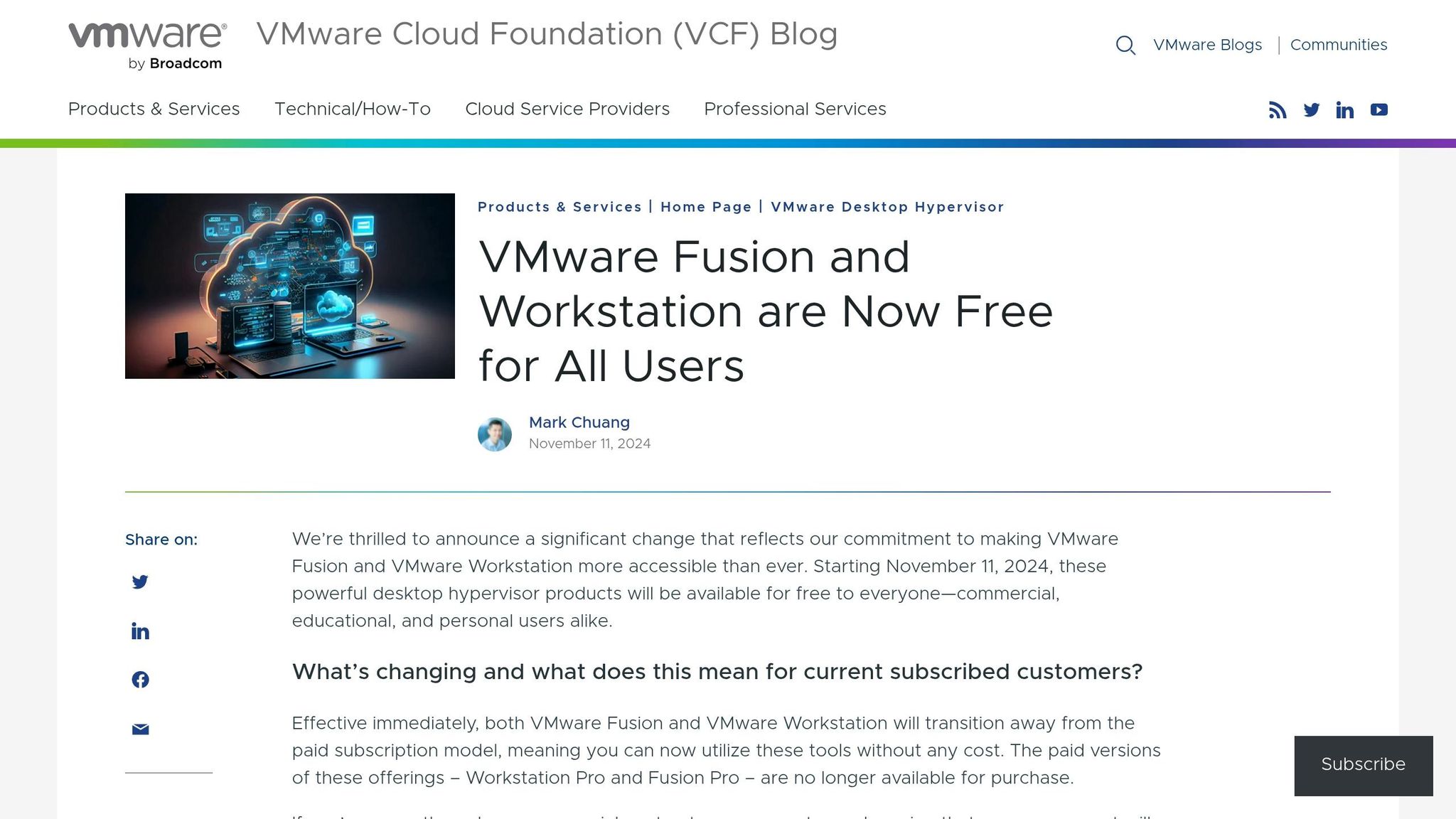
VMware Fusion 13 caters to users who prefer having detailed control over their virtual machines. While it’s free for personal use (after registering for a Broadcom account), setting it up requires a more hands-on approach — you need to manually download the Windows 11 ARM ISO from Microsoft, unlike Parallels which automates this process.
Setup Process and Features
The setup for Fusion is manual: download the ISO, configure the virtual machine settings, and install drivers yourself. This makes it a natural fit for IT professionals, developers, and students who value granular control over their virtual environments.
Virtual machines created with Fusion can run seamlessly on VMware Workstation Pro or ESXi without any conversion, which simplifies workflows between Mac and server setups. It supports encrypted virtual machines and advanced networking configurations. Fusion’s Unity Mode allows Windows applications to appear as native Mac windows, though it doesn’t feel quite as polished as Parallels’ Coherence Mode.
After setup, Fusion’s performance on Apple Silicon (M1 to M4) is solid, though it trails Parallels slightly — within about 5% in office benchmarks. It lacks automated performance tuning like adaptive resource management, and boot times are a bit slower. That said, Fusion 13.5 introduced DirectX 11 support for 3D graphics on Apple Silicon, which meaningfully improves graphics-heavy applications.
Cost and Support
Fusion is free for personal use (Broadcom registration required) and costs a one-time $149 for commercial use. Add a Windows 11 license (~$139) and the total commercial cost is around $288 — more than Parallels’ first year, but with no recurring subscription after that. Support is limited; users should be prepared to rely on community forums for troubleshooting, which makes it better suited to technically confident users.
VirtualBox and Boot Camp: Other Local Options
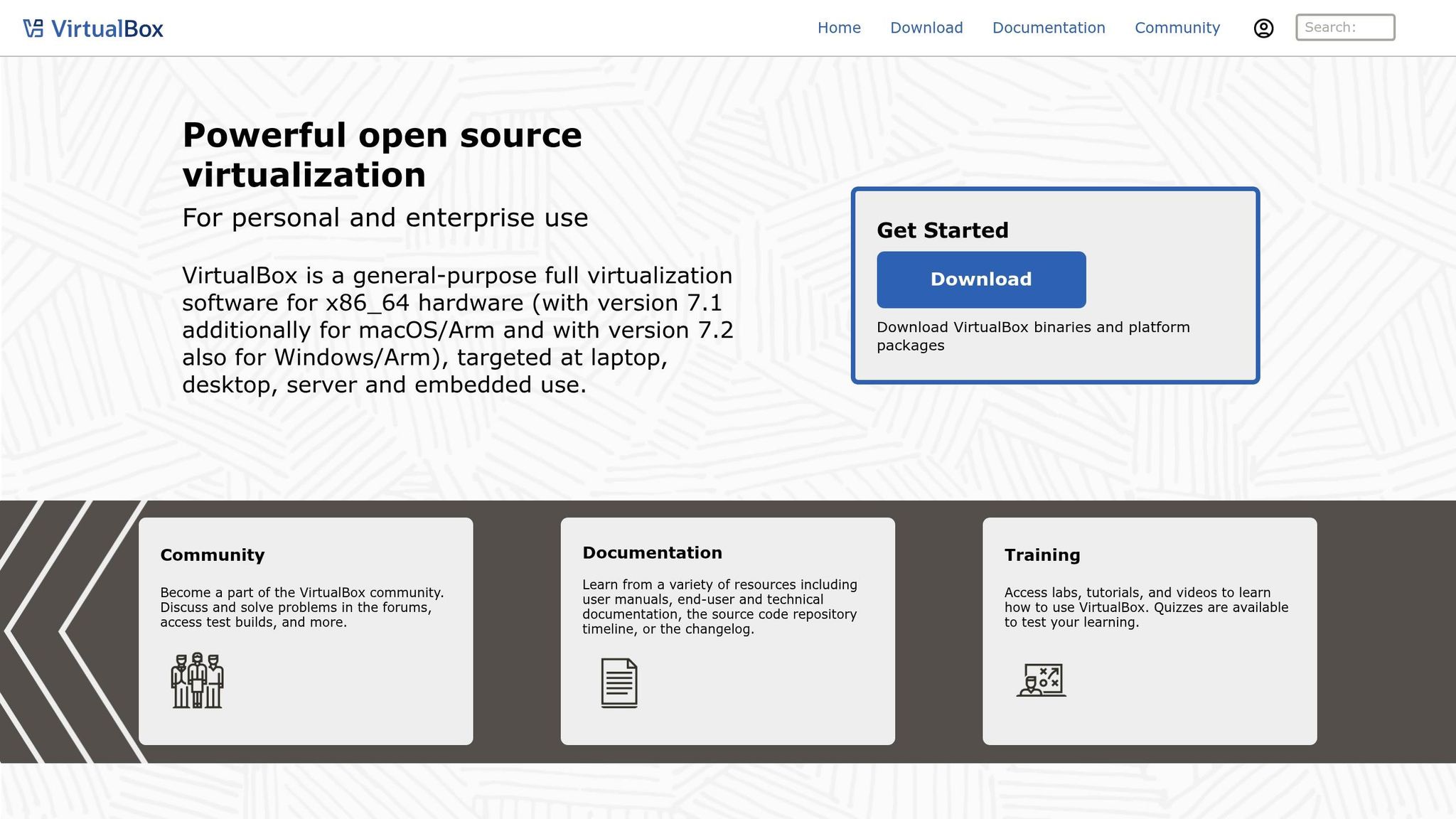
If you’re exploring free alternatives for running Windows on a Mac, VirtualBox and Boot Camp are worth knowing about — though both come with meaningful limitations in 2026.
VirtualBox: Free but Sluggish
VirtualBox is an open-source tool from Oracle, free to use but requiring significant manual setup — downloading ISOs, configuring disks, allocating resources. On Apple Silicon Macs (M1 through M4), it’s still in developer preview: technically functional but with frequent bugs, visual glitches, and no GPU acceleration. Without hardware acceleration, graphics-heavy tools like CAD software become essentially unusable. It’s best suited to Intel Mac users with technical expertise who need a free testing environment.
Boot Camp: Native Windows for Intel Macs
Boot Camp offers native Windows performance for Intel-based Macs by booting directly into Windows — maximising hardware access for tasks like 3D rendering or engineering software. The trade-off is that you have to reboot every time you switch between macOS and Windows, and it’s not available on any Apple Silicon Mac. If you own a 2019 or earlier Intel Mac and need maximum performance for demanding workloads, it’s still a valid option. For everyone else, it’s effectively obsolete.
Cloud Desktops: Windows Without Local Installation
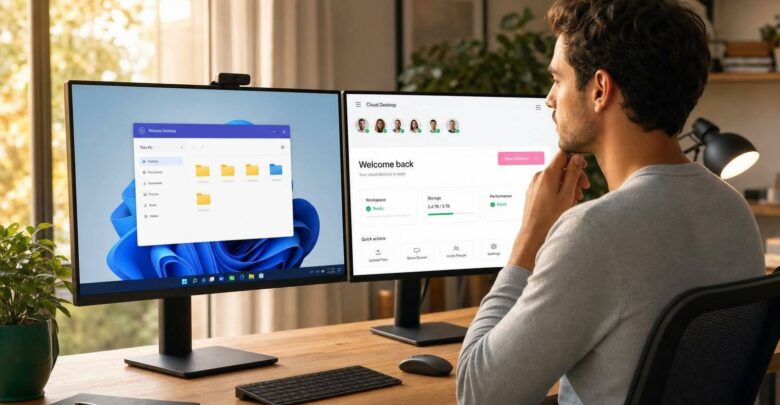
Cloud desktops let you access a full Windows environment without installing anything on your Mac. Windows 11 runs on remote servers and streams to your device through a browser or lightweight app — no ISOs, no disk partitioning, no virtual machine configuration.
How Cloud Desktops Work
When you use a cloud desktop, your Mac acts as a thin client. The Windows installation lives on a remote server — typically hosted on infrastructure like Microsoft Azure — and you connect to it via browser or a lightweight app. Your Mac doesn’t need to allocate 40GB+ of storage or 4–8GB of RAM to Windows. All processing happens remotely; you’re streaming a live Windows session with your keyboard and mouse inputs sent back to the server.
Performance depends on the remote server, not your Mac. An 8GB M1 MacBook Air can access the same powerful Windows environment as a high-end M4 Mac, depending on the cloud plan chosen. The main trade-off is latency: with a fast connection, input delays typically fall between 30–50ms — fine for Office apps, QuickBooks, or browser-based tools, but noticeable for precision design software or gaming.
A stable internet connection is essential since cloud desktops don’t work offline. In exchange, you gain the flexibility to access your Windows session from any device — Mac, iPad, iPhone — something local virtualisation can’t match.
Pricing and When to Use Them
Cloud desktops run on a subscription model. flexidesktop offers an XS plan at $19/month (1 vCPU, 2GB RAM, 40GB SSD) for light tasks like Office apps and web tools, scaling up to $109/month for the XL plan (8 vCPU, 24GB RAM, 120GB SSD) for resource-intensive workloads. Microsoft’s Windows 365 Cloud PC starts at $31/month for a 2 vCPU / 4GB RAM / 64GB setup.
It’s worth doing the cost comparison honestly: Parallels costs roughly $239 in year one (subscription + Windows licence). A flexidesktop XS plan at $19/month is $228/year — comparable, but with zero impact on your Mac’s performance and no local storage consumed. For occasional Windows users, the maths often favours the cloud.
Cloud desktops are particularly well-suited if your corporate Mac is locked down by MDM policies that block local virtualisation, if you only need Windows a few times a week, or if your hardware (8GB MacBook Air with a nearly full SSD) simply can’t handle running a local VM without degrading day-to-day performance.
Example: flexidesktop for Mac Users

For Mac users who want Windows without touching their local hardware, flexidesktop lets you run Windows apps on your Mac without installing anything locally. Setup takes around 5 minutes, everything runs remotely, and you never have to worry about Windows updates consuming your Mac’s resources or storage. Plans scale from $19/month for light use up to $109/month for heavy workloads.
Comparison Table: All Options Side by Side
| Solution |
Setup Difficulty |
Apple Silicon Support |
Monthly Cost (Approx.) |
Maintenance Needs |
Best Use Case |
| Parallels Desktop |
Low (15 min, one-click) |
Full (M1–M5) |
~$8.33 (billed annually at $99.99/yr) |
Low (auto-updates) |
Daily productivity & seamless macOS integration |
| VMware Fusion |
Moderate (20 min, manual ISO) |
Full (M1–M5) |
$0 (personal use) |
Moderate (manual configuration) |
Home users, students, IT testing |
| VirtualBox |
High (manual, technical setup) |
Limited (developer preview only) |
$0 |
High (manual guest additions) |
Intel Mac users, technical tinkerers |
| Boot Camp |
Moderate (partitioning required) |
None (Intel only) |
$0 |
High (requires reboots) |
Maximum performance for Intel gaming/rendering |
| Cloud Desktops |
Low (5 min setup) |
Full (works on any chip) |
$19–$109+/month |
Low (managed by provider) |
MDM-locked Macs, occasional use, limited hardware |
Which Solution Should You Choose?
Pick Parallels Desktop if Windows apps are a critical part of your daily workflow. The $99.99/year subscription pays off quickly with Coherence Mode, automatic updates, and a setup that takes 15 minutes. Ideal for professionals using AutoCAD, QuickBooks Desktop, or Microsoft Project alongside Mac-native tools.
Go with VMware Fusion if you want a full Windows environment without a recurring subscription. The free personal-use tier is capable, though it demands more effort to set up and maintain. A natural fit for enterprise users who need to move VM images between Mac and company servers.
Opt for a cloud desktop if your Mac is restricted by corporate IT policies, you only need Windows occasionally, or your hardware can’t handle local virtualisation. A cloud-based Windows virtual desktop for Mac keeps your Mac lean and avoids the storage and RAM overhead of a local VM. At $19–$109/month depending on your plan, it’s cost-competitive with Parallels when you factor in the Windows licence.
Choose Boot Camp only if you own a 2019 or earlier Intel-based Mac and need native Windows performance for gaming, 3D rendering, or engineering software. Not available on any Apple Silicon Mac.
Consider VirtualBox only if you’re technically comfortable, on an Intel Mac, and need a free testing environment. For most professionals, the time spent troubleshooting isn’t worth the cost saving.
Conclusion
Choosing the best way to run Windows apps on a Mac in 2026 comes down to one question: how central is Windows to your daily work?
If you’re in Windows apps every day — switching between Excel macros, QuickBooks Desktop, and Mac tools like Safari or Slack — Parallels Desktop is worth the $99.99/year. Coherence Mode alone saves enough friction to justify the cost for most professionals.
For students, home users, or IT professionals who want full control without recurring fees, VMware Fusion is a capable free alternative — just be ready for a more hands-on setup.
Cloud desktops make the most sense for occasional Windows users, corporate Macs with MDM restrictions, or devices with limited RAM. The monthly cost is comparable to Parallels once you factor in the Windows licence, and you get the added benefit of zero local resource consumption. For an 8GB MacBook Air that’s already running hot, the difference in day-to-day performance is noticeable.
Don’t let the choice slow you down. Check your Mac’s RAM (16GB is the practical minimum for comfortable local virtualisation), assess how often you actually need Windows, and pick accordingly.
Run Windows on your Mac — no Parallels, no Boot Camp.
A cloud Windows desktop that opens right in your browser: your apps, files, and a full Windows experience from $19/month.
Try flexidesktop for Mac →
Not on a Mac? If you’re on a Chromebook, the cloud desktop approach works even better — no virtualization software needed, just a browser.
FAQs
Do I need to buy a Windows 11 license to run Windows apps on my Mac?
Yes, if you’re using Parallels Desktop or VMware Fusion, you need a valid Windows 11 licence — Microsoft requires it for legal use. The licence typically costs around $139, which is worth factoring into the total cost comparison. With cloud desktops, the Windows licence is included in the provider’s subscription, so you don’t need to purchase one separately.
Which option works best on an 8GB MacBook Air without slowing macOS down?
Cloud desktops are the best fit for an 8GB MacBook Air. Local virtualisation tools like Parallels and VMware work, but allocating 4–8GB of RAM to a Windows VM on an 8GB machine will noticeably slow down everything else. Cloud desktops handle all processing remotely, so your MacBook stays responsive regardless of what Windows is doing.
Will my Windows-only x86 apps run on Apple Silicon Macs (M1–M4)?
Yes, but with a nuance. Apple Silicon Macs run on ARM architecture, so x86 Windows apps require emulation. Both Parallels Desktop 20 and VMware Fusion 13 run Windows 11 ARM on Apple Silicon, and Windows 11 ARM includes Microsoft’s built-in x86 emulation (Prism). Most productivity and business apps run well through this layer, though highly specialised or performance-sensitive x86 software may behave differently. Cloud desktops sidestep this entirely — the remote server runs standard x86 Windows, so compatibility is never a concern.
Prefer not to install anything on your Mac? You can rent a cloud PC for your Mac and run Windows straight from a browser tab.
Israel de la Torre is the founder of flexidesktop and has spent 15+ years working in cloud infrastructure and Windows virtualization. He helps businesses migrate from on-premises Windows setups to managed cloud desktops.