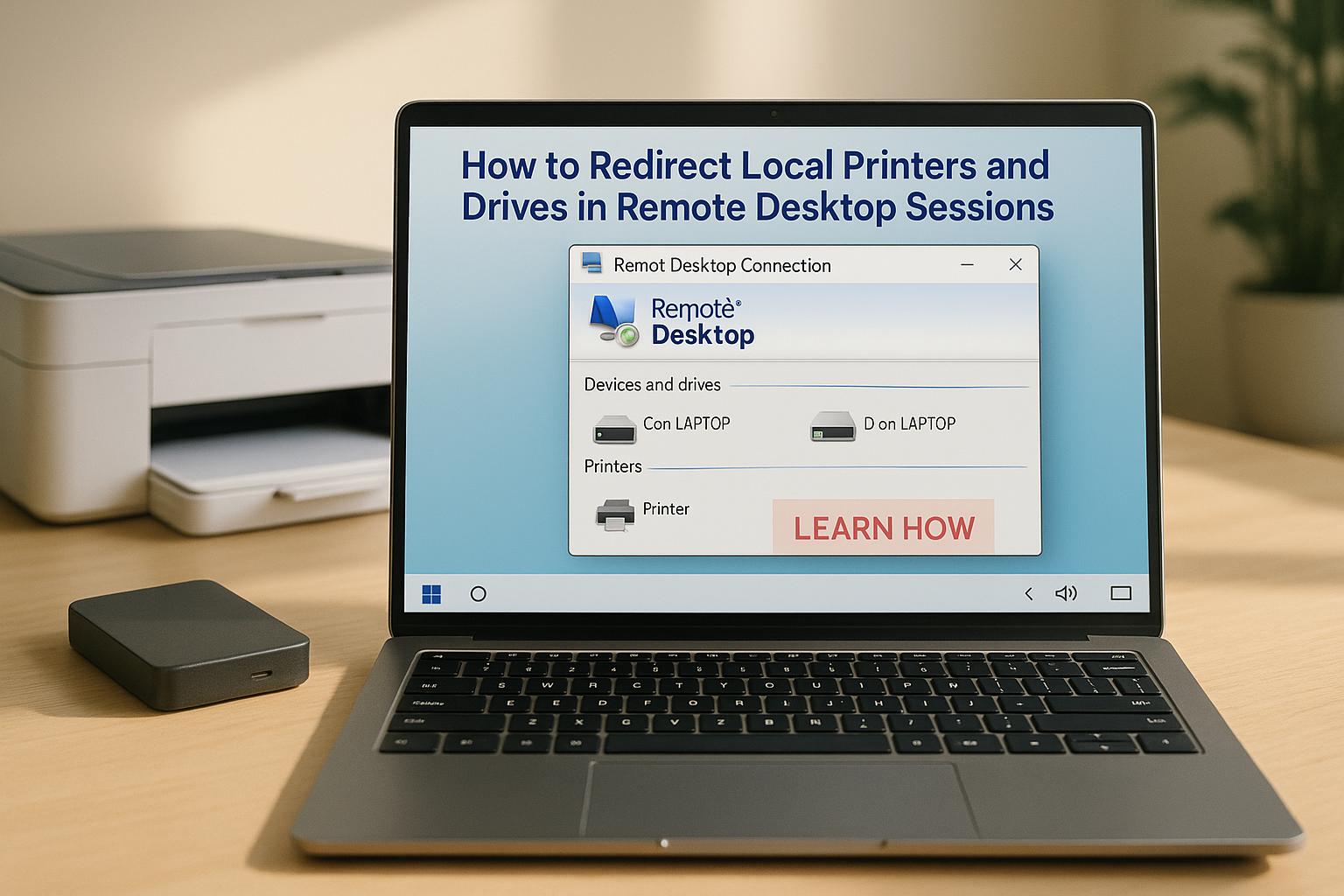
Need to print to a local printer or open files from your own computer inside a remote session? That is exactly what printer redirection and drive redirection in Remote Desktop Protocol (RDP) are for.
This guide explains how to enable local printers and drives in Remote Desktop, how RDP redirection works, and what to check when redirected devices do not appear or do not work correctly.
Short version: enable printers and drives in the Remote Desktop client, make sure Group Policy does not block redirection, then verify the redirected devices inside the remote session. If something breaks, the usual causes are policy restrictions, driver issues, or misconfigured RDP client settings.
What is printer and drive redirection in Remote Desktop?
RDP redirection lets a remote Windows session use resources from the computer you are connecting from.
- Printer redirection lets you print from the remote session to a printer connected to your local device.
- Drive redirection lets the remote session access local storage such as your C: drive, USB storage, or selected folders and mapped drives.
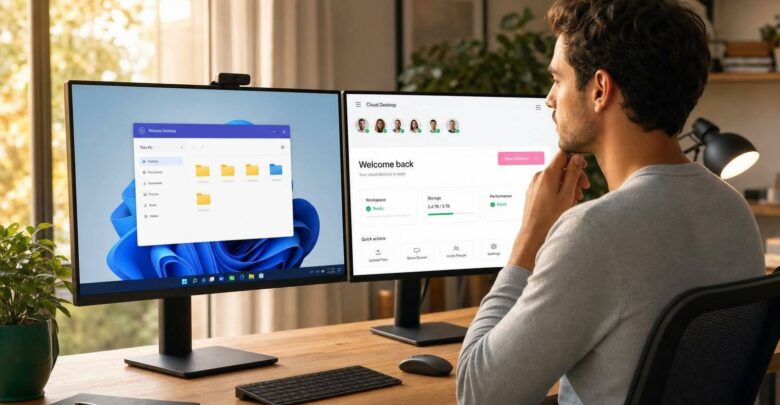
This is useful for remote support, hybrid work, contractors, and any setup where people need access to both a hosted Windows desktop and their own local devices.
How to enable local printers and drives in Remote Desktop
Before changing server settings, make sure the RDP client is configured correctly. A lot of redirection problems start here.
Enable local printers in the RDP client
- Press Win + R, type
mstsc, and press Enter.
- Click Show Options.
- Open the Local Resources tab.
- Under Local devices and resources, check Printers.
- If needed, save the connection settings so you do not have to reconfigure them every time.
Enable local drives in the RDP client
- In the same Remote Desktop Connection window, go to Local Resources.
- Click More….
- Expand Drives.
- Select only the drives you actually want to expose in the remote session.
- Connect to the session and verify the redirected drives appear in File Explorer.
Tip: redirect only the printers and drives you need. Reducing unnecessary device redirection can improve session performance and lowers security exposure.
How printer redirection works in RDP
Printer redirection in Remote Desktop usually relies on Remote Desktop Easy Print. Instead of forcing the server to keep every possible printer driver installed, Easy Print passes the print job to the client side, where the local printer handles it.
That is why printer redirection often works even when the remote machine does not have the exact same printer drivers installed. It also makes administration easier in multi-user environments.
Once the RDP session starts, your local printer should appear inside the remote session in Devices and Printers. It may be shown with a redirected label rather than the exact same local device naming.
How drive redirection works in RDP
Drive redirection uses RDP virtual channels to map local storage into the remote Windows session. Redirected drives typically appear in File Explorer with names like C on CLIENT or similar variations.
When an application inside the remote session reads or writes to that drive, the request is passed back through the RDP connection to your local machine. This makes redirected drives convenient, but it also means large file transfers can affect session responsiveness.
If you are working with large files often, redirection is helpful for quick access, but a managed cloud desktop or shared storage setup may be more efficient than dragging everything through the RDP session.
Common RDP printer redirection problems and fixes
If redirected printers or drives are not working, these are the first things I would check.
1. Local printer is not showing in Remote Desktop
- Confirm Printers is enabled in the RDP client under Local Resources.
- Check that the remote host or session host is not blocking client printer redirection via Group Policy.
- Reconnect after changing settings. Existing sessions may not pick up device changes cleanly.
2. Redirected printer appears but will not print
- Test the local printer outside RDP first.
- Check whether the remote session is using Easy Print correctly.
- If a specialized printer is involved, test whether a manufacturer-specific driver is still needed.
- Review the print queue on both the remote side and the local side.
3. Local drives are missing in the remote session
- Open the RDP client and confirm the correct drives were selected in More….
- Check Group Policy for drive redirection restrictions.
- Reconnect the session after changing drive selection.
- If you are trying to redirect removable storage, reconnect the device before starting the session when possible.
4. Group Policy is blocking redirection
On Windows, these policies matter most:
- Do not allow client printer redirection
- Do not allow drive redirection
You can find them under:
Computer Configuration > Administrative Templates > Windows Components > Remote Desktop Services > Remote Desktop Session Host > Printer RedirectionComputer Configuration > Administrative Templates > Windows Components > Remote Desktop Services > Remote Desktop Session Host > Device and Resource Redirection
If these policies are enabled in the blocking direction, client devices will not be redirected no matter what the user checks in the RDP client.
5. Redirection is slow or unstable
- Avoid redirecting unnecessary drives.
- Do not rely on redirected drives for very large file transfers if the connection is weak.
- Check latency and packet stability on the client connection.
- Review antivirus or endpoint security rules if redirected drives behave inconsistently.
Step-by-step server-side checks
If client-side settings look correct but the problem remains, use this quick checklist on the server or session host:
- Confirm Remote Desktop Services are running properly.
- Review Group Policy for printer and drive redirection restrictions.
- Verify redirected printers appear in Devices and Printers.
- Verify redirected drives appear in File Explorer.
- Test with a fresh session, not only a reconnected one.
- For printer issues, test with another local printer if available to isolate a device-specific problem.
When a managed virtual desktop is easier
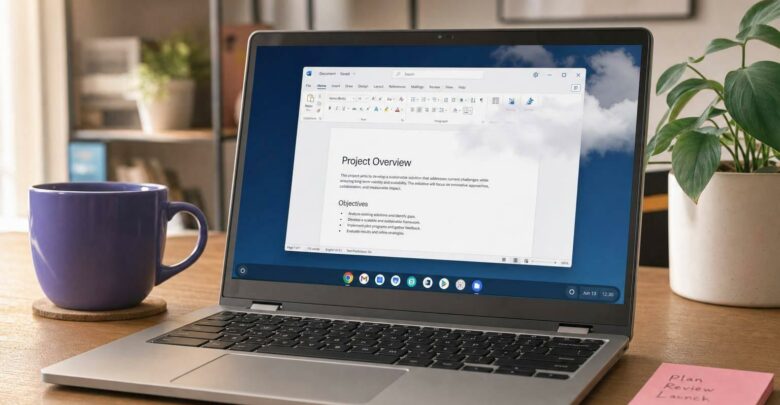
If your team frequently struggles with printer redirection, mapped drives, inconsistent RDP policies, or contractor access, a managed virtual desktop setup can reduce a lot of friction. Instead of every user improvising their own Remote Desktop configuration, IT can standardize the environment and make local device access more predictable.
If that is the direction you are exploring, see our virtual desktop solutions.
Conclusion
RDP printer redirection and drive redirection are simple when the client settings, policies, and session host configuration all line up. Most failures come from one of three places: the RDP client was not configured correctly, Group Policy is blocking redirection, or the redirected device itself is misbehaving.
Start with the client settings, then check policy, then test the redirected device inside a fresh remote session. That sequence solves most printer and drive redirection problems faster than random trial and error.
FAQs
Why is my local printer not showing in Remote Desktop?
The most common reasons are that printer redirection is not enabled in the RDP client, Group Policy is blocking client printer redirection, or the printer is not working correctly on the local computer.
How do I print to a local printer from Remote Desktop?
Enable Printers in the Remote Desktop client under Local Resources, connect to the remote session, then select the redirected printer when printing from the remote application.
Why are my local drives not appearing in RDP?
Usually because the drives were not selected in the RDP client under More…, or because drive redirection is blocked by Group Policy on the remote side.
Does printer redirection in RDP require the same printer driver on the server?
Not always. Remote Desktop Easy Print often avoids the need for matching server-side drivers, although some specialized printers may still require extra configuration.
Can Group Policy disable printer and drive redirection?
Yes. If the relevant Remote Desktop Session Host policies block printer or drive redirection, local devices will not appear in the remote session even if they are enabled in the client.
Israel de la Torre is the founder of flexidesktop and has spent 15+ years working in cloud infrastructure and Windows virtualization. He helps businesses migrate from on-premises Windows setups to managed cloud desktops.