Cloud PCs: cloud-hosted Windows desktops with centralized management and predictable monthly costs — best with reliable internet; not for hardware-heavy or offline work.
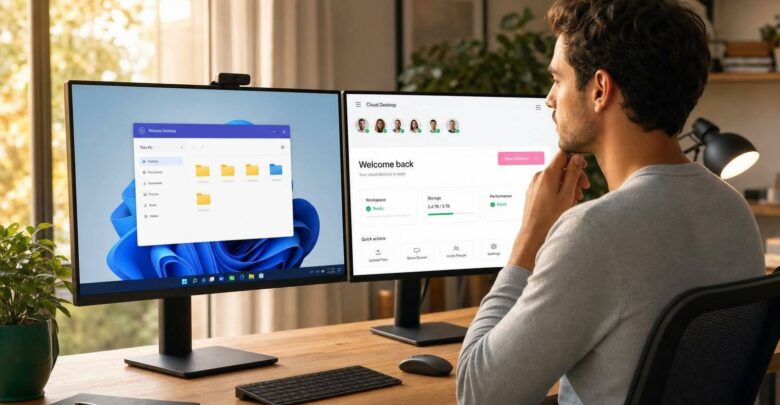
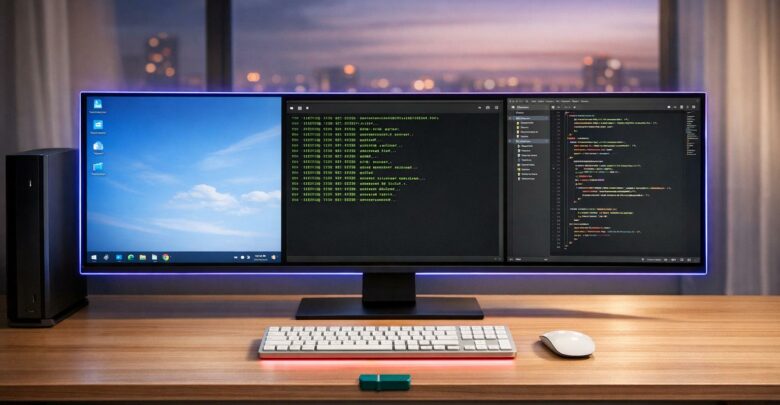
A Cloud PC is a Windows desktop hosted online, accessible from almost any device with an internet connection. It keeps your apps, files, and settings consistent across devices. Businesses benefit from centralized management, enhanced security, and quick scalability, especially for remote teams or temporary workers. However, it requires reliable internet and may not suit offline work or specialized hardware needs.
Key Points:
What it is: A virtual Windows 10/11 desktop stored in the cloud.
How it works: Access via a browser or Remote Desktop client; all processing happens remotely.
Best for: Remote/hybrid teams, seasonal workers, or companies with limited IT staff.
Limitations: Needs stable internet; not ideal for offline work or advanced hardware setups.
Costs: Subscription-based, starting at starting at $19/month, with predictable fees.
Cloud PCs simplify IT management, improve data security, and provide flexibility for modern work environments. But they may not replace physical PCs in all scenarios, especially where offline access or specific hardware is critical.
sbb-itb-bea6502
What a Cloud PC Actually Is
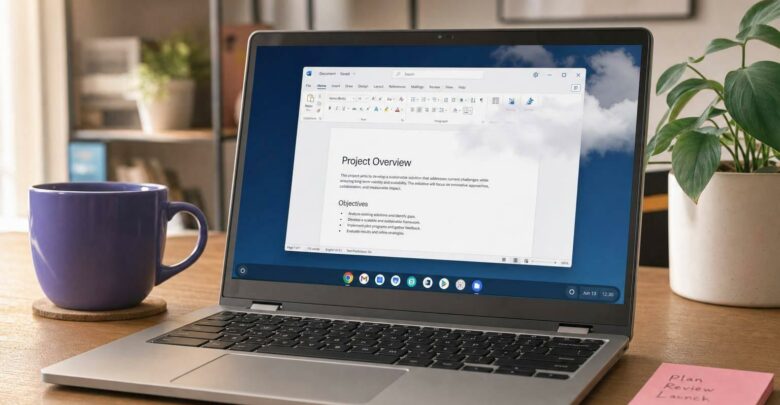
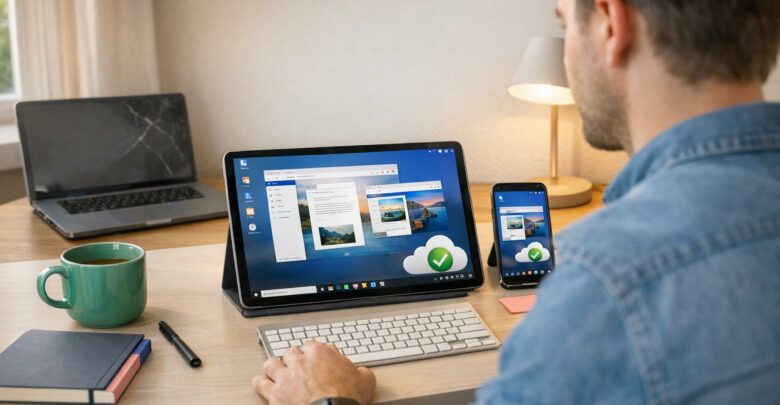
A cloud PC is essentially a full Windows 10 or Windows 11 desktop that lives in the cloud. Your apps, files, and settings are securely stored on remote servers, allowing you to access your workspace from virtually anywhere. Unlike a traditional PC, everything – your software, files, and custom settings – stays exactly as you left it, no matter the device you use to log in. Whether you’re on a laptop, tablet, or even a smartphone, you’ll find your desktop just as you left it. As Microsoft Support puts it, “It’s your personal PC in the cloud.” [1]
How Cloud PCs Work
The way a cloud PC operates is surprisingly straightforward. It runs on a virtual machine hosted in a secure data center, and when you connect, the desktop interface is streamed to your device over the internet. All the heavy lifting, like processing and storage, happens remotely.
You can connect to your cloud PC using a web browser (like Chrome, Edge, Safari, or Firefox), a dedicated Windows app, or the Microsoft Remote Desktop app [1][6]. The connection is encrypted, ensuring your data is secure and never stored on your local device.
Core Features of Cloud PCs
Access from Any Device: Cloud PCs work with a wide range of devices, including those running Windows, macOS, iOS, Android, ChromeOS, and Linux. They’re even compatible with LG TVs running webOS 23. This flexibility means you’re not tied to specific hardware.
Centralized Management: IT teams can handle everything – provisioning, updates, and security – through a single dashboard using tools like Microsoft Intune. Setting up a new cloud desktop usually takes less than five minutes, making onboarding for new employees quick and predictable.
Adjustable Resources: Need more power or storage? You can upgrade with software changes instead of replacing hardware. For example, flexidesktop offers plans starting at $19/month for 1 vCPU and 2GB RAM and going up to $109/month for 8 vCPU and 24GB RAM. These plans also include full administrator access for installing custom software.
Persistent Desktop Environment: Unlike some virtual desktop solutions that reset after each session, a cloud PC keeps everything as is – your browser tabs, open files, and running apps stay active between sessions.
Better Security: Your data is stored in secure data centers, not on local devices. If a device is lost or stolen, IT can instantly revoke access, ensuring sensitive information remains safe.
These features highlight why a cloud PC might be a smart choice for businesses. They are an especially effective virtual desktop for startups looking to scale quickly without heavy hardware investment. It combines flexibility, security, and ease of use, offering a modern alternative to traditional office setups while setting the stage for comparisons with VDI systems.
Cloud PC vs Virtual Desktop vs VDI
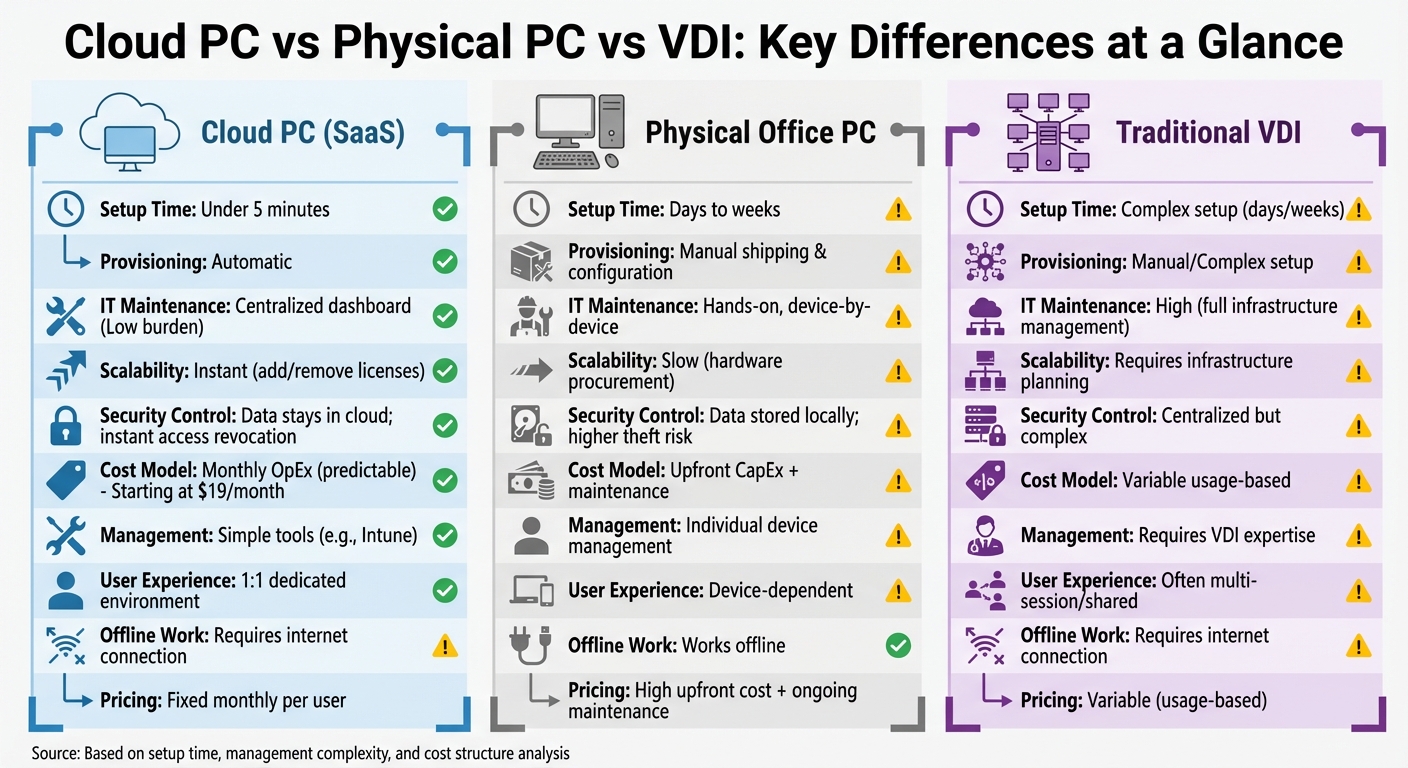
Cloud PC vs Physical PC vs VDI Comparison Chart
The terms “cloud PC”, “cloud desktop”, “virtual desktop”, and “VDI” might seem interchangeable at first, but they each represent different approaches. Knowing these differences can help you choose the best fit for your business needs. Here’s a breakdown to make things clearer.
Virtual desktop is the broadest term. It simply refers to any desktop environment hosted on a remote server rather than on a physical machine. This includes both single-user environments (like a personal Windows 10 or 11 desktop) and multi-user setups where several users share resources on a Windows Server.
VDI (Virtual Desktop Infrastructure) is the traditional, custom-built version of virtual desktops. IT teams are responsible for setting up and managing virtual machines, connection brokers, and the underlying infrastructure. While this approach is powerful, it demands specialized skills and constant maintenance.
Cloud PC, on the other hand, is a Software-as-a-Service (SaaS) solution that simplifies the process. As Microsoft Support describes:
Cloud PCs are highly available, optimized, and scalable virtual machines that provide users with a rich Windows desktop experience… It’s your personal PC in the cloud [1].
The standout feature of cloud PCs is automation. Once you assign a license, the system automatically creates the virtual machine – eliminating the manual setup required with traditional VDI.
Another major difference lies in the 1:1 relationship. Cloud PCs provide each user with their own dedicated desktop environment. In contrast, VDI often uses multi-session setups where multiple users share resources on the same server to reduce costs [3]. This dedicated setup ensures more consistent performance and a personalized experience for each user. If your team actually wants that shared-session setup — say, several people working from one licensed environment instead of separate 1:1 desktops — flexidesktop’s multi-user cloud desktops package it as a managed plan rather than a DIY VDI build.
When comparing cloud PCs to traditional office desktops, the differences are stark.
Setting up physical office PCs involves shipping, unboxing, and manually configuring devices – a process that can drag on for days or even weeks. In contrast, cloud PCs can be up and running in under 5 minutes [3].
Maintenance is another area where cloud PCs shine. Physical devices come with challenges like hardware failures, manual updates, and the need to bring machines into the office for repairs. With cloud PCs, IT teams handle everything remotely, from software updates to security settings, all through a centralized dashboard.
Scalability is far more flexible with cloud PCs. Need to onboard new employees? Simply add licenses. Downsizing? Revoke access instantly. Physical PCs, on the other hand, require ordering hardware, waiting for delivery, and figuring out what to do with extra devices when employees leave [3].
The cost structure is also different. Physical PCs are a capital expense (CapEx), with significant upfront costs for hardware that depreciates over time, as shown in this PC vs VDI cost comparison. Cloud PCs operate on a subscription model, making them an operating expense (OpEx) with predictable monthly fees. For instance, flexidesktop plans start at $19/month for basic setups and go up to $109/month for high-performance configurations with 8 vCPU and 24GB RAM.
Data stays in cloud; instant access revocation [3]
Data stored locally; higher theft risk
Cost Model
Monthly OpEx (predictable)
Upfront CapEx + maintenance
Offline Work
Requires internet connection
Works offline
Cloud PC vs VDI: What’s Different
The main difference between cloud PCs and VDI lies in management complexity. Traditional VDI demands IT teams to set up and maintain the entire infrastructure, including host servers, connection brokers, and licensing. Cloud PCs simplify this with automated provisioning and centralized tools.
Pricing is another area where they diverge. VDI costs often fluctuate based on usage, making it harder to predict expenses. Cloud PCs, on the other hand, use a fixed monthly fee per user, offering a more straightforward budgeting process.
Deployment speed is another advantage of cloud PCs. Setting up a VDI environment involves configuring servers, creating virtual machine images, and testing connections. Cloud PCs, being SaaS-based, are ready to go in minutes [3].
These differences highlight how cloud PCs streamline management and provide a more predictable, user-friendly experience. Next, we’ll look at which businesses are best suited to this approach.
Who Should Use a Cloud PC
Cloud PCs address specific challenges faced by different types of businesses. Below are some scenarios where they can make a real difference.
Remote and hybrid teams are an obvious match. With 74% of U.S. companies adopting or planning permanent hybrid work models, ensuring a consistent desktop experience across various locations is crucial. Cloud PCs allow employees to access their work environment from any device, whether they’re working from home, traveling, or even at a coffee shop.
Seasonal and contract-based businesses gain flexibility from cloud PCs. Instead of waiting weeks for hardware deliveries or buying laptops for temporary workers, you can set up desktops in minutes. Month-to-month subscriptions let you scale up during busy periods and downsize when things slow down.
Companies with limited IT staff can reduce their workload significantly. Cloud PC providers handle system maintenance, updates, and security patches, freeing small IT teams to focus on other priorities.
Organizations undergoing mergers and acquisitions benefit from faster integration of new employees. Using existing hardware, new team members can quickly access corporate systems without the delays of shipping and setting up devices.
Businesses handling sensitive data improve security by keeping information centralized in the cloud rather than on individual devices. This setup minimizes risks if a device is lost or stolen.
Companies looking to delay hardware upgrades can extend the life of older machines by turning them into thin clients for accessing powerful virtual desktops. This approach delays major expenses while still delivering modern performance.
Once you identify your business needs, flexidesktop offers plans tailored to these scenarios.
Selecting the right plan depends on your team’s day-to-day workload. Here’s a quick overview of flexidesktop options:
flexidesktop XS ($19–$32/month)
Best for basic tasks like email, web browsing, and light document editing. A low-commitment option for businesses exploring cloud PCs.
flexidesktop S or M ($29–$99/month)
Ideal for standard office work, supporting business apps, video calls, and moderate multitasking. A great fit for most knowledge workers.
flexidesktop L or XL ($59–$174+/month)
Designed for intensive tasks like software development, data analysis, or running resource-heavy applications.
flexidesktop Team ($49–$299/month)
Built on Windows Server 2025, this plan supports multiple users sharing the same environment. Perfect for shift-based work or collaborative teams.
For contractors or third-party vendors who need temporary access, cloud PC licenses offer secure remote connectivity – no need to ship physical devices. These options ensure your business can find the right solution to meet its unique demands.
When a Cloud PC Is Not the Right Fit
Cloud PCs offer plenty of advantages, but they’re not a one-size-fits-all solution. There are certain situations where they might not align with your business needs. Let’s take a closer look at where cloud PCs might fall short.
One major limitation is offline work requirements. Cloud PCs depend entirely on an active internet connection. Without it, you lose access to your data, files, and programs. Gray Area Consulting explains:
The drawback of a Windows cloud PC is that you can only use it online. You won’t have access to any data, files, or programs if you don’t have an internet connection [13].
For teams working in areas with unreliable connectivity – like remote job sites or rural locations – a physical PC may be the better option.
Another challenge is poor internet infrastructure. A slow or unstable connection doesn’t just cause lag; it can disrupt workflows entirely. To avoid surprises, it’s a good idea to test your network conditions with virtual desktop products during a trial period to see if performance is up to standard.
Cloud PCs can also struggle with specialized hardware dependencies. While they handle standard peripherals like printers and microphones, they may not support workflows that rely on specific USB devices or other dedicated hardware. Additionally, certain applications requiring Trusted Platform Module (TPM) or BitLocker encryption reporting may show as “Not applicable” or “Not compliant” on cloud PCs.
Finally, workflows requiring nested virtualization can face compatibility issues. For example, running virtual machines inside a cloud PC while maintaining security features like Memory Integrity often creates problems. In these cases, on-premises setups or alternative virtualization methods could be better suited to your needs.
Cost Reality: What You Pay for vs What You Avoid
Switching to a cloud PC setup isn’t just about convenience – it’s also about rethinking how you spend. Instead of dealing with unpredictable capital expenses, cloud PCs offer a predictable monthly subscription. This clarity can help you better understand what you’re paying for and, just as importantly, what costs you’re avoiding.
Let’s take a closer look at flexidesktop’s pricing structure and compare it to the traditional expenses of physical PCs.
Understanding Subscription Pricing
With flexidesktop, pricing is simple and transparent – no hidden fees lurking in the fine print. Plans start at just $19/month for the XS plan, which includes 1 vCPU, 2GB RAM, and 60GB SSD storage. Need more power? You can move up to the S plan ($29/month), M plan ($39/month), or L plan ($59/month). Every plan comes with perks like unlimited internet bandwidth, technical support, Terminal Services licensing, and Client Access Licenses (CALs) – all of which are typically separate expenses with physical setups.
Need extra storage? Add 100GB of NVMe SSD for $20/month. For larger teams (10+ users), volume discounts are available. Plus, the flexibility of month-to-month billing means no long-term contracts. You also get a 30-day refund policy on your first purchase and a 3-day free trial to test the waters before fully committing [3].
What You Save Compared to Physical PCs
The savings with cloud PCs come from eliminating several hefty cost categories. Here’s how:
No Upfront Hardware Costs: Physical PCs require a significant upfront investment, while cloud PCs don’t. Plus, provisioning a cloud PC takes under 5 minutes compared to the hours or days needed for shipping and setup with physical machines.
Extended Hardware Life: According to Mike Fowler, CEO of Integris, businesses can cut equipment budgets by around 30% annually by extending the life of older laptops or desktops, which can be repurposed as thin clients [16].
Lower IT Maintenance Costs: Cloud PCs offload hardware repairs, replacements, and maintenance to the provider. Automated software and security updates mean your IT team spends less time on manual fixes [14][15].
Enhanced Security: Lost or stolen devices are no longer a financial nightmare. With cloud PCs, you can instantly revoke access from a dashboard, avoiding potential data breaches that could cost millions.
Efficient Licensing: For shift-based workforces, flexidesktop’s non-concurrent licensing model allows up to three cloud PCs per license for employees who don’t work simultaneously. This can cut licensing costs by as much as 66%.
Here’s a quick comparison of how physical PCs and flexidesktop cloud PCs stack up:
Feature
Physical Office PC
flexidesktop Cloud PC
Upfront Cost
High (Hardware purchase)
$0 (Subscription-based)
Setup Time
Hours/Days (Shipping & Manual Config)
< 5 Minutes (Automated)
Maintenance
Internal IT / On-site repairs
Included in subscription
Licensing
Managed manually (OS, CALs, VDI)
Included (TS and CALs handled)
Scaling
Slow (Requires new hardware)
Instant (Tier upgrades via dashboard)
Contract
N/A (Owned asset)
Month-to-month (Cancel anytime)
When you weigh these factors, the cost advantages of cloud PCs become clear. They simplify budgeting, reduce IT headaches, and free up resources for other priorities. For businesses looking to modernize, it’s a solution that’s hard to ignore.
Security and Compliance Considerations
When thinking about cloud PCs, it’s not just about saving money – security is a major factor. Cloud PCs often provide better protection than traditional office setups because your data isn’t stored on physical devices like laptops or desktops that can be lost, stolen, or infected with malware. Instead, everything is securely housed in data centers.
Security Features Included
Cloud PCs come with multiple layers of security built right in. For starters, encrypted connections are standard. Whether you’re accessing your desktop via a web browser (using HTTPS with SSL certificates) or through Remote Desktop (secured with encrypted VPN tunnels like WireGuard), your data travels through secure, private channels [3].
What sets cloud PCs apart is that all your data stays in the cloud, not on your device. If a device gets compromised, administrators can quickly disable access through the admin dashboard [7]. This eliminates the stress and delays associated with lost or stolen devices. On top of that, administrators can enforce restrictions like disabling copy/paste, blocking unauthorized file sharing, or preventing software installations by setting up restricted user accounts [3].
Another big plus? Centralized and automatic updates. Tools like Microsoft Intune ensure that all cloud PCs receive updates at the same time, cutting out the need for manual updates on individual machines. This keeps your team secure without extra effort. flexidesktop cloud PCs also add layers of protection like DDoS protection at the data center level and network isolation with no incoming ports exposed to the public internet [3].
Meeting Compliance Requirements
For industries like healthcare, finance, or legal services, compliance is non-negotiable, and cloud PCs make it easier to meet these requirements than traditional PCs. Top providers adhere to strict standards like HIPAA for healthcare, GDPR for European privacy, and PCI-DSS for payment card security.
Cloud PCs also offer data sovereignty, letting you choose where your data is hosted – whether in the U.S., Canada, Europe, or Asia-Pacific – to meet local legal requirements [3].
Compliance Standard
Industry Focus
Key Cloud PC Benefit
HIPAA
Healthcare
Secure patient data handling; no local storage
GDPR
General/EU
Data residency options and encrypted connections
PCI-DSS
Finance/Retail
Private networks and vulnerability checks
GCC
US Government
Dedicated cloud environment for government use
These features illustrate why cloud PCs are a great fit for industries with strict compliance needs. In many cases, they don’t just match the security of traditional setups – they often go beyond, while making compliance audits far easier to manage.
Decision Checklist: Do You Actually Need a Cloud PC?
If you’re weighing the pros and cons of cloud PCs, this checklist can help you decide whether they align with your organization’s needs. Making the wrong choice could lead to wasted resources or unhappy employees, so it’s worth taking a closer look.
Questions to Ask Before Deciding
Start by identifying your team’s needs. Do your employees require remote or hybrid access? For workers who frequently travel, split time between multiple locations, or work from home, cloud PCs offer flexibility by delivering a full desktop experience – including apps, files, and settings – on any device within minutes. On the other hand, if your workforce is office-based with no plans to shift, traditional PCs might still do the job.
Another key question: Is outdated hardware slowing you down? Instead of replacing old laptops, you can repurpose them as access points for high-performance cloud desktops. Even older devices, like a five-year-old laptop, can handle demanding tasks when processing is offloaded to the cloud.
Do you need to scale quickly? For businesses with seasonal hiring, new locations, or unpredictable growth, cloud PCs offer rapid scalability. Adding or removing users takes less than five minutes.
Finally, think about costs: Will a subscription model simplify your budgeting? With a flat monthly rate per user, cloud PCs turn variable hardware expenses into predictable operating costs. flexidesktop offers plans ranging from $19 to $174 per month per user, with no extra fees for bandwidth or support [8]. They also provide single-user cloud PCs running Windows 10/11 and multi-user desktops on Windows Server 2025.
After answering these questions, it’s time to assess your technical and operational setup.
Check your internet speed during peak hours. A reliable connection with adequate bandwidth is critical for smooth performance.
Test software compatibility with a pilot phase. flexidesktop offers a three-day free trial, allowing you to test critical applications on a cloud desktop to ensure everything runs smoothly [3].
Understand your workforce’s patterns. If employees are spread across time zones or regions, choose data centers close to them to reduce latency. flexidesktop provides global options in the USA, Europe, and Asia-Pacific.
Run a pilot with a small group. Deploy cloud PCs to a test group first and gather feedback on performance, usability, and technical issues. Aim for at least 80% user satisfaction and 85% device usage before scaling up.
This checklist can guide you through the decision-making process, ensuring you choose the right solution for your organization.
Common Mistakes When Evaluating Cloud PCs
Rushing into cloud PC decisions without fully considering key factors often leads to problems. One frequent misstep is underestimating internet connectivity needs. For instance, companies may default to a data center region that isn’t closest to their employees. This increases latency, as the physical distance between users and the data center has a direct impact on performance. Choosing the wrong region not only slows things down but can also affect cost efficiency.
Another common mistake is overestimating short-term cost savings. While cloud PCs eliminate the need for regular hardware upgrades, hidden fees tied to network usage can quickly add up. However, services like flexidesktop address this with flat-rate pricing (ranging from $19 to $299 per month) that includes unlimited internet bandwidth and avoids hidden charges. It’s also important to remember that accessing a cloud PC still requires a physical device – like a laptop, tablet, or thin client – so some hardware investment is unavoidable.
Skipping software compatibility testing until after deployment is another issue that causes headaches. Businesses often assume their applications will work without a hitch, only to find that the chosen license tier doesn’t provide enough CPU or RAM for their workloads. To avoid this, a phased rollout with a pilot group can help uncover potential problems early, saving time and reducing troubleshooting down the line.
Neglecting network planning creates additional complications. Many organizations fail to account for how firewalls, routing policies, and monitoring tools will interact with cloud desktops. Encrypted access through VPNs requires stable, high-quality connections, but the reliability of home or public Wi-Fi networks is often overestimated. Without proper bandwidth audits and routing tests, frequent disconnections can disrupt productivity.
Finally, businesses sometimes overlook the limitations of shared licenses, such as non-concurrent usage restrictions. Shared licenses can block additional logins if multiple users try to access them at the same time. Mapping workforce usage patterns to licensing requirements is essential to avoid these conflicts. flexidesktop simplifies this process with a clear and transparent licensing structure, helping businesses sidestep these issues entirely.
Conclusion: Making the Right Choice for Your Business
Take a close look at your business requirements – mobility, scalability, and security. If your team works remotely or you need to quickly onboard new employees, cloud PCs can deliver full Windows desktops in just minutes, eliminating the delays associated with physical hardware. They also keep sensitive data off physical devices, giving your IT team centralized control over access and software.
That said, cloud PCs aren’t a one-size-fits-all solution. If your organization has a stable, office-based team with existing hardware investments, the benefits may not be as immediate. Similarly, unreliable internet connectivity or the need for offline access to applications might make cloud PCs less practical. The key is aligning your specific workflows with the capabilities of cloud infrastructure – not adopting it simply because it feels modern. This alignment ensures you get the most out of the technology.
Before making a full commitment, start with a pilot program. Aim for 80%+ user satisfaction and 85% device usage to uncover any potential compatibility or performance issues. As noted in our decision checklist, this trial phase is crucial for identifying challenges before a full rollout.
For businesses exploring options, flexidesktop offers solutions tailored to different needs. They provide single-user Windows 10/11 desktops and multi-user Windows Server 2025 environments (flexidesktop Team) with flat monthly pricing ranging from $19 to $109 – no hidden bandwidth fees [3]. Plus, you can try a 3-day free trial to test your specific workload without an upfront commitment, and a 30-day refund policy on the first unit minimizes financial risk [3]. These features ensure cost predictability while delivering the security benefits highlighted throughout this guide.
Once your evaluation is complete and your pilot delivers positive results, you’ll be ready to move forward. If you’re still unsure or need help defining your requirements, talk to an engineer for personalized advice based on your industry, user base, and application needs. The right cloud PC setup should simplify your operations – not create new hurdles.
Israel de la Torre is the founder of flexidesktop and has spent 15+ years working in cloud infrastructure and Windows virtualization. He helps businesses migrate from on-premises Windows setups to managed cloud desktops.
Compare remote-access apps and cloud desktops to choose the right RDP alternative—use remote tools for occasional access or cloud PCs for always-on team work.
To provide the best experiences, we use technologies like cookies to store and/or access device information. Consenting to these technologies will allow us to process data such as browsing behavior or unique IDs on this site. Not consenting or withdrawing consent, may adversely affect certain features and functions.
Functional
Always active
The technical storage or access is strictly necessary for the legitimate purpose of enabling the use of a specific service explicitly requested by the subscriber or user, or for the sole purpose of carrying out the transmission of a communication over an electronic communications network.
Preferences
The technical storage or access is necessary for the legitimate purpose of storing preferences that are not requested by the subscriber or user.
Statistics
The technical storage or access that is used exclusively for statistical purposes.The technical storage or access that is used exclusively for anonymous statistical purposes. Without a subpoena, voluntary compliance on the part of your Internet Service Provider, or additional records from a third party, information stored or retrieved for this purpose alone cannot usually be used to identify you.
Marketing
The technical storage or access is required to create user profiles to send advertising, or to track the user on a website or across several websites for similar marketing purposes.
To provide the best experiences, we use technologies like cookies to store and/or access device information. Consenting to these technologies will allow us to process data such as browsing behavior or unique IDs on this site. Not consenting or withdrawing consent, may adversely affect certain features and functions.
Functional
Always active
The technical storage or access is strictly necessary for the legitimate purpose of enabling the use of a specific service explicitly requested by the subscriber or user, or for the sole purpose of carrying out the transmission of a communication over an electronic communications network.
Preferences
The technical storage or access is necessary for the legitimate purpose of storing preferences that are not requested by the subscriber or user.
Statistics
The technical storage or access that is used exclusively for statistical purposes.The technical storage or access that is used exclusively for anonymous statistical purposes. Without a subpoena, voluntary compliance on the part of your Internet Service Provider, or additional records from a third party, information stored or retrieved for this purpose alone cannot usually be used to identify you.
Marketing
The technical storage or access is required to create user profiles to send advertising, or to track the user on a website or across several websites for similar marketing purposes.



 Selecting the right plan depends on your team’s day-to-day workload. Here’s a quick overview of flexidesktop options: