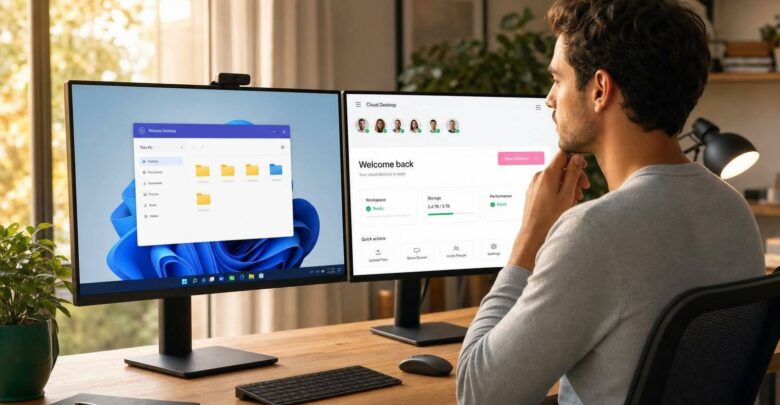
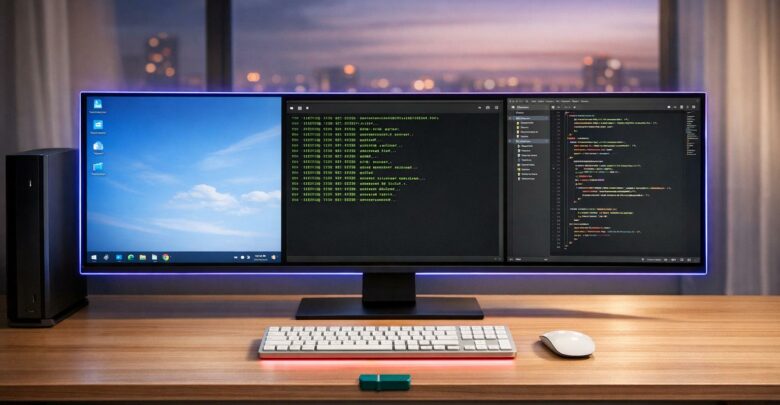
A virtual desktop is a full Windows (or Linux) desktop — OS, apps, files and settings — that runs on a server in a data center and that you reach over the internet from any device. Nothing is installed or stored on the device in front of you. Businesses use them to cut hardware costs, keep data off personal laptops, and let people work from anywhere.
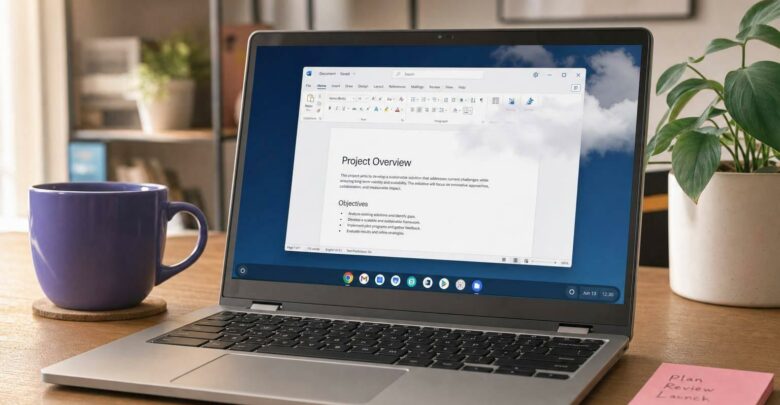
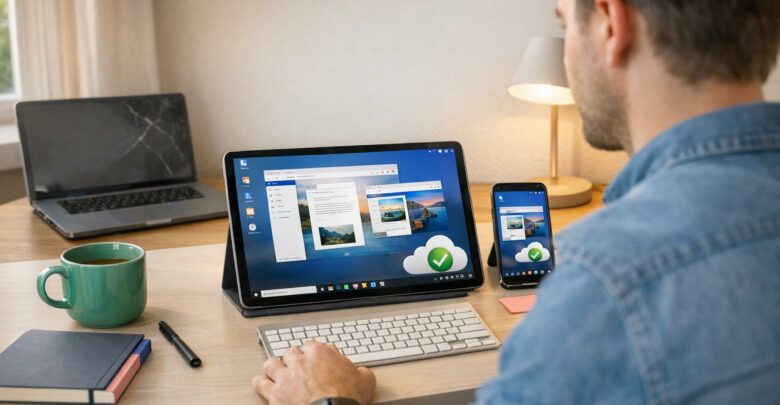
The idea is simple: instead of your desktop living on the machine in front of you, it lives on a server you rent, and your laptop, tablet or Chromebook becomes just a window into it. Close the lid, open a different device somewhere else, log back in — same desktop, same open files, exactly where you left it.
That shift is why virtual desktops have moved from a niche IT tool to something small teams and freelancers use every day. The rest of this guide covers how they actually work, the main types (and where desktop virtualization and VDI fit in), what they cost, and how a virtual desktop differs from a virtual machine.
⚙️ How Do Virtual Desktops Work?
Virtual desktops operate through cloud infrastructure, virtualization, and remote access protocols to deliver a seamless user experience. Instead of running applications on a local computer, users connect to a virtual environment hosted on remote servers.
1
It runs in a data center
Your desktop lives on a server with dedicated CPU, RAM and SSD — not on your laptop.
2
You connect over the internet
A remote-access protocol (RDP, PCoIP) streams the screen to any device; your inputs go back.
3
IT manages it centrally
Updates, backups, security and new users are all handled from one dashboard, for everyone.
Key Components of a Virtual Desktop:
Technical Implementation
Cloud-hosted desktops operate through a robust network of servers, virtualization technology, and centralized data management. Key components include:
Servers and Cloud Infrastructure: Desktop environments are hosted on servers in secure data centers. These servers manage computing power, storage, and network access. Deployments can be hosted on public cloud platforms (e.g., AWS, Azure) or on-premises.
Virtualization Technology: A hypervisor creates and manages multiple virtual machines (VMs), allowing users to run isolated desktop instances. In cloud setups, resources like CPU and memory are allocated dynamically to ensure performance.
User Profiles, Data, and Applications: Profiles, data, and applications are stored on the server. Users experience a consistent desktop environment across devices. IT teams handle updates, security, and maintenance centrally, reducing downtime.
Seamless Transition Across Devices
Employees can securely log in to their desktop from any device—such as a laptop, tablet, or smartphone—using remote access protocols like RDP (Remote Desktop Protocol) or PCoIP (PC over IP). These protocols are designed to deliver optimized performance based on the device’s specifications, ensuring users have reliable access to their data and applications from any location.
Functionality & Key Features
Virtual desktops provide secure, customizable, and high-performance access to work environments. Key features include:
Centralized Data & Application Access: Users can access applications, files, and settings from any device. Personal configurations like display settings and shortcuts remain consistent.
Advanced Security Protocols: Virtual desktops use encryption, multi-factor authentication (MFA), and centralized access controls to protect data. Since no data is stored on local devices, the risk of loss or theft is minimized.
Optimized Performance: A hypervisor dynamically allocates CPU, RAM, and storage to ensure smooth operation. Continuous monitoring prevents latency, and dynamic scaling adjusts resources based on demand.
Seamless Multi-Device Access: Employees can log in from laptops, tablets, or smartphones using remote access protocols like RDP or PCoIP, ensuring a consistent experience.
Automated Maintenance & Updates: IT teams centrally manage updates, patches, and security configurations, reducing downtime and administrative workload.
🌍 Real-World Virtual Desktop Examples & Use Cases
Virtual desktops are already running production workloads across very different industries. A few documented examples:
A global manufacturer moved off an unstable on-prem RDS setup to cloud virtual desktops, gaining stability and far simpler monitoring and maintenance.
🩺 Healthcare
Hospitals use VDI to give clinicians secure, mobile access to electronic medical records and support telemedicine.
🤝 Non-profits
A Baltimore non-profit cut support tickets and freed up admins for strategic work after switching to VDI.
Types of Virtual Desktops
“Virtual desktop” is an umbrella term. In practice a desktop can be virtualized in several ways — the right one depends on whether it’s hosted in the cloud or on your own servers, and whether each person needs a dedicated machine or can share one.
Type
Where it runs
Best for
DaaS (Desktop as a Service)
Provider’s cloud, monthly subscription
Teams that want zero infrastructure — this is what flexidesktop is
Delivering one or two apps, not a whole desktop — more here
For a deeper breakdown of how each of these technologies works, see our guide to desktop virtualization.
Benefits of Virtual Desktops for Businesses
Virtual desktops offer numerous benefits that empower businesses to operate more efficiently, securely and flexibly in a dynamic work environment. Below are key advantages of implementing virtual desktop solutions.
🔒 Simplified Management and Enhanced Security
With virtual desktops, IT teams can centrally manage updates, security patches, and configurations across all devices, reducing maintenance time and complexity. Data is stored in secure data centers, minimizing the risks of theft or loss. Built-in security protocols also allow organizations to enforce access restrictions, monitor user activity, and prevent data leaks.
💰 Cost Efficiency and Hardware Savings
By adopting virtual desktops, businesses lower IT expenses related to hardware, maintenance, and support. Thin clients replace costly traditional desktops, requiring fewer resources and lasting longer due to minimal wear and tear. Scalability allows businesses to adjust resource allocation based on demand, reducing unnecessary capital investment and operational costs.
🌍 Flexibility and Remote Work Enablement
Virtual desktops enable secure access to business applications and data from any device, anywhere. Employees can work remotely without sacrificing performance, boosting productivity and supporting flexible work arrangements. This collaboration helps attract top talent by enabling modern work practices.
🔄 Disaster Recovery and Business Continuity
Since data and applications are hosted on secure servers, virtual desktops offer robust disaster recovery options. Businesses can quickly restore critical systems after cyberattacks, hardware failures, or natural disasters. Also, minimizing downtime and ensuring uninterrupted operations through automatic backups and redundant infrastructure.
📱 Support for BYOD Policies
Virtual desktops securely support BYOD by isolating corporate data from personal devices. Employees can access their work environments without compromising sensitive business information, giving organizations greater control over security while offering users the flexibility to work on familiar devices.
💰 What Does a Virtual Desktop Cost?
There are two pricing models, and they behave very differently over time:
Subscription (DaaS) — you pay a fixed monthly fee per user, with no hardware to buy. flexidesktop plans start at $19 per user per month. Costs are predictable and scale up or down with your team.
Upfront (on-premises VDI) — you buy the servers, hypervisor licenses and storage, then pay to run and maintain them. A traditional 10-seat setup can run around $30,000 over four years once you factor in hardware refresh and IT time.
$19
per user / month, starting price for DaaS
~$30k
4-year cost of a 10-seat on-prem VDI setup
88%
less energy vs a physical PC (independent study)
Independent research puts a virtual desktop at roughly $330 cheaper than a physical PC over its lifetime, with up to 88% less energy use, largely because the endpoint can be a cheap thin client or an older laptop.
While both virtual desktops and virtual machines (VMs) rely on virtualization technology, they serve different purposes and have distinct functionality.
The key difference between a virtual desktop and a virtual machine is their purpose and functionality.
A virtual desktop provides remote access to a full desktop environment (apps, data, settings) and is optimized for multi-user access, remote work, and centralized management through VDI or DaaS platforms.
A virtual machine emulates a complete physical computer with its own OS and hardware, used for software testing, multiple OS environments, and application isolation, offering full control over resources.
Comparison of VDI, DaaS and Virtual Machines
Virtual Desktop (VDI / DaaS)
Virtual Machine
Purpose
Provides a remote desktop environment
Emulates a full computer system
Management
Centralized for many users
Managed individually or via automation
Scalability
High — resources shared dynamically
Limited by host hardware
Access
From any device, anywhere
Usually through a host system
Use cases
Remote work, BYOD, centralized IT
Development, testing, isolated apps
Examples
flexidesktop, Azure Virtual Desktop, Citrix
VMware, VirtualBox, Hyper-V
Why Choose flexidesktop?
But how can flexidesktop specifically help your business? Our virtual desktops are designed for performance, security, and scalability. Whether you’re a small business or a larger enterprise, we offer customizable desktop options, including various vCPU, RAM, and storage configurations to meet your exact needs. Plus, with our flexible pricing and excellent support team, you’ll enjoy one of the best value-for-money solutions on the market.
Experience Unmatched Reliability and Performance
At flexidesktop, we understand the importance of business continuity and reliable performance. Our virtual desktops are optimized for speed and stability, providing your team with the tools they need to stay productive, no matter where they are. With easy-to-deploy solutions, shared storage options, and support for custom software, we make sure your virtual workspace is tailored to your specific requirements. Ready to take your business to the next level? Discover how easy it is to transition your team to a reliable, powerful cloud-based workspace today.
To get started, we recommend trying our flexidesktop S virtual desktop, which is the ideal size for an initial test and offers a perfect balance of performance and affordability.
Get in Touch
If you have any questions or need help deploying a customized project on a virtual desktop infrastructure, don’t hesitate to reach out. Our team is here to assist you with any specific needs or requirements your business may have.
Conclusion: Why Virtual Desktops Are the Future of IT
Virtual desktops help businesses adapt and grow by improving security, lowering costs, and offering reliable access to data and applications. They’re the foundation for agile, cloud-driven IT strategies.
Take control of your business’s future with flexidesktop’s virtual desktop services. Contact us to learn how our solutions can meet your unique needs.
❓ FAQs about Virtual Desktops
What is a Hypervisor?
A hypervisor is software that creates and manages virtual machines (VMs) by allocating resources like CPU, memory, and storage. It allows multiple virtual environments to run on a single physical machine. Examples include VMware ESXi, Microsoft Hyper-V, and Oracle VirtualBox.
What is Virtual Desktop Infrastructure (VDI)?
Virtual Desktop Infrastructure (VDI) is a technology that delivers virtual desktops from a centralized data center, usually on servers the company owns and runs itself. Users access their desktop environments remotely, while IT manages resources, security and updates centrally. See our full guide to what VDI is and how it compares to DaaS.
What is Desktop as a Service (DaaS)?
Desktop as a Service (DaaS) is a cloud-based model where a provider hosts and runs the virtual desktops for you and you pay a monthly subscription per user. It removes the servers, licensing and maintenance that on-premises VDI requires. flexidesktop is a DaaS provider.
How Secure are Virtual Desktops?
Virtual desktops offer strong security by storing data on protected servers instead of local devices. They use encryption, multi-factor authentication, and role-based access controls, while centralized management ensures timely updates and patching.
What are the Internet Speed Requirements for Virtual Desktops?
For a smooth virtual desktop experience, a minimum internet speed of 5–10 Mbps per user is recommended. For high-performance tasks, such as using resource-intensive applications or video conferencing, speeds of 20 Mbps or higher may be needed.
Israel de la Torre is the founder of flexidesktop and has spent 15+ years working in cloud infrastructure and Windows virtualization. He helps businesses migrate from on-premises Windows setups to managed cloud desktops.
Compare remote-access apps and cloud desktops to choose the right RDP alternative—use remote tools for occasional access or cloud PCs for always-on team work.
To provide the best experiences, we use technologies like cookies to store and/or access device information. Consenting to these technologies will allow us to process data such as browsing behavior or unique IDs on this site. Not consenting or withdrawing consent, may adversely affect certain features and functions.
Functional
Always active
The technical storage or access is strictly necessary for the legitimate purpose of enabling the use of a specific service explicitly requested by the subscriber or user, or for the sole purpose of carrying out the transmission of a communication over an electronic communications network.
Preferences
The technical storage or access is necessary for the legitimate purpose of storing preferences that are not requested by the subscriber or user.
Statistics
The technical storage or access that is used exclusively for statistical purposes.The technical storage or access that is used exclusively for anonymous statistical purposes. Without a subpoena, voluntary compliance on the part of your Internet Service Provider, or additional records from a third party, information stored or retrieved for this purpose alone cannot usually be used to identify you.
Marketing
The technical storage or access is required to create user profiles to send advertising, or to track the user on a website or across several websites for similar marketing purposes.
To provide the best experiences, we use technologies like cookies to store and/or access device information. Consenting to these technologies will allow us to process data such as browsing behavior or unique IDs on this site. Not consenting or withdrawing consent, may adversely affect certain features and functions.
Functional
Always active
The technical storage or access is strictly necessary for the legitimate purpose of enabling the use of a specific service explicitly requested by the subscriber or user, or for the sole purpose of carrying out the transmission of a communication over an electronic communications network.
Preferences
The technical storage or access is necessary for the legitimate purpose of storing preferences that are not requested by the subscriber or user.
Statistics
The technical storage or access that is used exclusively for statistical purposes.The technical storage or access that is used exclusively for anonymous statistical purposes. Without a subpoena, voluntary compliance on the part of your Internet Service Provider, or additional records from a third party, information stored or retrieved for this purpose alone cannot usually be used to identify you.
Marketing
The technical storage or access is required to create user profiles to send advertising, or to track the user on a website or across several websites for similar marketing purposes.