Virtual desktops
Best Virtual Machine Software in 2026 (Local & Cloud Options)
If I need a Windows VM in 2026, I start with one question: do I want local control, or do

Single-user Windows 10/11
Multi-user Windows Server 2025
Real-World Applications
Discover Our Mission.
Get in touch.
Compliance & VPAT.
Get Answers Here.

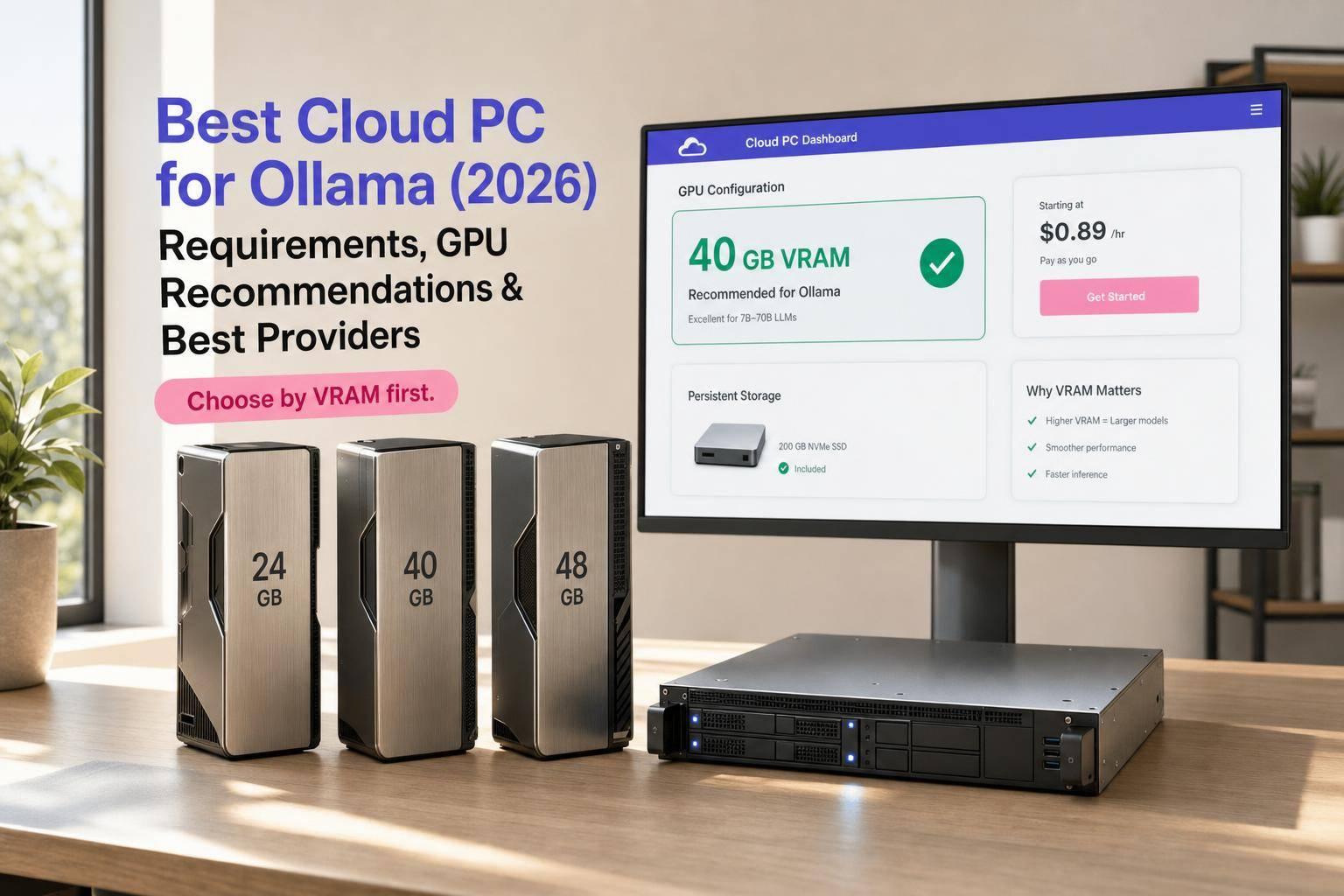
Picking the best cloud PC for Ollama comes down to three things, in this order: VRAM first, pricing model second, and desktop vs. headless access third. This guide breaks down GPU sizing for every model size (7B to 70B), compares 8 leading providers on hardware and price, and gives a straight recommendation depending on your use case.
In this article you’ll learn:
Quick tip: if you want Ollama running every day like a normal workstation instead of spinning up a GPU rental each time, a persistent cloud desktop like flexidesktop avoids re-downloading model weights on every session.
A 7B to 13B setup can work on 8 GB to 12 GB of VRAM. A 30B to 34B model usually wants 20 GB to 24 GB. And a 70B model at Q4 often needs 40 GB to 48 GB of VRAM, with long context pushing memory use even higher. If the model does not fit in GPU memory, Ollama spills into system RAM and speed drops hard.
If you just want the short answer, here it is:
A few points matter most:
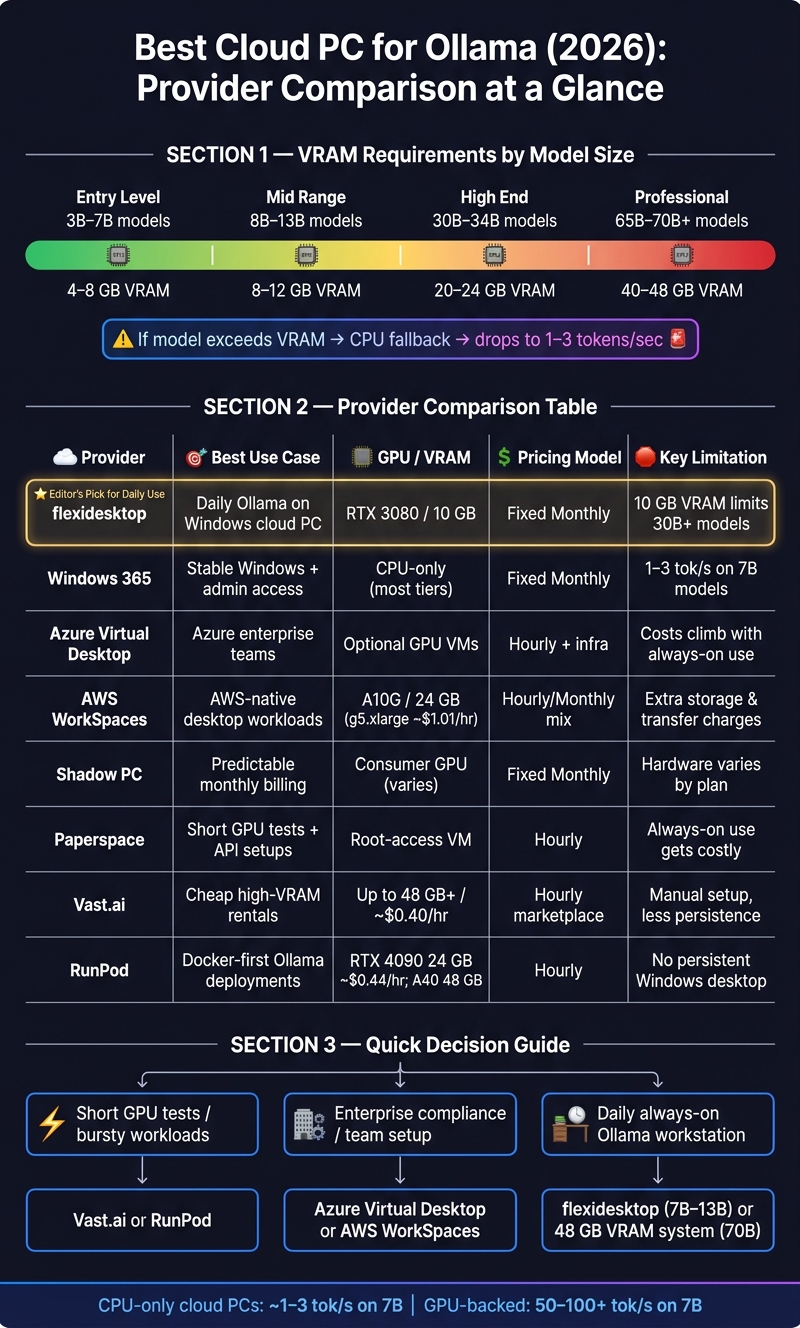
Cloud PC for Ollama: VRAM, Pricing & Provider Comparison (2026)
| Provider | Best Use | GPU/Desktop Style | Pricing Style | Main Limitation |
|---|---|---|---|---|
| flexidesktop | Daily Ollama use on a Windows cloud PC | Persistent Windows desktop, dedicated RTX 3080 10 GB | Fixed monthly | 10 GB VRAM limits larger models |
| Windows 365 | Stable Windows setup with admin access | Persistent Windows desktop, mostly CPU-only | Fixed monthly | Slow for local inference |
| Azure Virtual Desktop | Azure-based team setups | Windows/Linux desktop with optional GPU VMs | Hourly + extra infra costs | Costs climb with always-on use |
| AWS WorkSpaces | AWS-based desktop workloads | Managed desktop with optional GPU | Hourly/monthly mix | Extra storage and transfer charges |
| Shadow PC | Predictable monthly desktop cost | Consumer-style cloud desktop | Fixed monthly | Hardware varies by plan |
| Paperspace | Short tests and API/server use | Root-access VM/server | Hourly | Always-on use gets costly |
| Vast.ai | Cheap high-VRAM rentals | Raw GPU marketplace | Hourly | More manual setup, less persistence by default |
| RunPod | Docker-first Ollama deployments | Headless container/GPU setup | Hourly | Not a full Windows desktop |
Bottom line: if you want Ollama running every day like a normal workstation, I’d look at a persistent cloud desktop. If I only needed GPU power for short runs, I’d look at Vast.ai or RunPod. And if I needed 70B models often, I would skip 10 GB to 24 GB cards and start at 48 GB VRAM.
That’s the full article in short form, with the main numbers and provider trade-offs up front.
For Ollama in the cloud, start with VRAM. That’s the main limit. If your model doesn’t fit in GPU memory, Ollama spills into system RAM and performance drops hard – often down near CPU-level speeds.[6][7] So when you’re picking a cloud PC for Ollama, VRAM should be the first thing you check.
Ollama uses 4-bit quantization (Q4_K_M) by default. That cuts model memory use to about 25% of the original size while keeping quality loss low.[6][9] In plain English: a 7B model is often a good fit on a GPU with 8 GB of VRAM. CPU-only setups make sense mostly for 1B–3B models or batch jobs.[5][6] If you want snappy responses in a chat UI, an API, or an agent loop, use a GPU.
The table below shows practical hardware targets for common model sizes under Q4 quantization.[6][9]
| Model Size | Min. VRAM (GPU) | Min. RAM (CPU-only) | Practical Speed |
|---|---|---|---|
| 3B–7B | 4 GB–8 GB | 8 GB | Fast on GPU; CPU-only is only reasonable for the smallest models or batch jobs |
| 8B–13B | 8 GB–12 GB | 16 GB–24 GB | Usable on GPU; slow on CPU |
| 30B–34B | 20 GB–24 GB | 32 GB–48 GB | Needs a high-end GPU for smooth use |
| 65B–70B+ | 40 GB–48 GB | 48 GB–64 GB | GPU required; CPU-only is not practical |
When you compare consumer NVIDIA GPUs for Ollama, VRAM matters more than raw compute. It’s a little counterintuitive at first, but more memory often beats a faster chip with less room.
| GPU | VRAM | Best Fit | Note |
|---|---|---|---|
| RTX 3060 | 12 GB | 7B–8B models; 13B is tight | Best entry-level value for 12 GB cards [8] |
| RTX 3080 | 10 GB / 12 GB | 7B–8B models; 13B is minimum | 10 GB is more VRAM-limited than the 12 GB RTX 3060 [6][8] |
| RTX 4090 | 24 GB | 30B–34B models; 70B with lighter quantization | Best for 30B+ models and longer context [3] |
Context length pushes VRAM use up too. The base model is only part of the story. At 32,000 tokens of context, a 70B model needs about 24 GB of extra VRAM just for the KV cache.[3] That’s a huge jump. If you’re trying to fit a model into memory, OLLAMA_FLASH_ATTENTION=1 can trim KV cache overhead by about 30%.[8]
A few mistakes show up again and again:
ollama ps to confirm the GPU is being used – if you see CPU usage, the model is running below full GPU speed[2][7][8]These sizing targets make the provider comparison below much easier.
flexidesktop Max+ is a good match for Ollama workloads. It’s a plan purpose-built for AI and GPU-heavy work: a dedicated NVIDIA RTX 3080 (10 GB VRAM), 32 vCPUs, 128 GB RAM, 120 GB SSD, Windows 11, Microsoft Office 2024 Pro Plus, full admin access, and a persistent desktop. It’s part of flexidesktop’s Cloud AI Workstation lineup. See the full specs and pricing on the flexidesktop Max+ product page or the plans overview.
In plain English, that setup gives you enough GPU memory for smaller models and enough system RAM to lean on when a model spills past VRAM.
| Model Size | VRAM Fit (10 GB GPU) | RAM Fallback (128 GB) |
|---|---|---|
| 7B–8B | Excellent – full GPU | Not needed |
| 13B–14B | Tight – keep context short | Excellent |
| 30B–34B | Partial – hybrid mode | Excellent |
| 70B | Partial – hybrid mode | Strong (needs ~96 GB) [3] |
On Max+, 7B–8B models run with room to spare. 13B is a tighter squeeze, so shorter context helps. 30B+ can run in hybrid mode by using system RAM along with the GPU. That puts Max+ in a nice middle ground for smaller models, with a workable path for bigger ones.
The persistent desktop also saves time. Model weights and installed software stay in place after reboot, so you don’t have to keep downloading and setting things up from scratch.
You can connect through RDP or a browser, and the desktop is ready in minutes. If you want to try it before committing, flexidesktop offers a free 3-day trial. Next, compare this setup with the other cloud desktop options in the list.
Windows 365 is Microsoft’s persistent Cloud PC service. It’s easy to see the appeal: you get a full Windows desktop that stays put between sessions. But for Ollama, this is mostly a hardware story, not an AI story. For a deeper side-by-side, see our Windows 365 comparison.
Ollama installs cleanly on Windows [3]. So setup isn’t the problem. The bigger issue is that most Windows 365 tiers are built for office work, not inference.
On standard CPU-only tiers, Ollama falls back to CPU inference. And that changes performance fast. A 7B model will usually generate about 1–3 tokens per second on CPU [2]. On GPU-backed systems, that same model class can hit 50–80 tokens per second [1]. That gap is huge. It’s the difference between a usable chat flow and waiting on every reply.
Memory is another sticking point. Entry-level Windows 365 plans can start at just 1 GB of RAM, which is far too little for practical Ollama use [2]. For 7B models, 8 GB of RAM is the practical minimum. If you want to run 8B–13B models on CPU-only tiers, 16 GB is the safer floor.
| Windows 365 Factor | Ollama Impact |
|---|---|
| Most plans are CPU-only | 7B models typically run at 1–3 tokens/sec [2] |
| Low RAM tiers (< 8 GB) | Not enough for reliable 7B model use [5] |
| Persistent desktop | Model weights and configuration stay in place between sessions [1] |
| Full Windows admin access | Easy to install Ollama, Open WebUI, Docker, and set environment variables [3] |
| Flat monthly pricing | Predictable cost with no hourly billing surprises [6] |
| RDP or browser access | Familiar desktop workflow for running Ollama and related tools |
There is one clear upside here: Windows 365 gives you a persistent desktop with full admin access. That means you can install Ollama, Open WebUI, Docker, and tweak environment variables without much friction [3]. If you like working inside a familiar Windows setup, that part feels straightforward.
The tradeoff is simple. Windows 365 is fine if you want a stable Windows machine and you’re okay with CPU-only local inference. If speed matters, this CPU-only baseline sets a pretty low bar. Next, it helps to stack that against the GPU-backed options.
If you need more control than a basic Cloud PC gives you, AVD is the next step. As a form of Virtual Desktop Infrastructure, it offers deep customization. See our full Azure Virtual Desktop comparison for more detail. It makes the most sense for teams already deep into Azure, especially if compliance rules shape every deployment. But for Ollama, the desktop layer isn’t the main issue. Hardware is what decides whether the experience feels usable or painfully slow.
The lower-end tiers just don’t have enough muscle. Take Azure B1S: it costs about $7.99/month and comes with only 1 GB of RAM [2]. That’s nowhere near enough for practical Ollama use. Even small 1B–3B models are a bad fit with that little memory. So while CPU-only tiers may look cheap at first glance, they’re too limited for serious local inference.
GPU-backed AVD instances are a different story on speed, but the pricing model changes the equation. These machines are billed hourly, which means always-on use can get expensive fast [4]. Azure may also bill storage and networking separately in many setups [2], so a persistent Ollama endpoint can cost more than it first appears.
Setup is one of AVD’s stronger points. You get full admin access, and Ollama installs cleanly on both Windows and Linux [3]. Persistent NVMe storage also helps a lot. It cuts down on repeated model downloads and makes large-model reloads faster [3].
| AVD Factor | Ollama Impact |
|---|---|
| Entry tiers (< 8 GB RAM) | Too limited for practical Ollama use [2] |
| GPU VMs available | Better inference speed, but billed hourly [4] |
| Consumption-based pricing | Costs climb fast for always-on workloads [2][4] |
| Microsoft ecosystem integration | Best fit for enterprise compliance requirements [2] |
For teams that need Azure integration and compliance controls, AVD can work. Next, compare it with AWS WorkSpaces.
AWS WorkSpaces gives you a managed Windows or Linux desktop with EBS-backed storage. That means your models stay on the machine between sessions, which is handy if you don’t want to download and set things up every time. But storage persistence is only part of the story. GPU choice is what decides whether Ollama feels smooth or sluggish.
A CPU-only AWS setup can work for testing, but it starts to drag fast if you want to use Ollama every day. For example, a t3.small with 2 GB of RAM costs about $12/month, but performance lands at only 1–3 tokens per second on a 7B model [2]. That’s fine for quick checks and light experimentation. It’s not a good daily driver.
If you want usable inference speed, go with a GPU. AWS’s g5.xlarge comes with an NVIDIA A10G and 24 GB of VRAM for about $1.01/hour [4]. That VRAM is enough to run 32B models like Qwen 2.5 or DeepSeek R1 with room to breathe [4].
| AWS setup | GPU / VRAM | Cost | Ollama fit |
|---|---|---|---|
| CPU-only t3.small | None (2 GB RAM) | ~$12/month | Testing and light use [2] |
| g5.xlarge | NVIDIA A10G (24 GB VRAM) | ~$1.01/hour | 7B–32B models [4] |
So where does AWS land? Somewhere in the middle. It beats CPU-only desktops, but it usually isn’t the cheapest route if you want a GPU running all day. Leave Ollama on 24/7, and the bill climbs fast. On top of that, AWS charges separately for storage and data transfer [2]. That setup makes more sense for teams that already need AWS-native IAM, VPC, and billing controls [2][4], not someone who just wants a personal always-on box.
Next, Shadow PC takes a more consumer-focused route, with a different balance of cost and performance.
After hourly GPU pricing, Shadow PC changes the tradeoff: instead of paying by the hour, you pay a fixed monthly fee. That works well if you want a bill you can plan around. For Ollama, though, the name on the desktop matters less than the hardware inside it. Plan specs matter more than the product name.
Before you pick a plan, check a few things first:
Shadow PC tends to work best for small to mid-size models, short-context chat, or steady day-to-day use where simple billing matters more than tight hardware control.
| Factor | Shadow PC |
|---|---|
| Pricing model | Fixed monthly subscription |
| What to verify | GPU VRAM, admin access, persistent storage |
| Ollama behavior | Uses CPU when the model exceeds VRAM |
| Best for | Users who value billing predictability over hardware flexibility |
If a model goes past available VRAM, Ollama falls back to the CPU. That can slow things down a lot, so it’s worth checking GPU allocation before you commit to a plan.
That makes Shadow PC a simple pick for users who care more about predictable billing than fine-grained hardware control.
If you want server-level control instead of a desktop-first setup, Paperspace is the better fit. It works well for short Ollama tests when you need GPU access without locking yourself into a long run.
Paperspace gives you root access, so you can SSH in, install Ollama, and set up Nginx as a reverse proxy for API access. That’s a good match for people who want to run Ollama behind their own API stack, not just click around in a remote desktop.
One thing you’ll want to think through early is persistent storage. Large model files can eat up time if you have to pull them again every session. In production, persistent storage keeps those model weights in place so you’re not stuck repeating the same downloads.
| Factor | Paperspace |
|---|---|
| Pricing model | Hourly GPU billing |
| Access | Full root access via SSH |
| Storage | Persistent storage should be configured for production |
| Best for | Developers who want server-level control and pay-as-you-go flexibility |
Hourly billing makes more sense for testing than for always-on use. If you want full control and the freedom to try different GPU tiers before you commit, Paperspace is a good pick. Just set up persistent storage before you start pulling large models. If you want more of a marketplace-style GPU setup, the next option is worth a look.
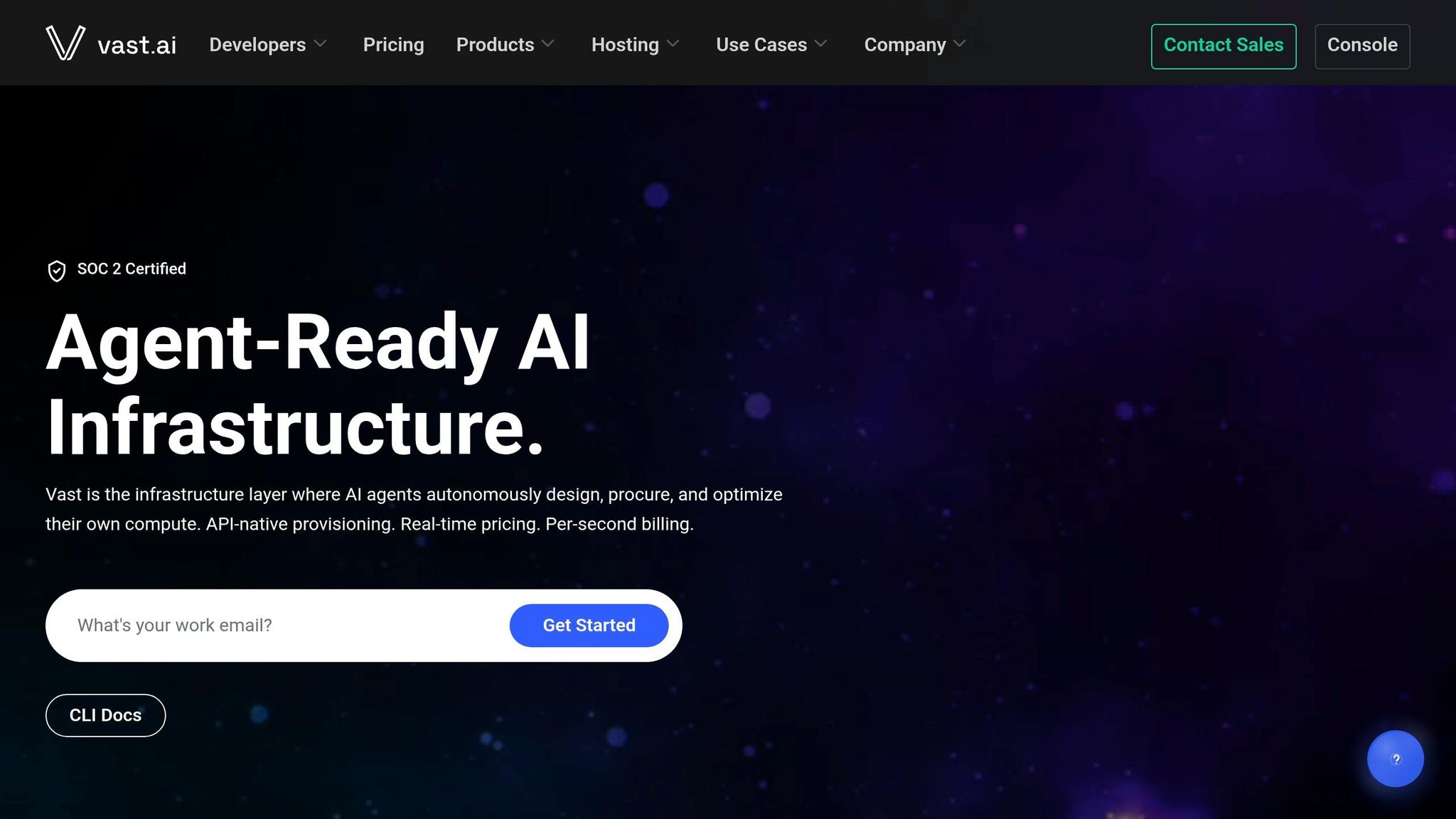
Unlike a managed cloud desktop, Vast.ai gives you raw GPU rentals. It works as a marketplace where independent providers rent out GPUs, not as a managed cloud desktop. So if you want low-cost, on-demand VRAM for Ollama, it makes sense. If you want a polished desktop setup, it’s not the best fit.
Vast.ai stands out when you need 24 GB or more of VRAM for short runs and want to keep cost as low as you can. At about $0.40/hour, one GPU instance comes to roughly $288/month if you leave it running all month.
The table below shows common Ollama model sizes and the Vast.ai GPU options that fit them in practice.
| Model Size (Q4 Quantized) | VRAM Needed | Suggested Vast.ai GPU |
|---|---|---|
| 3B–8B (Llama 3.1, Mistral) | 8 GB | RTX 3060, 4060, or T4 |
| 13B–14B (Qwen 2.5, Phi-3) | 12–16 GB | RTX 3060 12GB, 4060 Ti 16GB |
| 32B–34B (DeepSeek R1, Yi) | 24 GB | RTX 3090, RTX 4090 |
| 70B (Llama 3.3) | 40–48 GB | A40, RTX 6000 Ada, or 2× RTX 3090/4090 |
Setup is manual. You’ll install Ollama with Docker or CLI commands, then handle access and config on your own. That’s the trade-off: lower cost, more setup work, and less desktop convenience than you’d get with a dedicated cloud PC.
Persistence is the biggest drawback. Ephemeral instances are fine for testing, but they’re a weak choice if you want a stable, always-on Ollama server. You can use on-demand instances and attach persistent storage, but that adds more setup steps.
If you want the same kind of hourly GPU access with more managed infrastructure, the next option is RunPod.
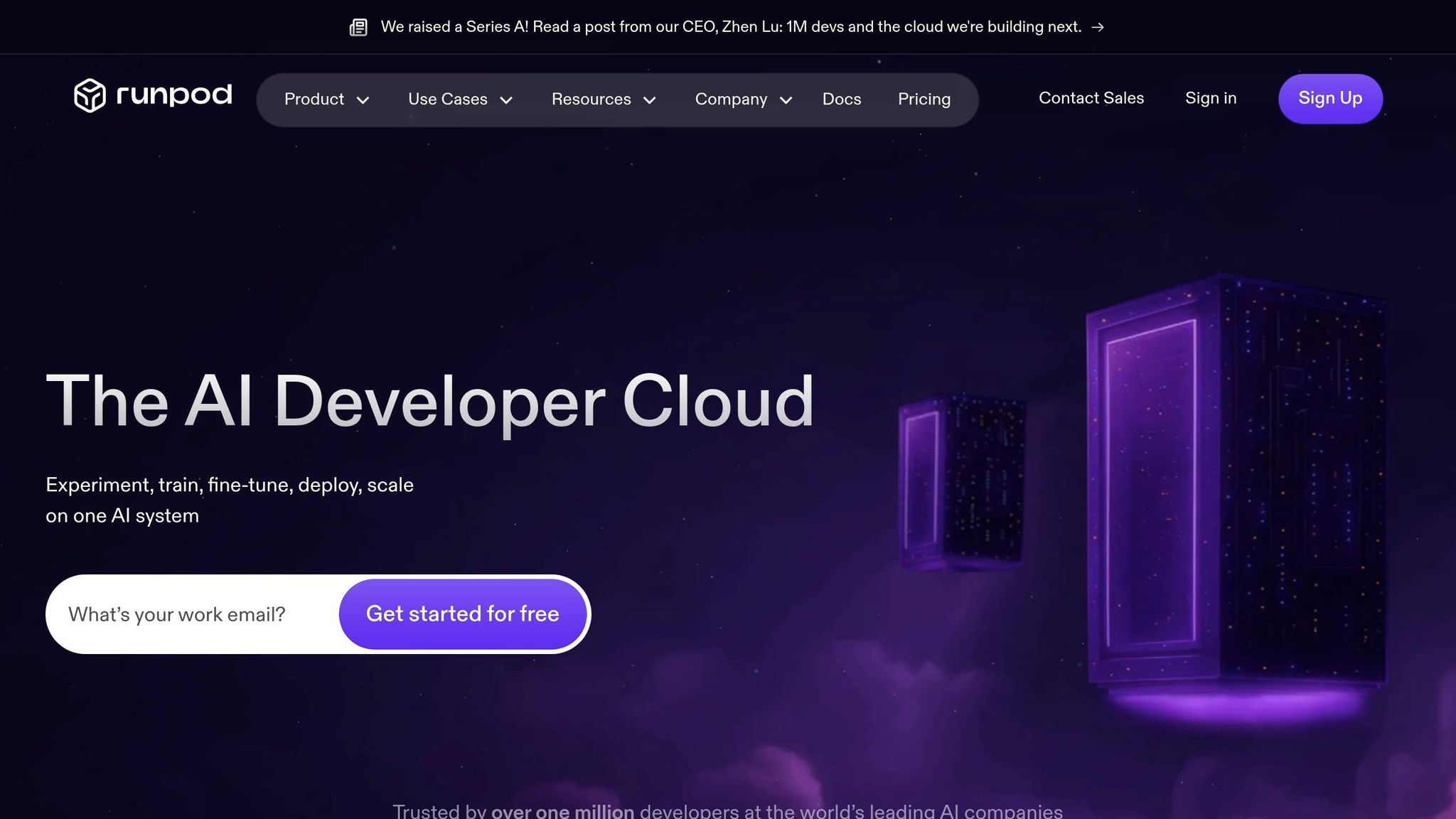
RunPod is a strong option for Ollama in 2026 if you care most about fast access to GPUs, hourly pricing, and a Docker-first setup. Instead of building out a full VM, you run Ollama from a pre-built container template. That keeps setup simple and cuts down the time you spend dealing with model serving and UI tools like Open WebUI [7]. From there, the big job is picking the right GPU for the model size you want to run.
RunPod covers the model sizes most Ollama users care about. For 13B to 32B models, the RTX 4090 is a solid fit. For 70B, the A40 or A6000 gives you more room. And if you want to serve more than one model at a time, the A100 is built for that kind of load.
An RTX 4090 with 24 GB of VRAM gives the best mix of price and performance for 13B to 32B models, and it can run 70B models too, though you may need to keep the context window shorter [8]. If you want more breathing room for 70B, the A40 or A6000 with 48 GB is the safer bet. The A100 with 80 GB makes more sense for multi-model serving [7][8]. One thing to watch: when a model goes past available VRAM, Ollama spills over to CPU, and performance drops hard [8].
| Model Size (Quantized) | Recommended RunPod GPU | VRAM Required | Expected Speed |
|---|---|---|---|
| 7B (e.g., Mistral) | RTX 4060 Ti / RTX 3060 | 8 GB – 16 GB | Fast (50–100+ tok/s) |
| 13B – 32B | RTX 3090 / RTX 4090 | 16 GB – 24 GB | Good (25–70 tok/s) |
| 70B (Q4 quant) | A40 / A6000 | 48 GB | Usable (12–18 tok/s) |
| 70B+ / Multi-model | A100 (80 GB) | 80 GB | High throughput |
Pricing is hourly through Secure Cloud and Community Cloud. Community Cloud can cost up to 60% less than standard on-demand pricing [7]. For example, an RTX 4090 runs at about $0.44/hour on Secure Cloud and about $0.29/hour on Community Cloud [7]. That pricing works well if you turn machines on when you need them and shut them off when you don’t. If you need something running all day, every day, the math gets less appealing.
For storage, RunPod uses Network Volumes. That means your model weights stay put after restarts, so you don’t have to download everything again [7]. It also has a serverless GPU option that scales to zero when idle, which is handy for workloads that come and go during the day. If the models are cached, cold start time can be about 30 seconds [7]. That’s a nice fit for bursty use, though it’s not the same as sitting down at a cloud desktop that’s always there waiting for you.
RunPod is built more for headless container work than for a full desktop setup. In practice, you’ll usually access it through SSH or web-based tools, not through a persistent desktop session. That’s the main reason it tends to fit developers better than people who want an always-on Windows workstation. You get strong GPU access, but you give up some desktop comfort. The pros and cons below break that out.
These trade-offs shape which provider makes sense for your workload. The table below strips the comparison down to the few things that matter most for Ollama.
| Provider | Key Strength | Key Weakness | Best Fit |
|---|---|---|---|
| flexidesktop | Dedicated RTX 3080, persistent Windows 11 desktop, fixed monthly pricing, full admin access | Not the best choice for short-term GPU rentals | Users who want a persistent Windows AI workstation for Ollama |
| Windows 365 | Persistent desktop, full admin access, predictable monthly billing | CPU-only tiers limit 7B models to 1–3 tokens/sec | Users who need a stable Windows environment and can accept CPU inference |
| Azure Virtual Desktop | Enterprise SLAs, GPU VMs available, Microsoft ecosystem integration | Hourly billing climbs fast for always-on workloads | Compliance-heavy teams already on Azure |
| AWS WorkSpaces | Persistent EBS storage, GPU options up to 24 GB VRAM, AWS-native IAM and VPC | Separate storage and transfer charges add cost | Teams that need AWS-native controls for 7B–32B workloads |
| Shadow PC | Fixed monthly subscription, no hourly billing surprises | GPU VRAM and admin access vary by plan | Users who value billing predictability for small to mid-size models |
| Paperspace | Full root access, SSH-friendly, good for API setups behind Nginx | Hourly billing makes always-on use expensive | Developers who want server-level control for short Ollama tests |
| Vast.ai | Low hourly GPU rates, wide VRAM range up to 48 GB+ | Ephemeral by default; manual setup required | Short-run 32B–70B workloads where cost per hour matters most |
| RunPod | Community Cloud pricing, Docker templates, serverless scaling | Container-first, with less control and no persistent Windows desktop | Headless inference jobs and bursty 13B–70B workloads |
A simple pattern shows up fast. Flat monthly pricing is easier to budget for, especially if you plan to keep Ollama running day and night. Hourly billing can look cheap at first, but it starts to sting once the machine stays on all week.
Persistent storage also matters more than many people expect. Large quantized models aren’t small downloads, so pulling them again every session is a pain and can burn both time and money. If you want a setup that feels like your machine, persistence goes a long way.
Admin access is another dividing line. If all you need is a basic desktop, limited control may be fine. But if you want to install custom tools, tweak the stack, or expose Ollama as an API, full admin or root access starts to matter a lot.
The next section turns these trade-offs into direct recommendations by provider type.
Across all the options, two things decide how this goes: VRAM and persistence.
VRAM sets the ceiling. It decides what you can run in the first place. If a model doesn’t fit in VRAM, Ollama slows down fast.
Persistence shapes the day-to-day experience. A setup you can keep running, return to, and use without extra friction feels very different from one built only for short bursts.
That leaves three clear buying patterns: short-term testing, enterprise control, or a dedicated cloud PC for daily Ollama use.
Hourly GPU marketplaces make sense for short tests. Enterprise desktops work better for compliance-heavy deployments. And if a team needs both compliance and cloud-native controls, enterprise virtual desktops are a practical path, even if the price is higher.
For developers and professionals who want Ollama running all the time without buying a workstation, a dedicated Windows cloud AI workstation is the best fit. That makes flexidesktop Max+ a strong option for 7B models and smaller 13B-class workloads, where 10 GB of VRAM is enough for practical use.
If you regularly need 70B-class models, go with a system that has 40–48 GB of VRAM instead.
For everyday Ollama use, flexidesktop Max+ offers a solid mix of speed, ease of use, and fixed monthly pricing. It’s built specifically for AI and GPU-intensive workloads, and it fits well for Ollama, Open WebUI, LM Studio, ComfyUI, Stable Diffusion, and CUDA development. Since it also ships with Microsoft Office 2024 Pro Plus, it doubles as a full daily-driver workstation, not just an inference box. The same persistent-desktop approach also works well for other AI workloads that need to stay on around the clock — see our guide on running Claude Code and MCP servers 24/7 on Windows.
Run Ollama on flexidesktop Max+, built for AI workloads
Get a persistent Windows 11 desktop with a dedicated RTX 3080 (10 GB VRAM), 32 vCPUs, 128 GB RAM, 120 GB SSD, and Microsoft Office 2024 Pro Plus — ready for Ollama, Open WebUI, and CUDA workloads in minutes.
VRAM is the main bottleneck for Ollama. If a model can’t fit fully in VRAM, part of it spills over into system RAM. When that happens, generation speed can slow down hard. For Q4 models, the rough VRAM ranges look like this: 1–3B: 1–2 GB, 7–8B: 4–6 GB, 13B: 8–11 GB, 30–34B: 20–24 GB, 70B: 40+ GB. If VRAM runs out, Ollama falls back to the CPU, which is usually where performance takes a big hit. Use ollama ps to check whether the model is using the GPU, and don’t plan around the bare minimum — leave some extra headroom for context windows, or you may run into slowdowns even if the model almost fits.
Usually, yes, especially for individual users and developers. A cloud desktop gives you a persistent desktop, admin access, and a familiar interface, so you can run tools like Ollama, Open WebUI, and ComfyUI much like you would on a local PC. That makes setup feel more straightforward, and day-to-day use tends to be less of a hassle. A headless GPU server fits better for production or automated workflows, where people usually handle things through SSH, Docker, or APIs instead of a desktop interface.
Yes. Ollama runs on the host machine, so model inference happens on the cloud PC itself, not through your Remote Desktop (RDP) session. RDP is just the access layer — it lets you use the desktop and local apps like Open WebUI or LM Studio, but it doesn’t handle the model’s processing. So if the cloud PC has the right hardware, especially an NVIDIA GPU with enough VRAM, Ollama should run smoothly whether you’re connected over RDP or not.

Israel de la Torre is the founder of flexidesktop and has spent 15+ years working in cloud infrastructure and Windows virtualization. He helps businesses migrate from on-premises Windows setups to managed cloud desktops.
If I need a Windows VM in 2026, I start with one question: do I want local control, or do
Compare remote-access apps and cloud desktops to choose the right RDP alternative—use remote tools for occasional access or cloud PCs for always-on team work.
Cloud-hosted Windows is the easiest, safest way to run Windows apps on a Chromebook without hacking ChromeOS.
Compare running Claude Code 24/7 on local PC, Linux VPS, or Windows cloud desktop—tradeoffs in cost, reliability, and setup.
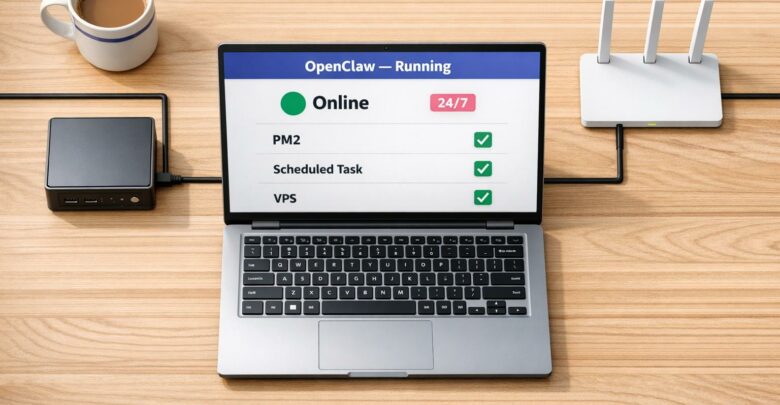
Step-by-step Windows guide to install OpenClaw, fix common errors, and run it 24/7 with PM2, Scheduled Tasks, or cloud/VPS hosting.
Avoid missed deadlines and lost clients with a cloud PC—access your desktop and files from any device with daily backups.
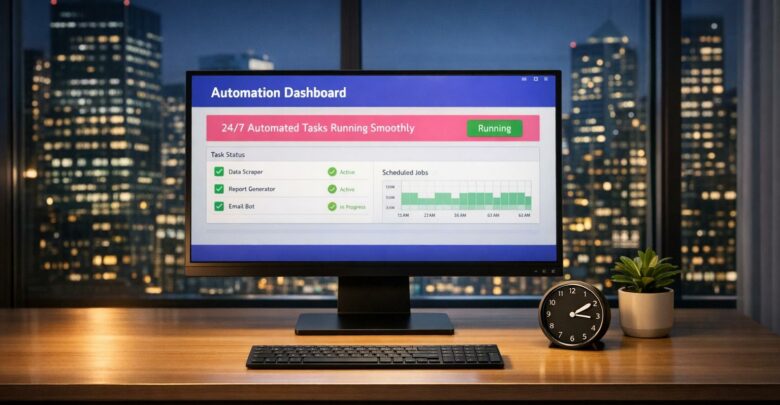
Cloud Windows desktops beat local and VPS setups for reliable, GUI-based 24/7 automation.
Local virtualization or cloud desktops — weigh performance, cost, and convenience when running Windows apps on a Mac.

Guide for law firms choosing secure Windows cloud desktops: prioritize security, Windows app compatibility, uptime, and transparent pricing.



