Compare remote-access apps and cloud desktops to choose the right RDP alternative—use remote tools for occasional access or cloud PCs for always-on team work.
Looking for the best RDP alternatives in 2026? The biggest split is simple: remote access tools (TeamViewer, AnyDesk, Chrome Remote Desktop) let you control an existing PC — but that PC has to stay on. Cloud desktops (flexidesktop, Windows 365, Azure Virtual Desktop) give each user a Windows workspace in the cloud that’s always available, no office hardware required.
Here’s what you’ll learn:
Which RDP alternative fits your situation — occasional personal access vs. daily team use vs. enterprise Microsoft stack.
What each option actually costs and what it depends on — including the hidden requirement that your office PC stays on for remote access tools.
Why most small teams should skip RDP entirely and go straight to a cloud desktop.
Quick pick: Small team (2–15 people) that needs daily Windows access → flexidesktop from $19/month, 3-day free trial included. Occasional access to one PC → Chrome Remote Desktop (free) or AnyDesk ($22.90/month).
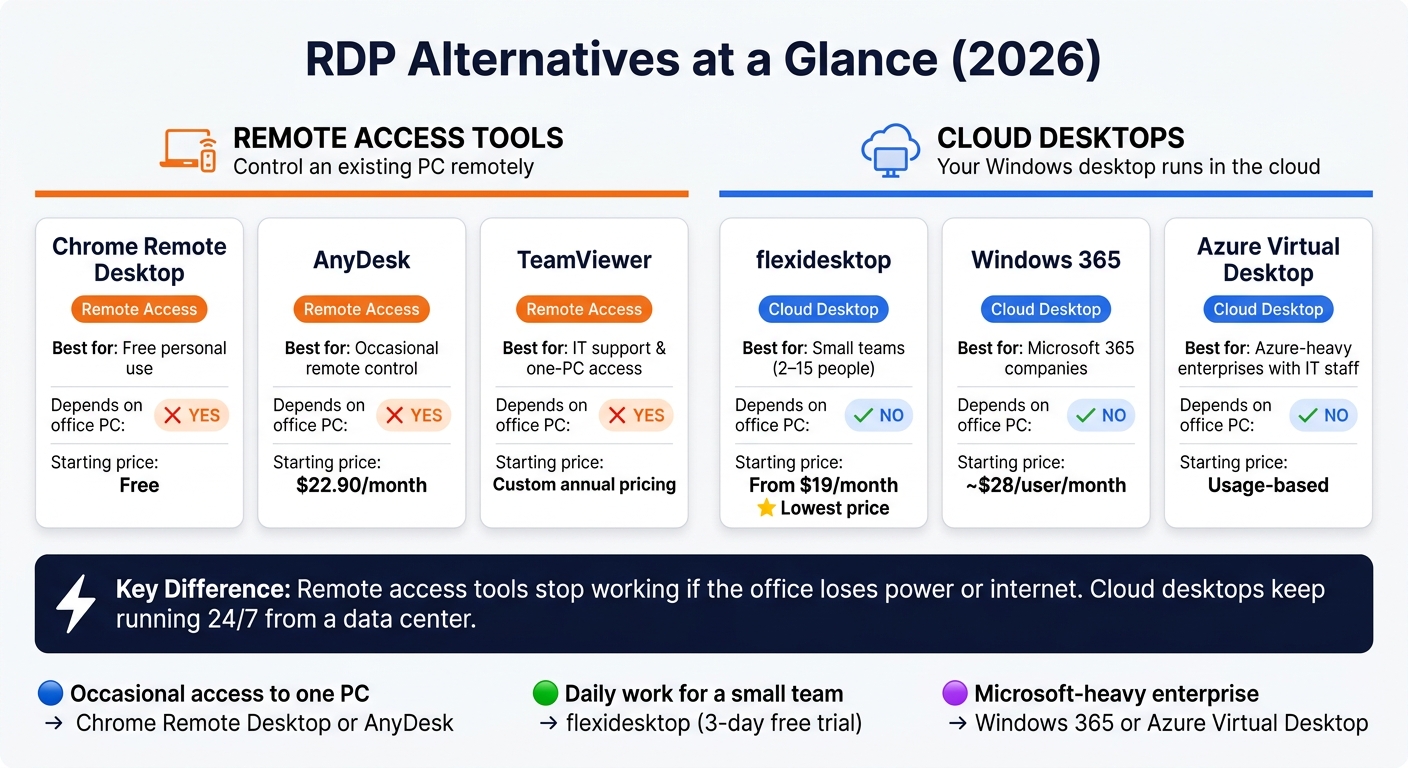
Quick Comparison: RDP Alternatives (2026)
RDP Alternatives Compared: Remote Access vs Cloud Desktop (2026)
The core question: do you want to control a PC that already exists, or replace it with a cloud desktop? That answer determines which option makes sense — more than any feature list.
If you want to replace RDP with a cloud desktop — not just remote control another PC — flexidesktop is the simplest pick for small teams. It gives each person a fully managed cloud Windows desktop. You sign up, and within minutes you have a working Windows 10 or 11 setup running in a data center.
Deployment Model
Each user gets a dedicated Windows desktop in the cloud. There’s no shared server, no concurrent session limits, and no desktop app to install. Just open a browser on any device and the desktop is there. Plans start at $19/month and scale up for heavier workloads. There’s also a 3-day free trial.
Reliability
Because the desktop runs in a data center, it stays on 24/7. If your office loses power or internet, the cloud desktop keeps running. Once your connection comes back, you reconnect and pick up right where you left off.
Security
Access runs over HTTPS — no exposed RDP ports, no VPN to manage. flexidesktop handles infrastructure-level security and Windows updates, so you and your team don’t have to.
Admin Overhead
Day-to-day admin is light. Adding a user means ordering another desktop, not bringing in IT to configure access. Each desktop keeps its own apps, files, and settings in the cloud. Support is included. That makes flexidesktop much easier to run than a self-managed RDP setup.
TeamViewer is a remote access tool, not a cloud desktop. It lets you control a PC that already exists from somewhere else. That makes it useful for IT support work, but it doesn’t solve the core RDP problem: you still need to keep that physical PC running.
How It Works
TeamViewer connects through its own relay network, so you can reach a machine without opening ports or setting up a VPN. The agent runs as a background service on the host PC and restarts after a reboot.
That works well for IT support or occasional access to a single office computer. But for day-to-day work it has a hard limit: the host PC still has to stay powered on and online. If the office loses power or internet, your session drops.
Security
TeamViewer uses encryption and holds certifications, but recent incidents and CVEs mean account hygiene and patching matter a lot. It’s not set-and-forget.
Pricing
Pricing is annual and tiered. Free accounts can be flagged for commercial use, which can trigger session timeouts or blocks — a frustrating surprise for home office users.
For those who need a workspace that’s always available, a managed cloud desktop removes that dependency entirely.
AnyDesk is a remote access tool. It’s fast to set up, but the target machine still needs to stay on. That makes it a solid fit for support and one-off access — not day-to-day team work.
Deployment Model
Setup is quick. For unattended access, install the agent as a service and set a permanent password. AnyDesk connects through its own servers, so you don’t need port forwarding or a VPN.
Reliability Dependency
AnyDesk only works while the target PC is powered on, connected to the internet, and running the agent. No exceptions.
Security Exposure
AnyDesk suffered a 2024 breach that exposed source code and signing certificates. As of April 2026, it had no ISO 27001 or SOC 2 Type II certification — worth factoring in if you handle sensitive data.
Pricing and Admin Overhead
Plans start at $22.90/month billed annually. It works well for occasional access, but the admin side still feels rough compared with a managed cloud desktop.
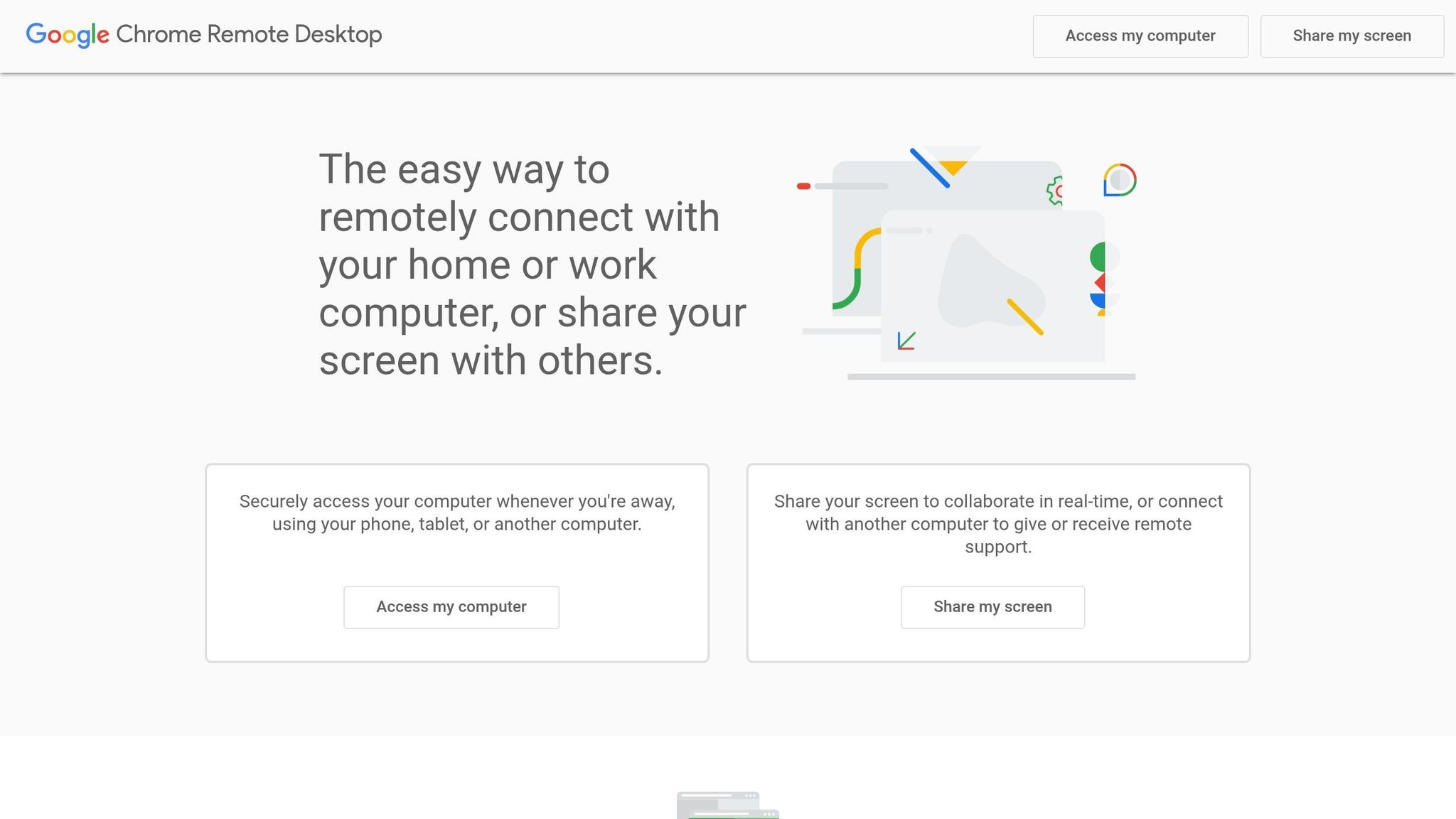
Chrome Remote Desktop is the simplest free option. It’s Google’s browser-based tool, built around a Chrome extension plus a host app on the computer you want to reach. Google handles NAT traversal for you, so no port forwarding or VPN needed. But it still works like remote access — not a managed desktop.
Deployment Model
Install Chrome, add the Chrome Remote Desktop extension, download the host app on the target PC, and sign in with the same Google account on both ends. After that, you can connect from any device running Chrome. For one person logging into their own PC, there’s almost no friction.
Reliability Dependency
Chrome Remote Desktop only works when the target machine is turned on and connected to the internet. If the office PC goes to sleep, shuts down, or loses power, you’re stuck. There’s no Wake-on-LAN support. In 2026 testing, latency came in at about 80 ms, and image quality dropped on slower connections.
Security Exposure
Because access runs through a Google account, security controls are fairly limited — no built-in MFA, no session recording, no central audit log. Sessions use AES-256 encryption, but admin visibility is minimal.
Admin Overhead
No admin console, no audit trail, no simple way to manage several devices from one place. Fine for one person grabbing a file now and then. For a small business with a handful of people, it gets messy fast.
Chrome Remote Desktop fits occasional personal use. It does not fit team workflows. If you need a Windows desktop that stays available even when the office PC is off, the next options move into cloud Windows desktops.
5. Windows 365
If you want a Microsoft-managed Cloud PC instead of a fully self-service desktop, Windows 365 is the most straightforward Microsoft option. Each user gets a persistent Windows desktop hosted in Microsoft data centers.
Deployment Model
Windows 365 starts at about $28 per user/month and scales up with higher specs — a flexidesktop M plan offers comparable 8 GB RAM for power users at a lower price. You’ll also need a Microsoft 365 subscription plus a Cloud PC license, so total cost depends on the Microsoft 365 plan your team already has.
Reliability
Because the desktop runs in Microsoft’s infrastructure, it stays on even if your office internet goes down. Your internet connection still matters for performance — graphics-heavy work on a weak connection can feel sluggish.
Security Exposure
Windows 365 doesn’t expose port 3389. Access runs through Microsoft’s secure gateway and supports Entra ID conditional access policies. Microsoft handles infrastructure-level security, but you still manage user accounts and software inside each desktop.
Admin Overhead
Microsoft handles server uptime, hardware, and Windows updates. That cuts out a lot of maintenance. But you still manage licenses, users, and apps. It works best for teams already running on Microsoft 365 and Entra ID. For a small team without IT support, the Microsoft setup can still feel heavy.
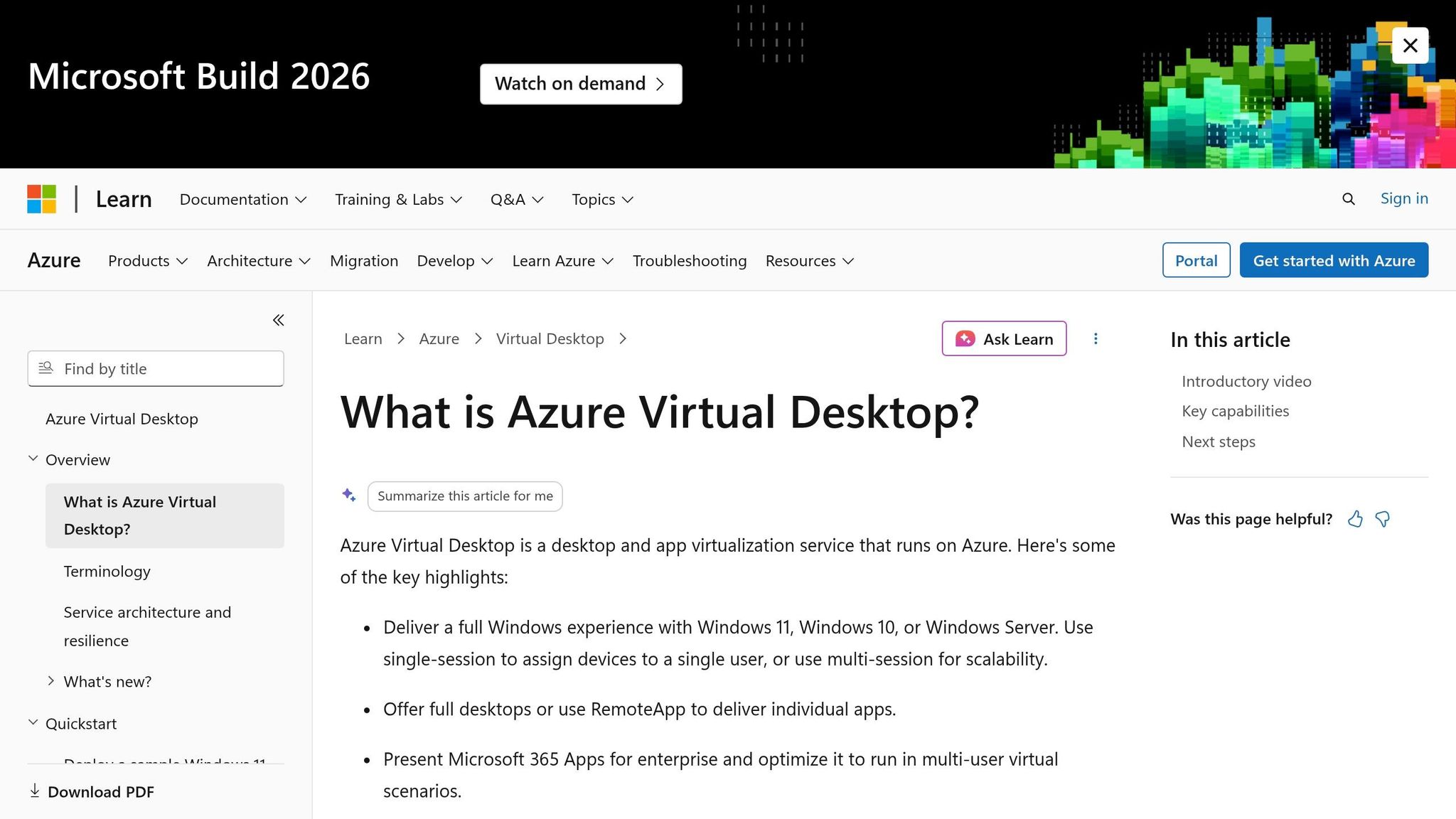
If Windows 365 is Microsoft’s managed option, Azure Virtual Desktop (AVD) is the one built for teams that want more control. The trade-off is straightforward: more flexibility, much more work. In practice, AVD is Microsoft’s enterprise VDI platform for companies that want to run and manage a full VDI setup in Azure.
Deployment Model
AVD supports Windows 11 Enterprise multi-session — multiple users sharing a single VM — which can cut costs at scale. But it also adds planning and admin work. You need to map out your Azure tenant, set up VMs, configure FSLogix profile storage, and handle licensing. Microsoft now requires the Windows App for AVD.
Security Exposure
AVD does not expose port 3389 to the public internet. User access goes through Microsoft’s secure gateway and supports Entra ID (Azure AD) integration, conditional access policies, and MFA.
Admin Overhead
For most small businesses, AVD is simply too much to manage — VM sizing, storage provisioning, and performance tuning all fall on you. You need someone with solid Azure experience. Pricing uses a consumption-based model, so monthly costs are less predictable than simpler Desktop as a Service (DaaS) options.
Chrome Remote Desktop or AnyDesk is usually enough — simple, low effort, done. But if that PC is off, asleep, or the office internet goes down, you’re locked out.
Daily work for a small team
This is where remote access tools start to feel shaky. flexidesktop gives each person a cloud-hosted Windows desktop that keeps running in a data center. They open it from any browser on any device, with no dependency on a single office machine.
Windows 365 and Azure Virtual Desktop
These fit Microsoft-heavy organizations with IT staff already running deep on Microsoft identities, policies, and admin tools. For smaller teams without that IT bench, the setup load is often just too much.
If your setup is simpler and you just need to hop into one office PC occasionally, Chrome Remote Desktop or AnyDesk may be enough — as long as you can live with the requirement that the host PC stays powered on.
Windows 365 and Azure Virtual Desktop serve a different buyer. They fit best when a company already runs heavily on Microsoft 365, already has Azure in place, and already has IT staff who can handle setup and management.
The split is simple: Chrome Remote Desktop or AnyDesk for occasional single-PC access → flexidesktop for small teams → Windows 365 or AVD for Microsoft-heavy enterprises with IT.
Done with port forwarding, VPNs, and an office PC that has to stay on 24/7?
flexidesktop gives your team a full Windows desktop in the cloud — accessible from any browser, always on, starting at $19/month. Try it free for 3 days.
Is there a free alternative to Windows Remote Desktop?
Chrome Remote Desktop is a free option for individuals. But the PC you want to access must be turned on and connected to the internet. If you need a managed cloud Windows setup, there’s no free option — flexidesktop offers a 3-day free trial and paid plans start at $19/month.
Is a cloud desktop safer than RDP?
Yes. A cloud desktop doesn’t require exposing port 3389 to the public internet or managing a VPN. That cuts the risk of brute-force attacks and bot scanning. Access happens over encrypted HTTPS, and the provider handles infrastructure security, patching, and updates.
Can I use a cloud desktop instead of RDP for my team?
Yes. A cloud desktop gives each team member a personal Windows workspace hosted in a data center, instead of tying everyone to one office PC. No shared server management, no concurrent session limits, no office hardware to keep running 24/7. Your team opens their work from any device in a web browser — no VPN, no port forwarding.
What happens if my internet goes down — cloud desktop vs RDP?
Both need an internet connection to access. But when connectivity drops, they behave differently. With a cloud desktop, your Windows session keeps running in the data center — reconnect when you’re back online and pick up where you left off. With RDP to an office PC, if the office internet goes down, you can’t connect at all.
Is flexidesktop a remote desktop tool?
No. flexidesktop provides a cloud-hosted Windows desktop, not remote access to an existing computer. Remote desktop tools let you control a physical PC that has to stay powered on. flexidesktop gives you a dedicated Windows workspace in a data center that you can access from almost any device — no host PC required.
Israel de la Torre is the founder of flexidesktop and has spent 15+ years working in cloud infrastructure and Windows virtualization. He helps businesses migrate from on-premises Windows setups to managed cloud desktops.
To provide the best experiences, we use technologies like cookies to store and/or access device information. Consenting to these technologies will allow us to process data such as browsing behavior or unique IDs on this site. Not consenting or withdrawing consent, may adversely affect certain features and functions.
Functional
Always active
The technical storage or access is strictly necessary for the legitimate purpose of enabling the use of a specific service explicitly requested by the subscriber or user, or for the sole purpose of carrying out the transmission of a communication over an electronic communications network.
Preferences
The technical storage or access is necessary for the legitimate purpose of storing preferences that are not requested by the subscriber or user.
Statistics
The technical storage or access that is used exclusively for statistical purposes.The technical storage or access that is used exclusively for anonymous statistical purposes. Without a subpoena, voluntary compliance on the part of your Internet Service Provider, or additional records from a third party, information stored or retrieved for this purpose alone cannot usually be used to identify you.
Marketing
The technical storage or access is required to create user profiles to send advertising, or to track the user on a website or across several websites for similar marketing purposes.
To provide the best experiences, we use technologies like cookies to store and/or access device information. Consenting to these technologies will allow us to process data such as browsing behavior or unique IDs on this site. Not consenting or withdrawing consent, may adversely affect certain features and functions.
Functional
Always active
The technical storage or access is strictly necessary for the legitimate purpose of enabling the use of a specific service explicitly requested by the subscriber or user, or for the sole purpose of carrying out the transmission of a communication over an electronic communications network.
Preferences
The technical storage or access is necessary for the legitimate purpose of storing preferences that are not requested by the subscriber or user.
Statistics
The technical storage or access that is used exclusively for statistical purposes.The technical storage or access that is used exclusively for anonymous statistical purposes. Without a subpoena, voluntary compliance on the part of your Internet Service Provider, or additional records from a third party, information stored or retrieved for this purpose alone cannot usually be used to identify you.
Marketing
The technical storage or access is required to create user profiles to send advertising, or to track the user on a website or across several websites for similar marketing purposes.