Compare running Claude Code 24/7 on local PC, Linux VPS, or Windows cloud desktop—tradeoffs in cost, reliability, and setup.
Want to run Claude Code and MCP servers on Windows without interruptions? This guide compares three options — Local PC, Linux VPS, and Windows Cloud Desktop — to help you decide which setup works best for uninterrupted, around-the-clock workflows.
Here’s what you’ll learn:
Why running Claude Code 24/7 matters. Overnight code reviews, documentation generation, and automated pipelines only work if the environment never sleeps.
What MCP servers are and why they need persistent hosting. Each MCP server is a separate process — if it gets interrupted, Claude loses its context and has to start over.
Which setup fits your situation. Local PC for occasional use, Linux VPS for budget-conscious developers comfortable with the command line, Windows Cloud Desktop for reliability without the Linux learning curve.
Quick tip: For most developers who need Claude Code running unattended, the minimum practical setup is a cloud desktop with at least 8 GB RAM and 3 vCPU — enough to run Claude Code alongside several MCP servers simultaneously without memory pressure.
Why Run Claude Code and MCP Servers 24/7?
Most developers use Claude Code interactively — you type, Claude responds, you move on. But that model leaves a lot of value on the table.
The real leverage comes when Claude keeps working after you close your laptop.
Overnight code reviews
Point Claude at a repository before you go to sleep. By morning, it has read every file, flagged inconsistencies, identified dead code, and drafted a report you can act on immediately. What would take you a full day of focused reading takes Claude a few hours running unattended.
Documentation generation at scale
If you have 10, 20, or 50 repositories that need up-to-date documentation, running that interactively is impractical. A persistent Claude Code session with a Filesystem MCP server can scan every repo, generate structured docs, and commit them — while you’re doing something else.
Multi-step automation pipelines
This is where MCP servers really earn their place. Claude can pull an open issue from GitHub, check the relevant code, draft a fix, open a PR, and post a Slack summary — all as one unattended workflow. No human in the loop until the PR is ready for review.
Web monitoring and scraping
With a browser MCP connected, Claude can visit pages, extract structured data, compare it against previous runs, and alert you when something changes — a competitor’s pricing, a job board, a public dataset. Set it up once and it runs on schedule.
Scheduled data tasks
With a database MCP connected, Claude can run nightly queries, summarize results, and generate reports. Think of it as a capable analyst who works the night shift.
None of this works reliably if Claude Code is running on a machine that sleeps, restarts, or loses its network connection. That’s exactly why the choice of where to run it matters.
What Are MCP Servers?
MCP (Model Context Protocol) is an open standard that lets Claude connect to external tools and data sources. Instead of being limited to what’s in the conversation, Claude can read files, query databases, browse APIs, and interact with services — all through MCP servers.
Each MCP server exposes a specific set of capabilities:
MCP Server
What Claude can do
Filesystem
Read and write files, scan directories, generate or modify documents
GitHub
Read repos, analyze code, review PRs, open issues
PostgreSQL / SQLite
Query databases, summarize data, generate reports
Slack
Search conversations, retrieve context, post messages
Jira
Read tickets, generate documentation, update status
Browser
Navigate websites, scrape data, fill forms, monitor pages
The key detail for this article: MCP servers are separate processes that run alongside Claude Code. If Claude Code is running on a machine that goes to sleep or loses its connection, those server processes get interrupted too. When you restart, Claude has lost its context and has to start over.
That’s why “running MCP servers 24/7” isn’t just about keeping Claude Code alive — it’s about keeping the entire pipeline stable.
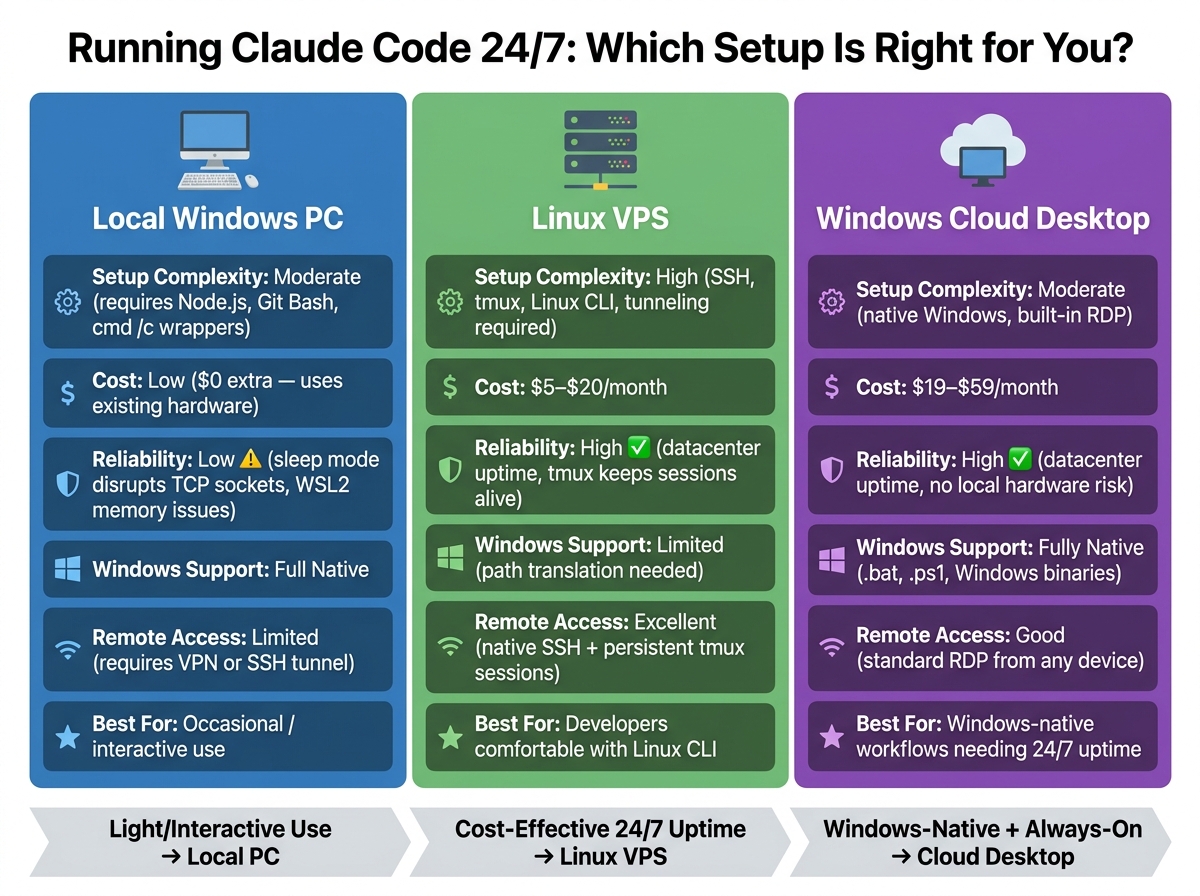
Quick Comparison
Local PC vs Linux VPS vs Windows Cloud Desktop for Running Claude Code 24/7
Factor
Local PC
Linux VPS
Windows Cloud Desktop
Setup Complexity
Moderate
High
Moderate
Cost
Low
$5–$20/month
$19–$59/month
Reliability
Low
High
High
Windows Support
Full
Limited
Full
Remote Access
Requires setup
Excellent via SSH
Seamless via RDP
1. Local Windows PC
Using a local Windows PC is often the easiest way to get started. If you already have the hardware, setting up Claude Code is straightforward — install Node.js 18 or later and run npm install -g @anthropic-ai/claude-code. No monthly server fees, no remote setup.
Setup Complexity
While the initial installation is simple, things get tricky with configuration. Claude Code assumes a Unix-like shell environment, so Git Bash is the preferred option over Command Prompt or PowerShell to avoid issues with paths and stdio behavior. If you’re running MCP servers, expect additional hurdles. Node’s child_process.spawn doesn’t directly work with .cmd files like npx, which means you’ll need to wrap commands using cmd /c:
Also use absolute paths for interpreters like C:\Program Files\nodejs\node.exe to prevent silent failures during background processes.
Reliability
Running Claude Code on a local Windows PC can be unreliable for continuous use. Sleep mode and memory management are common culprits. When your PC goes to sleep, the WSL2 network stack often breaks, leaving TCP sockets in a half-closed state and causing EPIPE errors that disconnect MCP servers. Windows also aggressively reclaims memory from the WSL2 virtual machine — if Claude Code and subagents use too much, the OOM killer may shut down your MCP server (logged as Exit Code 137).
“WSL2’s network stack is fragile across a host sleep. The MCP server keeps its TCP socket open, Windows resumes, the socket is half-closed… Claude Code logs the disconnect.” — Marius Bughiu, troubleshooting Claude Code 2.1.128 on Windows 11 [4]
Cost
One advantage of using a local PC is the lack of extra infrastructure costs. You’ll only pay for Claude Pro at $20/month or use the pay-as-you-go Anthropic API. Local stdio transport is also fast, with latency between 1–5ms compared to 50–200ms for remote HTTP/SSE transports — a noticeable difference when Claude is making multiple tool calls in a row.
Windows Compatibility
Claude Code works well on Windows for interactive use. The challenges arise with MCP server processes, WSL2 networking, and managing background tasks. For continuous 24/7 operation, these issues become a persistent headache. For occasional use, a local PC can handle it fine.
2. Linux VPS
A Linux VPS is a solid choice for developers who need Claude Code running continuously without relying on their local machine. It provides a native Linux/Unix environment, which means you can run Claude Code without extra tools or workarounds.
Setup Complexity
Running Claude Code on a Linux VPS (Ubuntu is the go-to choice) requires some familiarity with the command line. You’ll need to install Node.js 20 or newer, set up SSH keys, and configure a persistent session manager. tmux is the standard tool for this — it ensures your session stays active even when you disconnect from SSH.
“TMUX keeps sessions alive even when you disconnect from SSH, so your Claude Code instances keep running 24/7.” — gregdigittal, Author of vpc-sync-mcp-server [2]
For automatic restarts after a reboot, use systemd unit files rather than @reboot cron jobs. The initial effort pays off with a hands-off experience long-term.
Reliability
This is where a Linux VPS shines. It avoids sleep mode interruptions, WSL2 memory quirks, and NAT loopback problems. The network stays stable, MCP server processes are less likely to be killed by out-of-memory events, and your tmux sessions keep running whether you’re connected or not.
Cost
You’ll cover the Claude Pro subscription ($20/month) or pay-as-you-go API fees, plus VPS hosting. Watch out for token-burning loops — autonomous agents can rack up API costs by calling tools unnecessarily. Set clear task limits and audit your agent’s behavior before leaving it unattended overnight. Remote MCP communication over HTTP/SSE also introduces 50–200ms of latency per tool call, compared to 1–5ms with local stdio.
Windows Compatibility
A Linux VPS resolves reliability issues but requires comfort with Linux administration. Windows-native scripts like .bat or .ps1 won’t run directly and need to be adapted. If Linux administration feels overwhelming, a Windows Cloud Desktop offers a more familiar path to the same uptime.
3. Windows Cloud Desktop
A Windows Cloud Desktop stands out as the most practical option for developers who want uninterrupted Claude Code and MCP operation without managing a Linux server. You get a persistent Windows machine hosted in a data center, accessible from anywhere via RDP.
Setup Complexity
Setup is straightforward. Running Claude Code and MCP servers on a single Windows host eliminates common issues like WSL2 path translations, NAT loopback problems, and the need for wsl.exe wrappers. Wrap npx commands with cmd /c to ensure Node’s child_process.spawn correctly resolves the npx.cmd batch shim, and use absolute paths for executables like node.exe to avoid ENOENT errors. For automatic startup, Windows Task Scheduler handles it reliably — a .bat restart loop launched at logon with elevated privileges ensures MCP server uptime.
Reliability
Compared to a local Windows machine, a cloud desktop has a clear reliability advantage. No sleep cycles, no aggressive memory reallocation, no risk of the laptop lid closing mid-task. Stable TCP connections and consistent resource allocation mean your MCP server pipeline runs exactly as configured.
Cost
For running Claude Code with multiple MCP servers simultaneously, the minimum practical configuration is the M plan at $39/month (3 vCPU, 8 GB RAM). That gives Claude enough headroom to maintain several MCP server processes without memory pressure affecting stability.
The entry-level plan at $19/month (1 vCPU, 2 GB RAM) is sufficient for light, single-server use. For heavier workloads — multiple MCP servers, subagents, or overnight batch tasks — the L plan at $59/month (4 vCPU, 16 GB RAM) is the more comfortable option. Add your Claude Pro subscription ($20/month) or API usage on top.
Windows Compatibility
One of the biggest advantages is native Windows execution. Scripts like .bat and .ps1 run directly, Windows binaries work without compatibility layers, and Git Bash can be installed to handle any Unix-like shell requirements from Claude Code. Log files are stored in %APPDATA%\Claude\logs\, making it easy to monitor MCP connection issues using standard Windows tools or Git Bash’s tail -f.
Remote Access
With built-in RDP, remote access is seamless. Connect from any device — laptop, tablet, or desktop — and pick up exactly where you left off. Since MCP servers run on the same host you’re connecting to, there’s no bridging between local and remote machines. No SSH tunnels, no autossh configurations, no manual port exposure.
Fully native — supports .bat, .ps1, and Windows binaries directly
Remote Access
Limited — requires VPN or tunneling tools
Excellent — native SSH with persistent tmux sessions [2]
Good — standard RDP from any device
When Does a Windows Cloud Desktop Make Sense?
Both a Linux VPS and a Windows Cloud Desktop deliver datacenter-level reliability. The question is which one fits your actual workflow.
You use more than one machine.
If you switch between a work laptop and a home desktop, running Claude Code locally means your sessions, MCP configurations, and in-progress tasks are always tied to whichever machine you last used. A cloud desktop centralizes everything — connect from anywhere, same environment.
You rely on Windows-native tools.
If your workflow involves .bat scripts, PowerShell automation, or Windows-only software that Claude needs to interact with via MCP, a Linux VPS is not a realistic option. A cloud desktop runs everything natively.
You want overnight automation without babysitting a server.
If the appeal of Claude Code is having it work while you sleep — reviewing code, processing data, running pipelines — you need an environment that doesn’t require manual intervention to stay alive. That rules out a local PC and adds friction with a VPS.
You’ve already tried the local setup and hit the wall.
WSL2 disconnections, OOM kills, sleep mode interruptions — if you’ve spent time debugging these, you know the cost. The cloud desktop removes those variables entirely.
Conclusion
The right choice depends on your technical comfort, budget, and how much you need Claude Code to work while you’re not watching.
For most developers who want to run Claude Code and MCP servers continuously — reviewing code overnight, generating documentation, running automation pipelines — a Windows Cloud Desktop hits the right balance. Datacenter-level reliability, native Windows environment, no Linux administration required.
Run Claude Code and MCP servers 24/7 on a Windows Cloud Desktop.
Plan M from $39/month — 3 vCPU, 8 GB RAM. No Linux required. Connect via RDP and run Claude Code just like on your own PC, without the sleep mode interruptions.
Yes, Claude Code works directly on Windows without requiring WSL. Use Git Bash rather than Command Prompt or PowerShell to avoid path and stdio issues. When setting up MCP servers, wrap npx commands with cmd /c and use absolute paths for interpreters like node.exe or python.exe.
Is a $5 Linux VPS worth it over a $39 Windows Cloud Desktop?
If you’re comfortable with SSH, tmux, and Linux administration, a VPS is a solid choice — reliable uptime at a much lower cost. If you rely on Windows-native scripts, prefer a graphical interface, or simply don’t want to manage a Linux server, the cloud desktop is worth the difference. Both options are equally reliable at the infrastructure level; it comes down to workflow and comfort.
How much RAM do I need to run multiple MCP servers simultaneously?
For running Claude Code alongside several MCP servers (Filesystem, GitHub, a database connector, and a browser MCP), 8 GB RAM is the practical minimum. With 2 GB you risk the Windows OOM killer terminating MCP processes under load. For heavy overnight workloads with subagents, 16 GB gives you comfortable headroom.
Can Claude Code run 24/7?
Yes, but the approach depends on your environment. On Linux, tmux and systemd keep sessions and processes alive indefinitely. On Windows, you need to prevent sleep mode and use Windows Task Scheduler or a process manager to restart on crashes. On a cloud desktop, the machine never sleeps — the main thing to configure is auto-start at logon.
Can I run MCP servers on Windows?
Yes. For remote HTTP-based servers, connect as you would on any platform. For local stdio-based servers, wrap npx with cmd /c:
Yes. On a Linux VPS, connect via SSH and attach to your tmux session. On a Windows Cloud Desktop, connect via RDP from any device and pick up where you left off. The cloud desktop approach is simpler — no tunnel configuration, no port forwarding, just RDP.
Israel de la Torre is the founder of flexidesktop and has spent 15+ years working in cloud infrastructure and Windows virtualization. He helps businesses migrate from on-premises Windows setups to managed cloud desktops.
Compare remote-access apps and cloud desktops to choose the right RDP alternative—use remote tools for occasional access or cloud PCs for always-on team work.
To provide the best experiences, we use technologies like cookies to store and/or access device information. Consenting to these technologies will allow us to process data such as browsing behavior or unique IDs on this site. Not consenting or withdrawing consent, may adversely affect certain features and functions.
Functional
Always active
The technical storage or access is strictly necessary for the legitimate purpose of enabling the use of a specific service explicitly requested by the subscriber or user, or for the sole purpose of carrying out the transmission of a communication over an electronic communications network.
Preferences
The technical storage or access is necessary for the legitimate purpose of storing preferences that are not requested by the subscriber or user.
Statistics
The technical storage or access that is used exclusively for statistical purposes.The technical storage or access that is used exclusively for anonymous statistical purposes. Without a subpoena, voluntary compliance on the part of your Internet Service Provider, or additional records from a third party, information stored or retrieved for this purpose alone cannot usually be used to identify you.
Marketing
The technical storage or access is required to create user profiles to send advertising, or to track the user on a website or across several websites for similar marketing purposes.
To provide the best experiences, we use technologies like cookies to store and/or access device information. Consenting to these technologies will allow us to process data such as browsing behavior or unique IDs on this site. Not consenting or withdrawing consent, may adversely affect certain features and functions.
Functional
Always active
The technical storage or access is strictly necessary for the legitimate purpose of enabling the use of a specific service explicitly requested by the subscriber or user, or for the sole purpose of carrying out the transmission of a communication over an electronic communications network.
Preferences
The technical storage or access is necessary for the legitimate purpose of storing preferences that are not requested by the subscriber or user.
Statistics
The technical storage or access that is used exclusively for statistical purposes.The technical storage or access that is used exclusively for anonymous statistical purposes. Without a subpoena, voluntary compliance on the part of your Internet Service Provider, or additional records from a third party, information stored or retrieved for this purpose alone cannot usually be used to identify you.
Marketing
The technical storage or access is required to create user profiles to send advertising, or to track the user on a website or across several websites for similar marketing purposes.