If I need a Windows VM in 2026, I start with one question: do I want local control, or do I just want Windows to open from any device? For many people, a cloud Windows VM is the simpler pick. It skips the hypervisor install, cuts setup from hours to minutes, and can start as low as $19/month with Windows included. But local VM software still wins when I need offline use, old operating systems, nested labs, or low-level system access.
Bottom line: I’d use a local hypervisor when control matters most. I’d use a cloud Windows VM when I want to sign in and get to work.
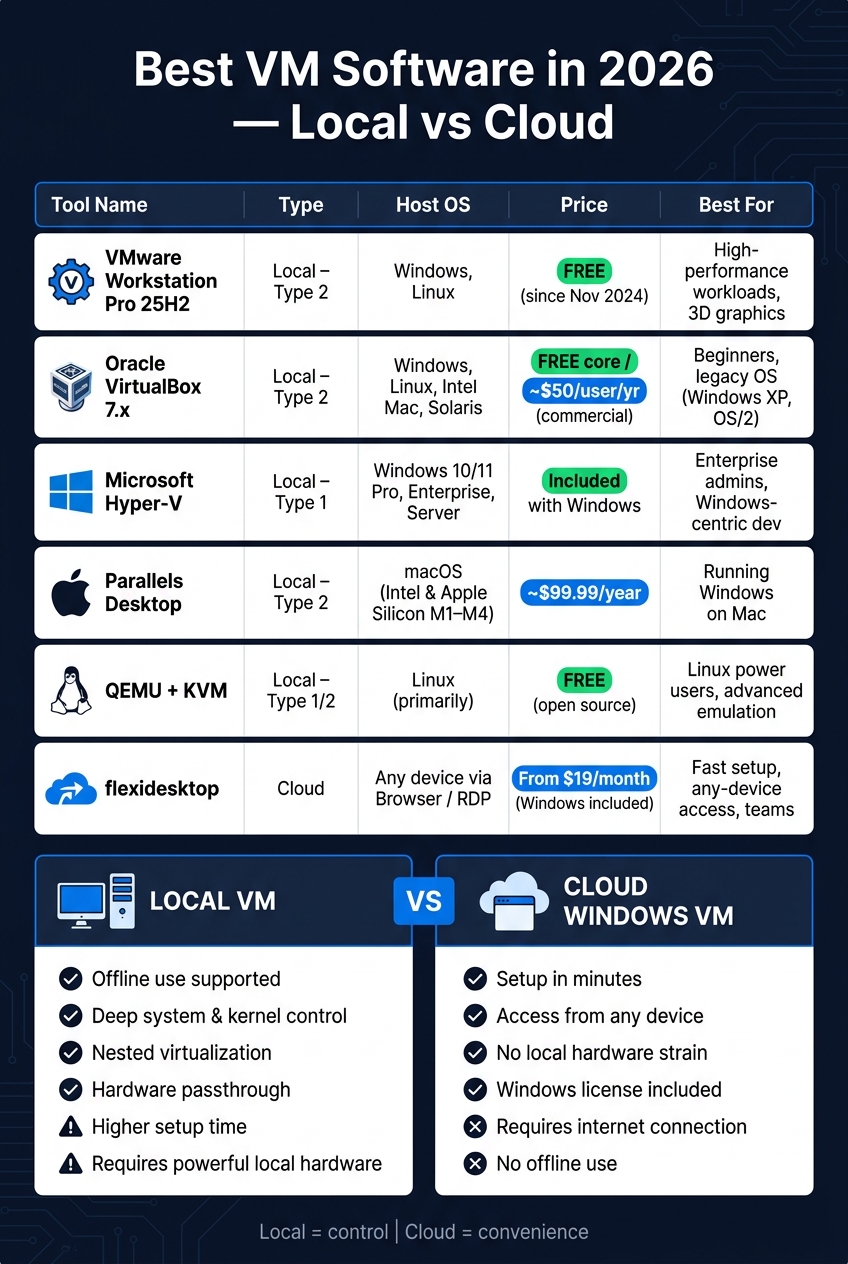
Quick comparison: best virtual machine software and cloud options at a glance
Use this table to narrow your options before the short tool summaries below.
How to read this table
Scan for three things first: local install vs. browser access, supported host OS, and pricing model.
That gets you to a short list fast. Some options are free, some use annual licenses, and the cloud option runs on a monthly plan with Windows included.
Use this snapshot to sort by access model, host OS, and price.
Fast setup, any-device access, teams, Mac/tablet users
VMware Workstation Pro is now free for both personal and commercial use. VirtualBox still stands out for older operating systems. Hyper-V comes with supported Windows editions, and flexidesktop includes the Windows license.
Oracle VirtualBox 7.x is the main open-source, cross-platform option. It works well for legacy guests and training labs. Core VirtualBox is free, but commercial use of the Extension Pack adds licensing cost [3][5]. The catch? Performance tends to trail VMware [3][5].
VMware Workstation Pro 25H2 is the top choice for performance, and it’s now free for both personal and commercial use [3][5]. It’s strong on disk and 3D performance, with support for DirectX 12 and OpenGL 4.3. The trade-off is pretty simple: the install is larger, it asks more from your hardware, and support for older guests like Windows 7 is limited.
Microsoft Hyper-V comes built into Windows Pro, Enterprise, and Server editions [3][1]. That makes it a natural fit for Windows-heavy IT work. It also offers tight Windows integration and enterprise security features. The downside is that it’s not available on Windows Home, and desktop graphics support is limited.
Parallels Desktop is the easiest Mac option for running Windows. It supports both Apple Silicon Macs, from M1 through M4, and Intel Macs. You also get Coherence mode, which lets Windows apps run alongside macOS apps on the same desktop [1][2]. It’s Mac-only, so you can’t use it on Windows or Linux hosts.
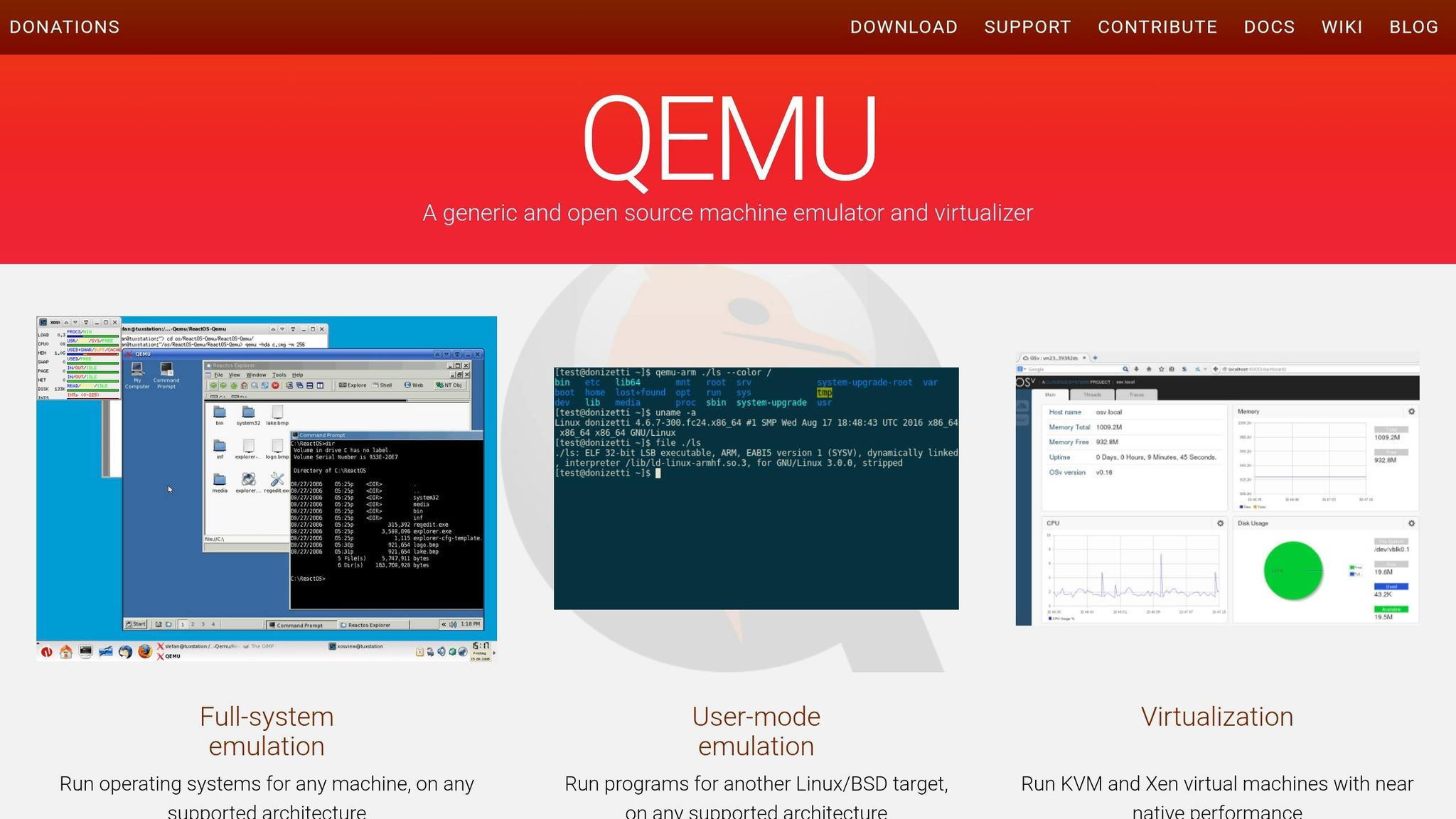
QEMU with KVM is the Linux power-user pick. It’s flexible and fast when KVM acceleration is enabled [6]. But there’s no sugarcoating it: setup is more technical than the GUI-first tools listed above.
If you want a Windows desktop without installing a hypervisor, the next section covers the online option.
How to run a Windows VM online without installing anything
What an online Windows VM is and how you access it
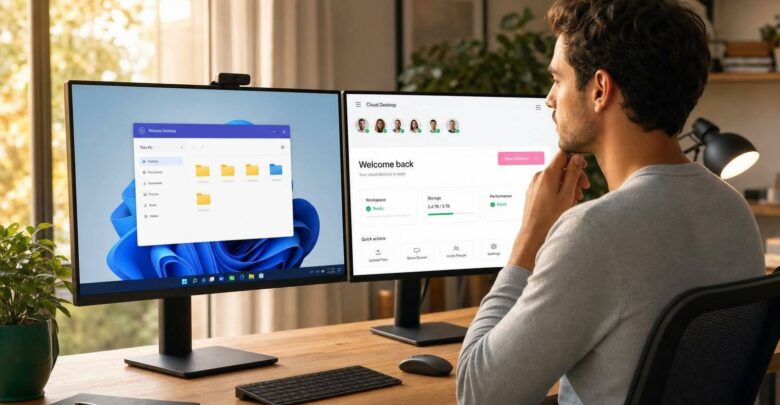
An online Windows VM is a full Windows desktop that runs on remote servers. The provider takes care of the hardware, and you connect to it through a browser or a Remote Desktop client.
That means you can open it from a Windows PC, Mac, tablet, or almost any other internet-connected device through an encrypted browser session or Remote Desktop. There’s no ISO to download, no hypervisor to set up, and no need to split up your local drive.
If you want better support for things like webcams, microphones, and printers, a Remote Desktop client is usually the better pick. That setup makes cloud Windows a smart fit in some situations and a poor fit in others.
When a cloud Windows VM is the better choice – and when it is not
Use the comparison below to decide whether cloud access or local control matters more for your workload.
A cloud Windows VM makes sense if your device is underpowered, your team works remotely, or you need to get started fast. It also helps when company MDM rules block local installs.
It’s not a good fit if you need to work offline, run nested virtualization labs, or use direct local GPU passthrough. There’s also network latency to think about. For office work and development, that’s usually fine. For delay-sensitive tasks, you’ll likely notice it.
Feature
Local VM Software
Online Windows VM
Setup time
Longer: install software + Windows ISO
Minutes
Hardware needs
High – uses local CPU, RAM, storage
Low – any device with a browser
Access
Tied to one physical machine
Any device, anywhere
Offline use
✅ Supported
❌ Requires internet
Management
Manual updates, backups, scaling
Managed infrastructure and centralized maintenance
Best use case
Offline labs, low-level kernel control
Remote teams, contractors, limited hardware
flexidesktop: run a Windows VM in the cloud in minutes
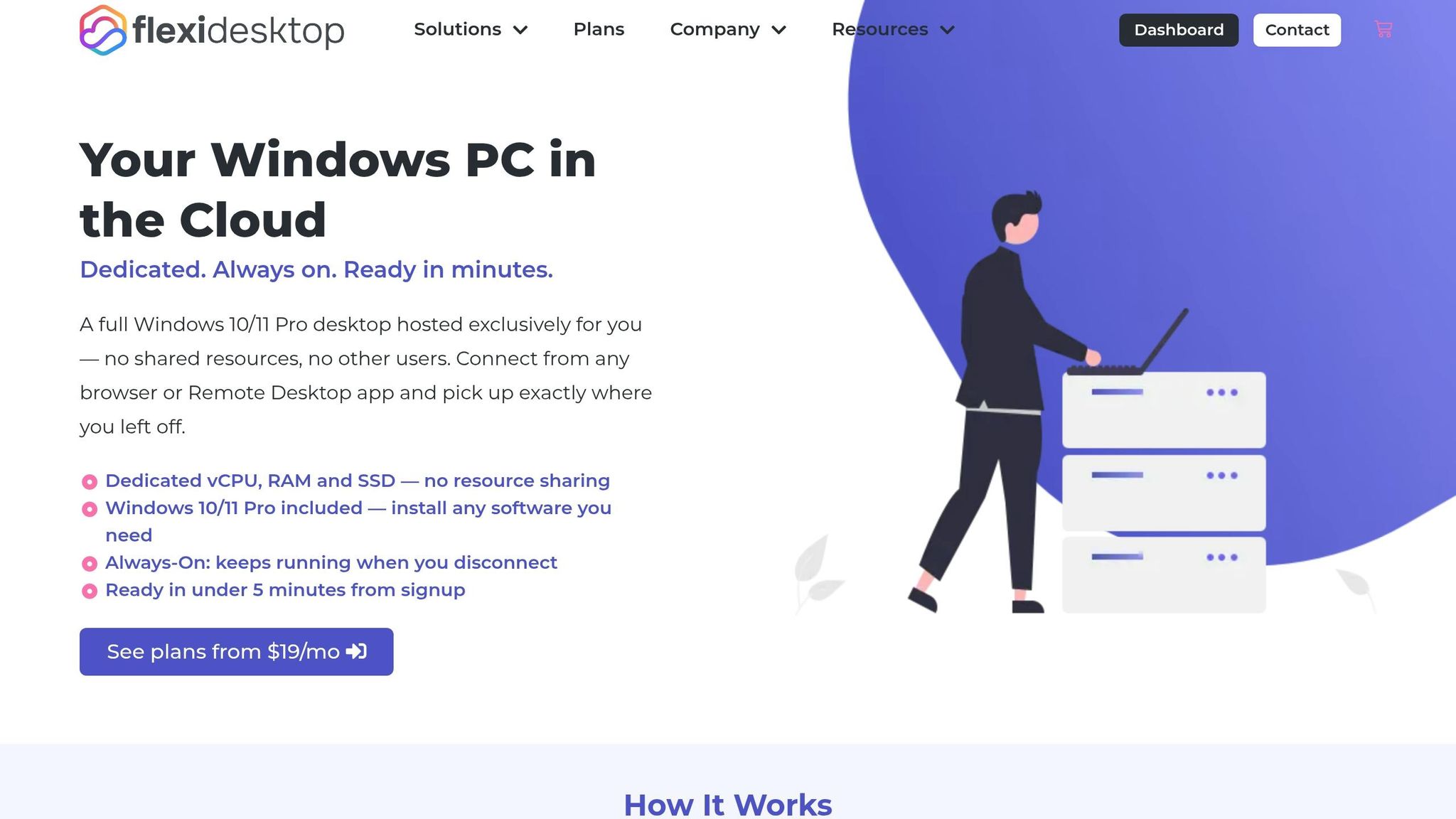
If you want a ready-to-use cloud Windows VM, flexidesktop is a simple example. It’s a cloud-hosted Windows virtual desktop service with dedicated vCPU, RAM, and SSD resources. You also get optional GPU, daily backups, isolated private networks, and full administrator control.
For individuals, plans start at $19/month for the XS tier with 1 vCPU, 2 GB RAM, and 40 GB SSD. The M plan at $39/month includes 3 vCPU, 8 GB RAM, and 80 GB SSD. The XL plan at $109/month comes with 8 vCPU, 24 GB RAM, and 120 GB SSD.
For teams, pricing starts at $49/month for Team S and goes up to $299/month for Team XL [4].
If your main goal is fast access from any device, this is the next model to look at.
Which option should you choose? A practical decision guide
The best virtual machine software is the one that fits the work in front of you. If the table helped trim the list, here’s the simple rule: go local for control, and pick an online Windows VM for convenience.
Choose local VM software for offline labs and low-level control
Local hypervisors make sense when you need deep system control. That includes analyzing malware inside an isolated sandbox, testing kernel-mode drivers, or running nested virtualization.
They’re also the better fit when you need to work offline or rely on passthrough and hardware-level control that a cloud VM often can’t offer. If you don’t need that kind of access, the cloud route is usually easier.
Choose an online Windows VM for fast setup, any-device access, and less management
Pick an online Windows VM when setup speed, device access, and low upkeep matter more. You don’t need to provision hardware, and you won’t use up local CPU, RAM, or storage.
Instead, you get a persistent Windows desktop you can open from almost any device, including Macs, tablets, and thin clients. You also skip the usual admin chores like handling updates, snapshots, and backups on your own.
flexidesktop, for example, starts at $19/month with the Windows license included, dedicated resources, daily backups, and administrative access [4].
For office apps, development tools, and remote collaboration, an online Windows VM is often the better default.
Run a Windows VM Online — No Install Required
Skip the hypervisor. Get a full Windows virtual machine in the cloud — ready in minutes, no powerful hardware, accessible from any device. Spin one up and start working in your browser.
Can I run a Windows VM online without installing anything?
Yes. You can run a Windows virtual machine online without installing any software on your device. The Windows setup runs on remote servers and streams straight to your web browser.
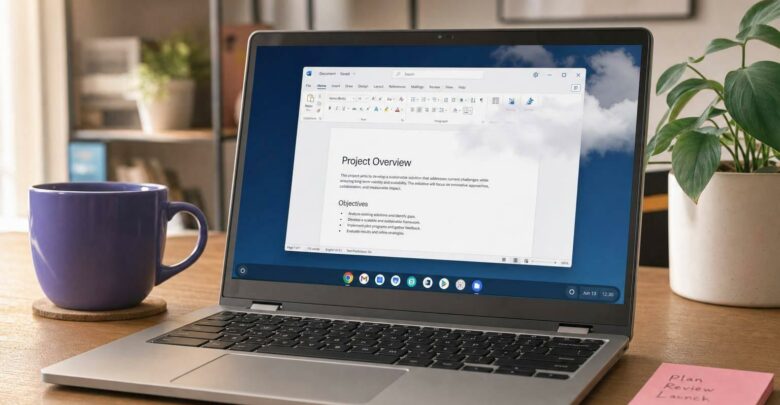
That means you get a full Windows desktop on a Mac, Chromebook, or Linux machine without needing high-end hardware, extra local storage, or a messy setup process.
What’s the best free virtual machine software?
In 2026, VMware Workstation Pro stands out as one of the best free picks for both personal and commercial use. It works especially well for high-performance workloads, advanced networking, and hardware passthrough.
VirtualBox is a strong open-source option if you need cross-platform support. And if you’re on Linux and want near-native performance, KVM/QEMU is a solid free choice.
Is an online/cloud VM better than VirtualBox?
It depends on what you need.
A cloud-based Windows VM is often the better pick if you care most about convenience and easy access. There’s no local install, it doesn’t eat up your device’s CPU, RAM, or storage, and you can open it from almost any device right in a browser. That makes it a good fit if you want to get started fast or work from different places without dragging your setup around.
VirtualBox makes more sense if you want a free, open-source hypervisor for local, offline development or hobby projects. It’s also a solid match for Vagrant and older guest operating systems. The tradeoff is simple: you’re in charge of the hardware, setup, and maintenance yourself.
How do I run Windows in the cloud?
You can run Windows in the cloud by opening a full Windows desktop right in your web browser. That means no software to install and no local hypervisor to set up.
The heavy lifting happens on remote servers, so your device doesn’t need much power. You can connect from a laptop, PC, or tablet, and services like flexidesktop can give you a ready-to-use Windows setup in minutes.
Do I need a powerful computer for an online Windows VM?
No. With an online Windows virtual machine, the VM runs fully in the cloud. Your device mostly acts like a portal that streams the desktop to you.
So you don’t need to run the heavy processing for the Windows guest OS on your own machine. You mainly need a stable internet connection.
This setup can also get around local hardware limits, like low RAM or a CPU that doesn’t support virtualization.
Can I use an online Windows VM from a Mac or tablet?
Yes. An online Windows VM runs in the cloud, so you can use it from a Mac or tablet without installing Windows on your device or dealing with hardware issues.
You just open the Windows desktop in a web browser or remote desktop app and run Windows apps from any device with an internet connection, no matter which operating system it uses.
When should I choose a local VM instead of a cloud VM?
Choose a local VM when you need offline access. Cloud VMs rely on a stable internet connection, so they’re not a good match if your connection drops or you need to work without internet.
A local VM also makes more sense for heavy local GPU passthrough, advanced nested virtualization, and specific hardware integrations. It’s a solid option when you want full control over host resources or prefer to keep sensitive data on-premises.
Israel de la Torre is the founder of flexidesktop and has spent 15+ years working in cloud infrastructure and Windows virtualization. He helps businesses migrate from on-premises Windows setups to managed cloud desktops.
Compare remote-access apps and cloud desktops to choose the right RDP alternative—use remote tools for occasional access or cloud PCs for always-on team work.
To provide the best experiences, we use technologies like cookies to store and/or access device information. Consenting to these technologies will allow us to process data such as browsing behavior or unique IDs on this site. Not consenting or withdrawing consent, may adversely affect certain features and functions.
Functional
Always active
The technical storage or access is strictly necessary for the legitimate purpose of enabling the use of a specific service explicitly requested by the subscriber or user, or for the sole purpose of carrying out the transmission of a communication over an electronic communications network.
Preferences
The technical storage or access is necessary for the legitimate purpose of storing preferences that are not requested by the subscriber or user.
Statistics
The technical storage or access that is used exclusively for statistical purposes.The technical storage or access that is used exclusively for anonymous statistical purposes. Without a subpoena, voluntary compliance on the part of your Internet Service Provider, or additional records from a third party, information stored or retrieved for this purpose alone cannot usually be used to identify you.
Marketing
The technical storage or access is required to create user profiles to send advertising, or to track the user on a website or across several websites for similar marketing purposes.
To provide the best experiences, we use technologies like cookies to store and/or access device information. Consenting to these technologies will allow us to process data such as browsing behavior or unique IDs on this site. Not consenting or withdrawing consent, may adversely affect certain features and functions.
Functional
Always active
The technical storage or access is strictly necessary for the legitimate purpose of enabling the use of a specific service explicitly requested by the subscriber or user, or for the sole purpose of carrying out the transmission of a communication over an electronic communications network.
Preferences
The technical storage or access is necessary for the legitimate purpose of storing preferences that are not requested by the subscriber or user.
Statistics
The technical storage or access that is used exclusively for statistical purposes.The technical storage or access that is used exclusively for anonymous statistical purposes. Without a subpoena, voluntary compliance on the part of your Internet Service Provider, or additional records from a third party, information stored or retrieved for this purpose alone cannot usually be used to identify you.
Marketing
The technical storage or access is required to create user profiles to send advertising, or to track the user on a website or across several websites for similar marketing purposes.