Delegating tasks to a virtual assistant (VA) can save time, but sharing passwords and sensitive data directly can expose your business to serious security risks. Instead, use virtual desktops – cloud-based workspaces that allow VAs to complete tasks securely without direct access to your credentials or sensitive systems. Here’s why this approach works:
- No password sharing required: You log in to accounts on the virtual desktop, and the VA manages tasks without handling your credentials.
- Centralized control: Permissions, software, and data access are managed from one secure environment, reducing risks from device theft or malware.
- Instant access revocation: When a project ends, you can immediately disable the VA’s access without changing multiple passwords.
- Advanced security: Features like encryption, multi-factor authentication (MFA), and activity monitoring protect your business data.
Virtual desktops simplify the process of managing VAs while safeguarding your business from cyber threats, which are especially dangerous for small businesses. With costs starting as low as $19/month, they’re a practical solution for securely scaling your team.
Data Security With Virtual Assistants: Best Practices
Security Risks of Sharing Passwords and Sensitive Data with VAs
Sharing passwords and sensitive data directly with virtual assistants (VAs) can create serious security vulnerabilities. This practice doesn’t just risk a simple password leak – it can jeopardize your entire business. These risks highlight the importance of using controlled, secure workspaces for task delegation.
Common Security Threats from Direct Password Sharing
When login credentials are shared directly, several security risks emerge:
- Credential exposure and phishing threats: Sending passwords through insecure channels like email leaves a digital trail that attackers can exploit. VAs can also become targets for phishing attempts aimed at extracting additional sensitive information [1] [2].
- Excessive access privileges: VAs often receive more access to systems than they need, increasing the potential for misuse or accidental breaches [1].
- Human error: Mistakes made while sharing credentials can amplify risks. As Yves Lacombe, Technical Support Director at Vircom, explains:
“The weakest chain in cyber security is the human being. It’s the lowest hanging fruit.” [3]
Business Impact of Poor Access Control
Failing to manage VA access properly can have serious financial and operational consequences, particularly for small businesses. For example, ransomware attacks surged by 151% in 2021, with costs ranging from $25,000 for small businesses to $9 million for larger organizations [5]. Nearly two-thirds of attacks in 2022 targeted small businesses, and 51% of small businesses have experienced breaches at some point [4] [5].
The rise of remote work has only compounded these issues. Over half of remote workers access customer data using personal devices, while 71% of IT security leaders report limited visibility into employees’ home networks [5]. Alarmingly, 94% of applications have some form of broken access control [6].
Device security is another weak point. Lost or stolen devices account for 40% of data breaches [5]. When VAs use personal computers or phones to access your systems, this risk grows even further. Ryan Kalember, Cybersecurity VP at Proofpoint, highlights the danger:
“A CEO’s executive assistant is statistically more likely to be a very attacked person than the CEO” [5].
Beyond financial losses, weak access controls can expose your business to legal liabilities and damage your reputation [6]. With phishing accounting for 82% of cyber attacks on small businesses [4], it’s clear that minimizing risks while delegating tasks to VAs is not just important – it’s critical.
How Virtual Desktops Protect Your Business Data
Virtual desktops provide a safer way to delegate tasks without the need to share sensitive passwords with virtual assistants (VAs). By creating a cloud-based, isolated workspace, you can ensure your business data stays protected while allowing your VA to complete tasks on a secure platform. This solution seamlessly integrates into any strategy aimed at safeguarding sensitive information during task delegation.
What Virtual Desktops Are and How They Work
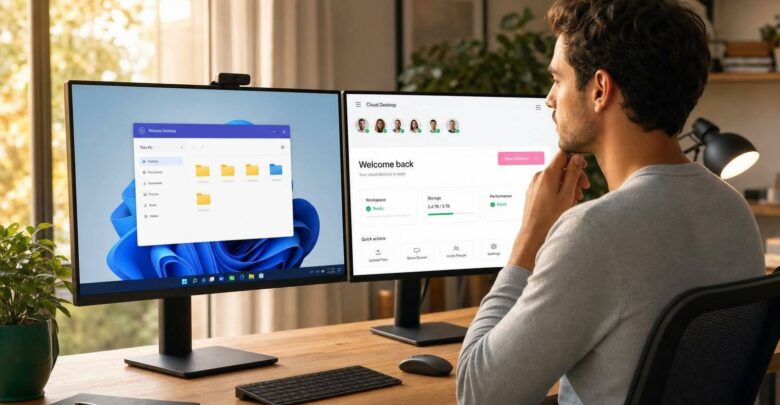
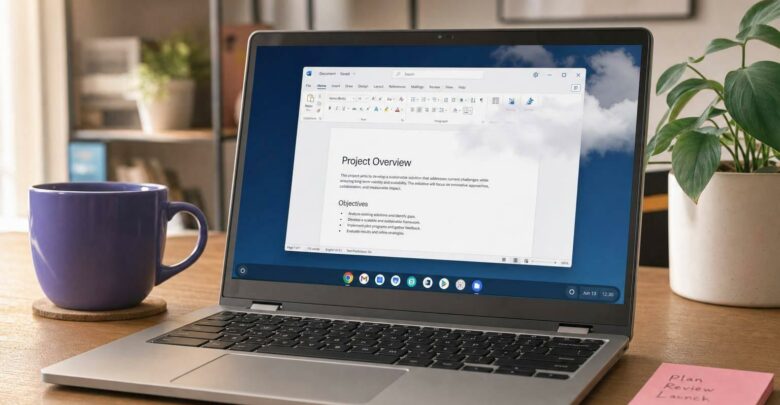
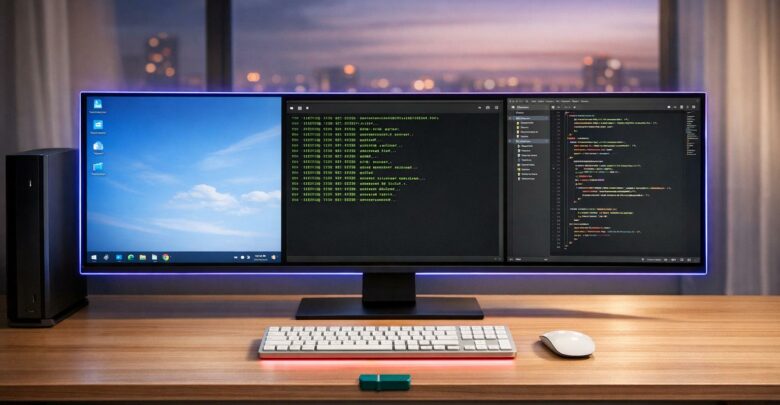
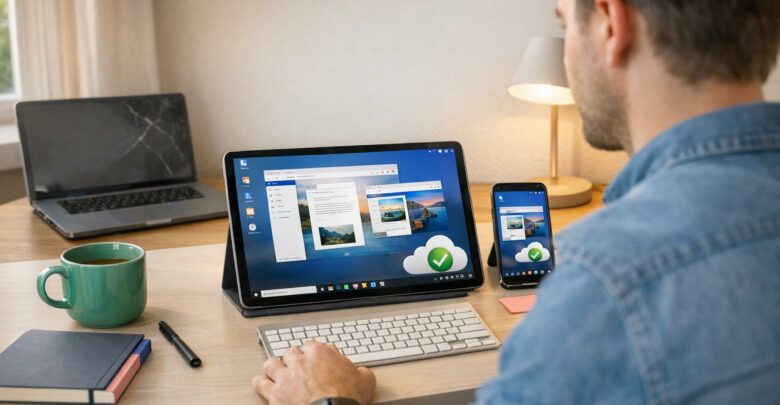
Think of a virtual desktop as a fully functional computer environment, but instead of being tied to a physical device, it operates entirely in the cloud. When your VA logs in, they access a Windows desktop through their browser or a remote connection. All the files, software, and data they use remain securely stored on cloud servers.
This setup creates a secure and dedicated workspace for your VA. You can pre-load the necessary software, set folder permissions, and customize the environment to fit your needs. This way, your VA can perform tasks – like editing documents or managing applications – without ever accessing your sensitive data directly. It’s an efficient way to manage tasks while keeping risks to a minimum.
Another key advantage is that you don’t need to share passwords. For instance, instead of giving your VA direct access to your social media accounts, you can log into these accounts on the virtual desktop and save the session. Your VA can then manage your social media without ever handling your actual login credentials.
Security Benefits of Using Virtual Desktops
Virtual desktops offer a level of security that traditional password-sharing methods simply can’t match. One of their biggest strengths is centralized data control. Your sensitive information stays within a protected environment, and if you need to revoke a VA’s access – whether their role changes or a project concludes – you can do so instantly without the hassle of resetting multiple passwords.
This system also eliminates risks tied to personal devices. Since no data is stored on the VA’s computer, threats like theft, malware, or other security breaches on their device won’t put your business information at risk.
Virtual desktops come equipped with advanced security features to keep your data safe. These include encryption for both data transmission and storage, role-based access controls to limit user permissions, and constant activity monitoring within the workspace. Multi-factor authentication adds an extra layer of protection, ensuring that only authorized users can log in [7].
Additionally, network security measures such as firewalls and intrusion detection systems actively monitor for suspicious behavior and block potential threats [7].
Setting Up Virtual Desktops for VA Task Delegation
Getting your virtual desktop ready for virtual assistant (VA) tasks doesn’t have to be overwhelming. The goal is to create a secure, efficient workspace equipped with all the tools your VA needs, while keeping sensitive information protected.
The first step in preparing your virtual desktop is creating a golden image – a pre-configured template with all the necessary software installed. This saves time and ensures every virtual desktop is consistent and ready for use.
For most business operations, include essential applications like Microsoft Office 2024 Pro Plus (Word, Excel, PowerPoint, and Outlook) and communication tools such as Slack, Zoom, or Microsoft Teams. If your VA handles social media management, consider adding scheduling tools like Hootsuite or Buffer to the setup.
To streamline access to software, consider using application streaming. This allows your VA to use specific tools on-demand without requiring full installation. For instance, HelpSquad employs application streaming to limit users to only the tools they need for their roles [8].
Additionally, tools like FSLogix can help manage user profiles and credentials externally, ensuring a seamless and consistent experience across all virtual desktops.
Setting User Permissions and Access Limits
When assigning permissions, follow the principle of least privilege – your VA should only have access to the tools and data required for their tasks. This approach significantly reduces potential security vulnerabilities [10].
Implement Role-Based Access Control (RBAC) to simplify permission management. Instead of assigning individual permissions, group them into predefined roles like “Social Media Manager” or “Administrative Assistant.” This way, your VA automatically gets the appropriate access level for their responsibilities.
Avoid giving your VA admin privileges. Instead, use tools like Microsoft Intune to deploy software packages securely [9]. To further enhance security, segment your network and filter access, ensuring your VA can only interact with specific systems and data [9].
For added protection, enforce multifactor authentication (MFA) using Entra ID Conditional Access. This ensures that even if login credentials are compromised, unauthorized access is blocked [9]. Also, regularly rotate local administrator passwords on virtual desktop session hosts with tools like the Local Administrator Password Solution (LAPS) [10].
Managing and Removing VA Access
Strict permissions make managing and revoking access much simpler. Virtual desktops allow you to instantly revoke access when a project ends, a VA’s role changes, or security concerns arise. There’s no need to update multiple passwords – disabling an account immediately terminates all sessions and clears cached data.
For temporary access, you can adjust permissions in real time and set them to expire automatically after a specific period. This ensures elevated permissions don’t linger longer than necessary.
Most virtual desktop platforms also offer activity monitoring features. These logs track app usage, file access, and completed tasks, providing valuable insights for both security audits and productivity evaluations.
When it’s time to permanently remove a VA, virtual desktops provide peace of mind. Since no business data is stored on personal devices, deleting the VA’s account erases all access instantly. This same flexibility makes scaling your team easy – new VAs can be onboarded quickly by creating accounts and assigning roles, with your golden image ensuring a secure and consistent setup every time.
sbb-itb-bea6502
Virtual desktops offer a smart solution for small business owners, especially those without dedicated IT teams. They combine top-tier security with ease of use, making them ideal for managing virtual assistants (VAs) and other remote workers.
Faster VA Onboarding and Removal Process
Getting new virtual assistants up and running can be a hassle, but virtual desktops make it quick and painless. Instead of spending days setting up accounts and installing software, a pre-configured workspace – often called a “golden image” – can have everything ready to go. Think tools like Microsoft Office 2024 Pro Plus, communication platforms, and other essential applications. With this setup, your VA can start working in just a few hours.
When it’s time to part ways, disabling the virtual desktop account instantly cuts off access. This feature is particularly useful for businesses working with freelancers or scaling their teams quickly. No more worrying about lingering access to sensitive systems.
Meeting Compliance and Security Requirements
Small businesses are increasingly facing stricter regulations, but many don’t have the resources to manage compliance in-house. Virtual desktops solve this problem by offering centralized controls that make it easier to meet standards like PCI DSS and HIPAA. Features like secure remote access, detailed activity logs, and centralized data management help ensure compliance [11].
Another major perk? Multi-factor authentication (MFA) is built right in. Virtual assistants don’t need to install extra security tools on their personal devices, removing a common headache while keeping your business secure [13].
Virtual Desktops vs Direct Access Comparison
When you compare virtual desktops to direct system access, the benefits are clear:
| Aspect |
Virtual Desktop Access |
Direct System Access |
| Security Risk |
Low – isolated environment with no access to core systems |
High – direct access to business accounts and sensitive data |
| Password Management |
Single account controls all access; no password sharing required |
Multiple passwords must be shared and regularly updated |
| Access Revocation |
Instant – disabling one account removes all access |
Time-consuming – passwords must be updated across multiple accounts |
| Compliance Tracking |
Centralized logs for all virtual assistant actions |
Scattered logs across various platforms and devices |
| Software Management |
Pre-installed and updated centrally |
Virtual assistants must install and maintain software on personal devices |
| Data Location |
Data remains on secure business servers |
Data may be downloaded to personal devices |
| Onboarding Time |
Hours – access to a pre-configured workspace |
Days or weeks – account creation and software setup required |
These advantages simplify operations while boosting security. For small businesses, that translates to lower costs and less stress.
The numbers back this up: By 2020, 24% of small businesses had adopted desktop virtualization [12]. With nearly half of U.S. employees working remotely at least part of the time [14], virtual desktops provide the control and security needed to support a professional remote workforce.
Plus, virtual desktops operate on a predictable monthly subscription model, cutting down on pricey IT expenses and making it easier to grow your team as needed.
Security Best Practices for Virtual Desktop VA Management
Once your virtual desktop is set up, keeping it secure is a top priority. These best practices will help ensure ongoing protection while your virtual assistant (VA) accesses the system.
Keeping Software Updated and Secure
Staying up-to-date with software is one of the simplest ways to defend against potential threats. Virtual desktops make this process easier with centralized control, allowing updates to be applied across all systems at once.
Enable automatic security patch updates and plan major feature updates during off-hours to avoid interruptions. This applies to both the virtual desktop itself and essential tools like Microsoft Office 2024 Pro Plus or antivirus software.
Take time each month to review installed applications and remove anything your VAs don’t actively use. Unused software can become an unnecessary vulnerability. Keeping only the tools they need reduces risks and streamlines performance.
Browser security is especially important since many VA tasks involve web-based tools. Configure browsers to automatically update and activate built-in protections like Safe Browsing or SmartScreen. If possible, implement enterprise browser policies to block access to risky websites or downloads.
Tracking VA Activity with System Logs
Beyond access controls, tracking VA activity through system logs provides an extra layer of oversight. Centralized logs make it easier to monitor login attempts, system changes, and other activities, often through user-friendly dashboards that don’t require technical expertise.
Set up automated alerts for suspicious behaviors like multiple failed login attempts, large or unusual downloads, or logins from unfamiliar IP addresses. Review these logs weekly to identify any patterns that might indicate unauthorized access or other security concerns.
To maintain transparency, document your monitoring practices in a clear policy that VAs acknowledge during onboarding. This builds trust while ensuring everyone understands the security measures in place.
Regular security reviews are also essential. Check user permissions, review access logs, and update authentication settings monthly for active VAs. If a VA’s role changes or they leave the team, adjust or revoke their access immediately to maintain security.
Conclusion: Secure VA Delegation with Virtual Desktops
Virtual desktops are changing the game for small business owners working with virtual assistants. They eliminate the risks tied to traditional password sharing by creating a secure, cloud-based environment where tasks can be managed without exposing sensitive credentials.
This setup doesn’t just bolster security – it also helps cut costs. Businesses can save up to 50% on hardware upgrades and reduce IT expenses by 30% [17]. For small businesses, these savings make it possible to implement professional-grade security without stretching the budget.
“Virtual desktops give small businesses enterprise-grade guardrails without enterprise overhead.” – Kateryna Balakyreva [17]
With virtual desktops, you can revoke access instantly when a project wraps up, track activity using system logs, and expand your workspace as your team grows. There’s no lingering worry about former VAs holding onto account access or sensitive files being stored on their personal devices.
flexidesktop makes this accessible with plans starting at $19 per month, offering dedicated resources and full administrative control. Whether you’re a solopreneur managing one VA or running an agency with a team of remote workers, virtual desktops provide the security and flexibility you need. By incorporating features like multi-factor authentication and regular security reviews, you can establish a secure, cost-effective system that meets the demands of today’s remote work environment.
FAQs
Using a virtual desktop is an effective way to delegate tasks securely while keeping sensitive information protected. It provides a separate, controlled environment that your virtual assistant (VA) can use without needing access to your personal accounts or devices.
Here’s how it works:
- You can install all necessary tools and apps in advance, ensuring the VA has everything they need to complete their tasks.
- Permissions can be restricted, allowing you to control exactly what the VA can access within the virtual workspace.
- If circumstances change, you can revoke access immediately, maintaining full control over your data.
This setup reduces the risk of security issues, such as unauthorized access or data breaches, while enabling seamless collaboration with remote assistants. It’s a practical way to safeguard your business information while staying productive.
How can I securely set up a virtual desktop for my virtual assistant to work efficiently without risking sensitive data?
To set up a secure virtual desktop for your virtual assistant, start by creating a dedicated environment tailored to their tasks. Equip this workspace with the necessary tools and software, and assign restricted permissions to limit their access to sensitive data. This setup not only safeguards your information but also ensures they can perform their work efficiently.
Key security measures to implement:
- Enable multi-factor authentication for added account protection.
- Use encrypted connections to secure data transmission.
- Regularly review and update permissions to ensure access remains appropriate.
Additionally, you can instantly revoke access if needed, giving you complete control over your data and systems. This setup is particularly suited for solopreneurs and businesses working with freelance or remote assistants, combining flexibility with robust security.
What are the cost advantages of using virtual desktops for small businesses when working with virtual assistants?
Using virtual desktops can be a smart way for small businesses to cut costs. By removing the need for extra physical devices, they help reduce both hardware expenses and energy bills. Over time, this can add up to noticeable savings, especially for solo entrepreneurs or smaller teams.
Another advantage is how they streamline management and support, which helps lower IT maintenance costs. Plus, their flexibility means businesses can scale resources up or down as needed. If access needs to be revoked, it’s a simple process, minimizing risks and potential recovery costs. This makes virtual desktops a practical and secure choice for delegating tasks to virtual assistants without losing control or overspending.
Related Blog Posts
Israel de la Torre is the founder of flexidesktop and has spent 15+ years working in cloud infrastructure and Windows virtualization. He helps businesses migrate from on-premises Windows setups to managed cloud desktops.