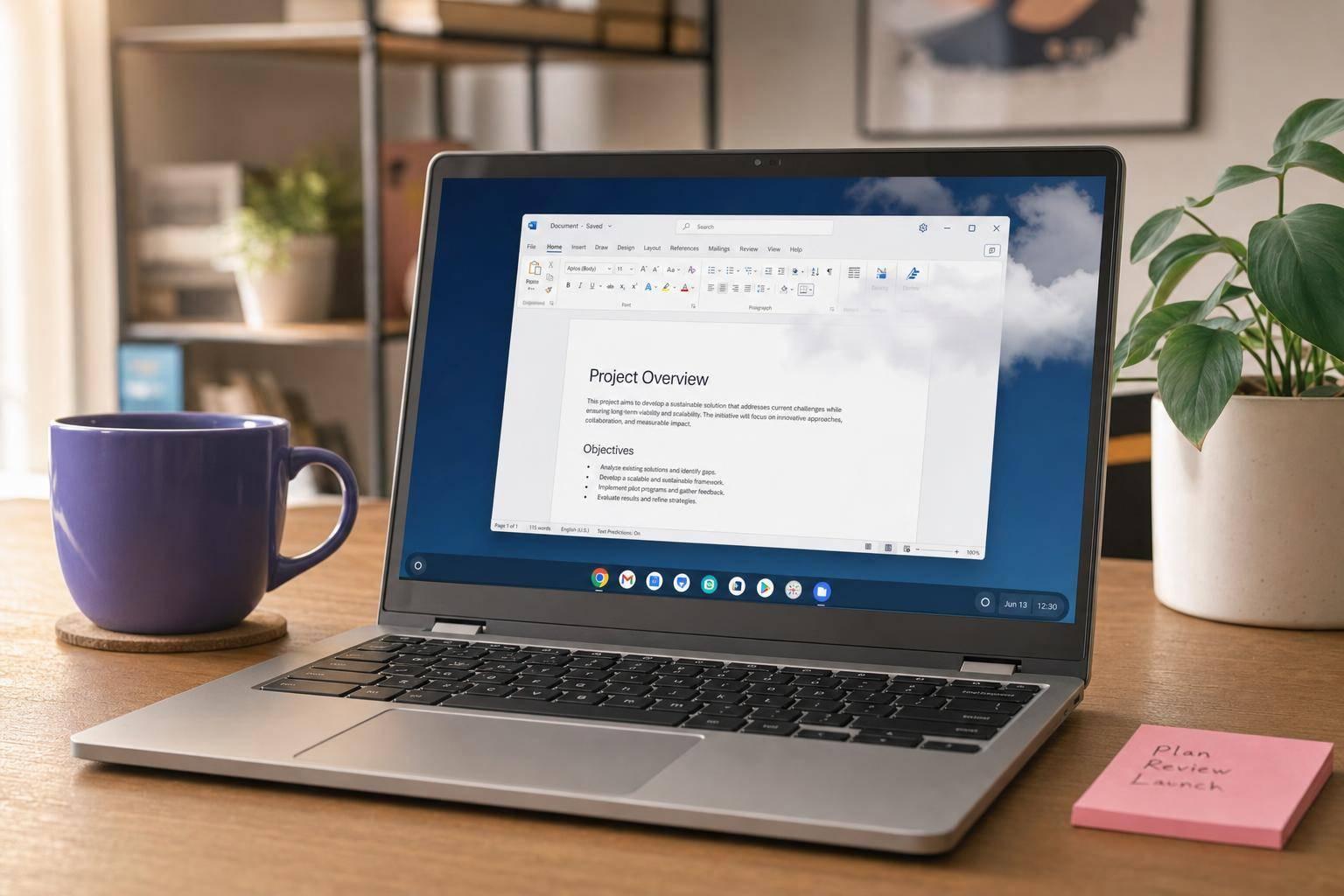
Want to run Windows on your Chromebook in 2026? You have three options: Linux + Wine, Developer Mode / dual boot, or a cloud Windows desktop. For most people, the cloud route is the only one that works reliably — it runs in the browser, requires no ChromeOS changes, and works on both ARM and Intel Chromebooks.
Here’s what you’ll learn:
- Why you can’t just install Windows on a Chromebook the normal way — ARM chips, firmware differences, and no official Microsoft support.
- What each method actually involves — setup difficulty, real risks, and who each one is realistically for.
- The fastest path to a working Windows app on your Chromebook — no system changes, no Linux setup, no data wipe.
Quick tip: If you need QuickBooks Desktop, Microsoft Office, tax software, or any Windows-only app, skip the workarounds. A cloud desktop gets you a full Windows 10 or 11 environment running in your browser in minutes — starting at $19/month with a 3-day free trial.
Why you cannot install Windows on a Chromebook the normal way
Windows apps are made for Windows, not ChromeOS. Out of the box, they won’t run on a Chromebook without a workaround.
Part of the problem is hardware. Many Chromebooks use ARM chips, while Windows is built for x86 processors — those don’t line up natively. Even on an Intel Chromebook, you’re not in the clear: Chromebooks use different startup firmware, so Windows often needs deep system changes before it can even boot correctly.
There’s also the support gap. Microsoft doesn’t officially support Windows on Chromebook hardware, so drivers for the touchpad, keyboard, and audio can be missing or unreliable. Google doesn’t include a built-in dual-boot option either.
So this isn’t like installing Windows on a regular PC. The normal path isn’t there. What you have instead are three practical workarounds — and they’re not all equal.
Quick Comparison
| Method |
Setup |
Risk |
Cost |
Best for |
| Linux (Crostini) + Wine |
Hard |
Low |
Free |
Tech-savvy users comfortable with a terminal |
| Developer Mode + Crouton / dual boot |
Very hard |
High |
Free + Windows license |
Power users with older x86 Chromebooks |
| Cloud Windows desktop |
Very easy |
None |
From $19/month |
Anyone who wants the simplest option |
Bottom line: For the least hassle, use a cloud Windows desktop. If you like tinkering and only need a handful of older apps, Wine may be enough. Developer Mode is the last resort — and not available on many newer Chromebooks.
3 ways to run Windows on a Chromebook
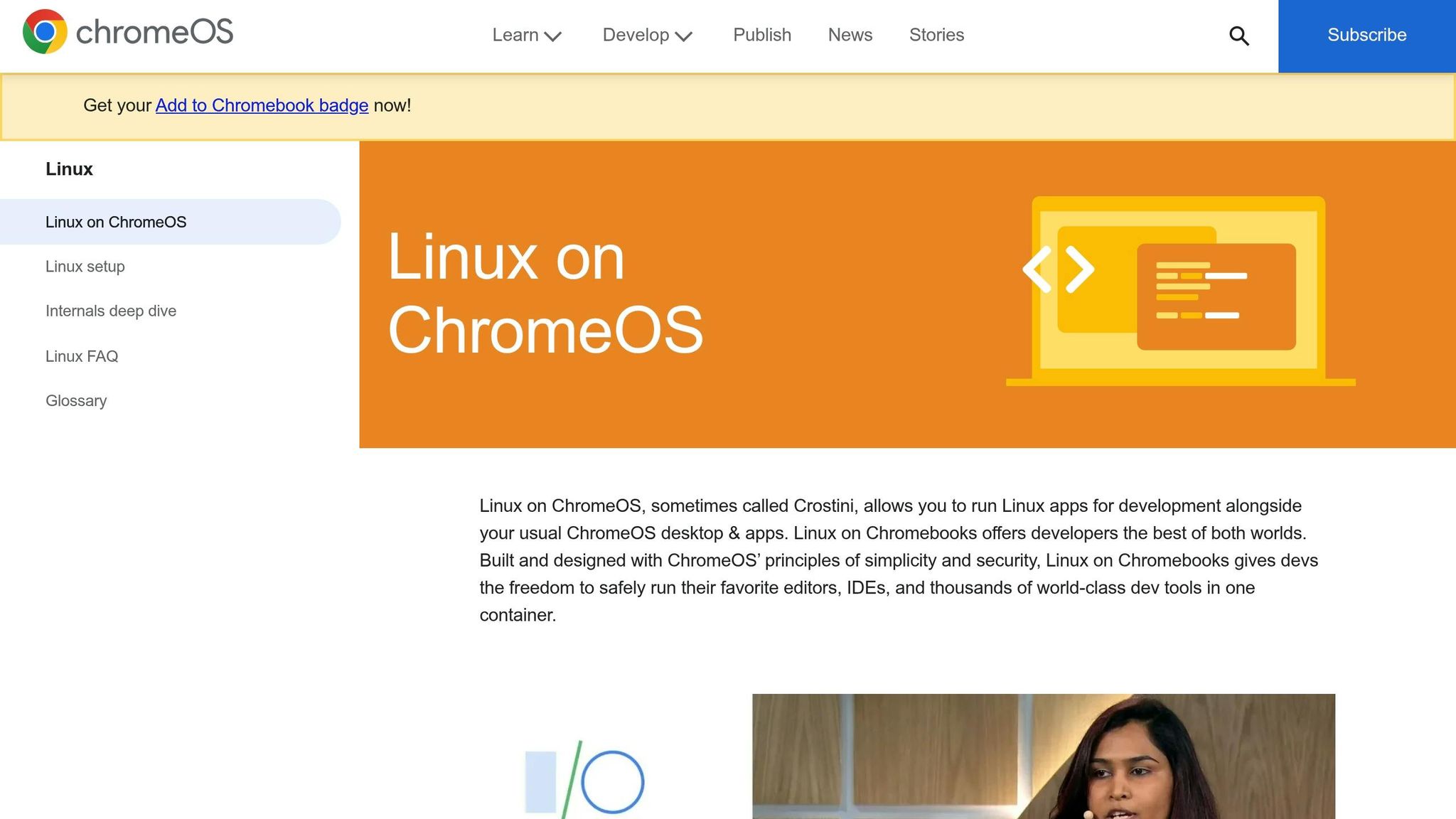
ChromeOS comes with a built-in Linux environment called Crostini. Once you turn it on, you can install Wine — a compatibility layer that lets some Windows .exe files run inside Linux.
That sounds good on paper. In practice, it’s hit or miss.
Wine can run some Windows .exe files, but it struggles with many modern apps — especially ones that rely on .NET, DirectX, or hardware acceleration. It tends to work best with older, lightweight Windows tools, not the apps most people actually need. If you need one specific business app to run without drama, this usually isn’t the path to bet on. And if terminal commands already make you pause, skip this one entirely.
If Wine can’t run your app, the next route gets much riskier.
Method 2: Developer Mode + Crouton or dual boot
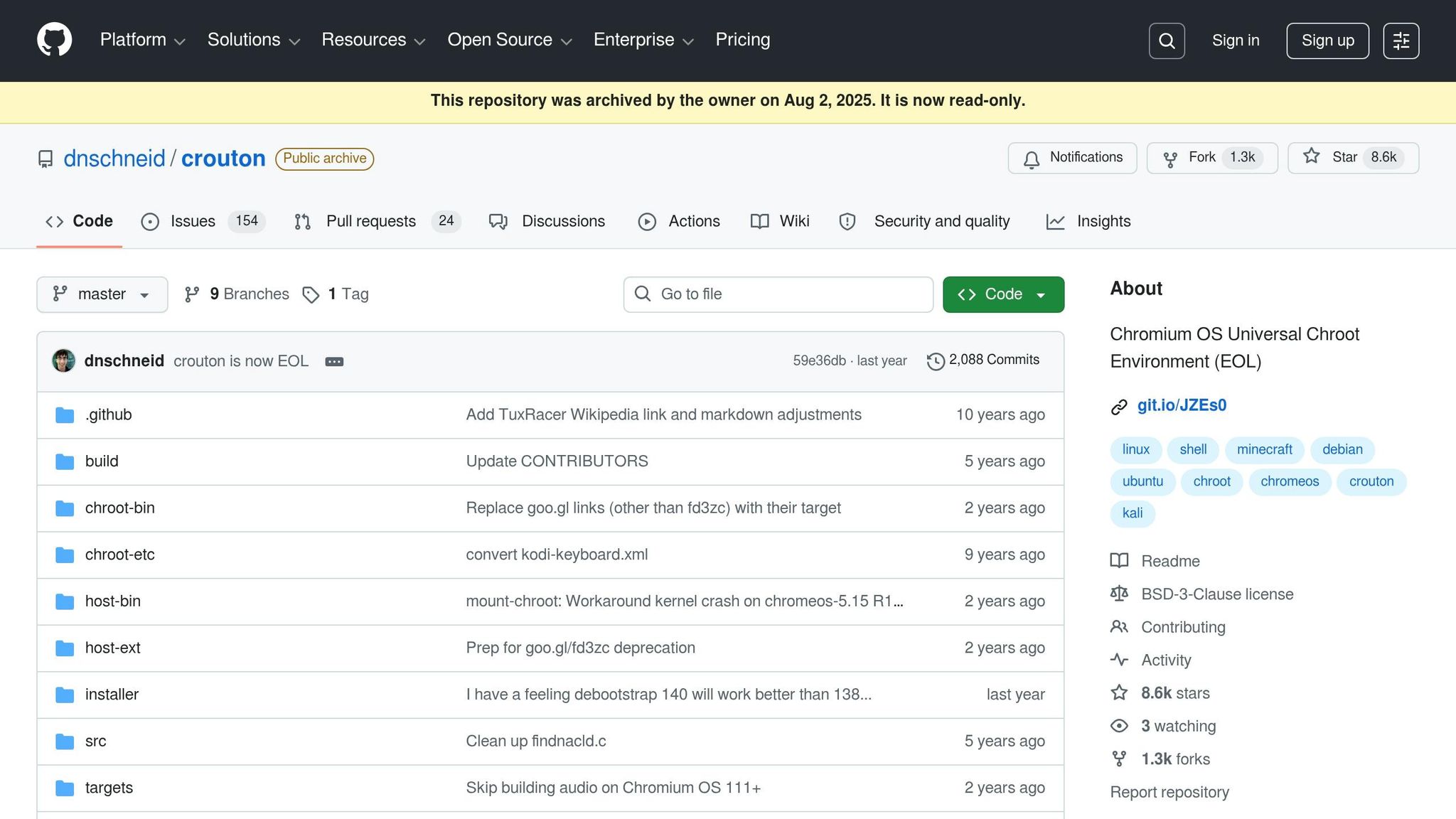
Developer Mode gives you deeper system access, which opens the door to tools like Crouton or even dual booting on older Chromebooks.
But there’s a catch — and it’s not a small one.
Developer Mode wipes local data, weakens ChromeOS security, and adds a startup warning every time the device boots. Many newer Chromebooks don’t support Crouton anymore, and school or work-managed devices may block the whole setup. This route makes more sense for people who want low-level system access and don’t mind tinkering — it’s not a great fit for someone who just needs Windows up and running today.
For most people, a cloud Windows desktop is the safer move.
Method 3: Cloud Windows desktop with flexidesktop

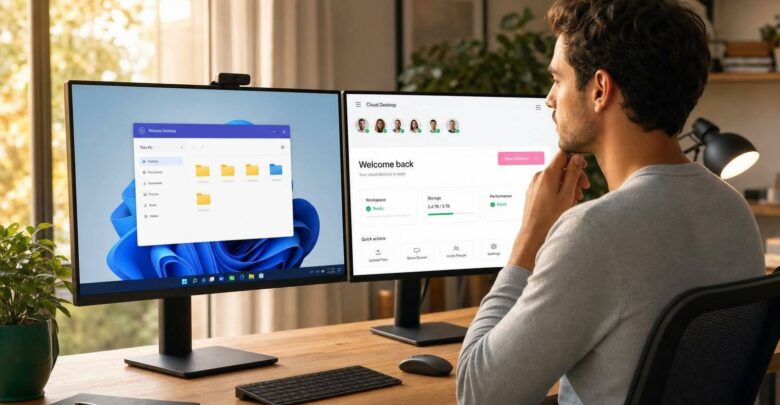
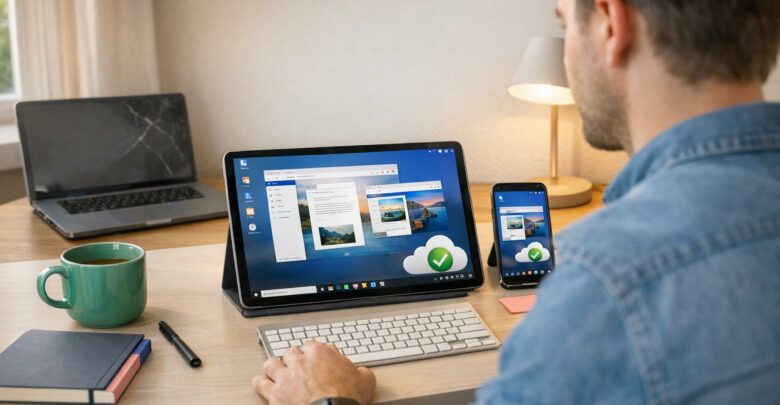
This is the easiest way to use a real Windows desktop on a Chromebook without touching ChromeOS at all. A full Windows 10 or 11 desktop runs on a remote server and streams to your Chromebook in the browser. No install process. No Linux setup. No hardware changes.
Because everything runs in the browser, it works across ARM and x86 devices, on new Chromebooks and older ones, and on both personal and managed machines.
With flexidesktop, you sign up, your Windows desktop gets provisioned automatically, and you connect from your browser dashboard. From there, you can install QuickBooks Desktop, Microsoft Office, tax software, and other Windows apps exactly as you would on a standard Windows PC. Plans start at $19/month, and there’s a 3-day free trial so you can test your own software before committing.
Performance depends on your internet connection — you’ll want at least 10 Mbps for a smooth experience.
How to open a Windows desktop on a Chromebook: step by step
If you go with a cloud desktop, setup on a Chromebook is straightforward.
- Choose a plan at flexidesktop.com/plans
Plans include a 3-day free trial and a one-time $1 verification fee. The XS plan ($19/month) is a good starting point. If you keep multiple apps open at once, go with S ($29/month) or M ($39/month). No Linux, no Developer Mode, no ChromeOS changes required.
- Create your account
Sign-up takes less than 2 minutes.
- Your Windows desktop is provisioned automatically
In most cases, it’s ready within a few minutes.
- Open the flexidesktop dashboard in your Chromebook browser
- Click Connect — the desktop opens
Your full Windows 10 or 11 desktop opens in the browser tab.
- Install your Windows apps
Install and use them just as you would on a normal Windows PC.
Your cloud desktop keeps running even after you close the browser or shut down your Chromebook. When you come back, your files, installed apps, and settings are all still there.
What Windows apps you can run this way
Once connected, people commonly use this setup for:
| App category |
Examples |
| Accounting software |
QuickBooks Desktop, Sage |
| Office & productivity |
Microsoft Office (Word, Excel, Outlook, PowerPoint) |
| Tax software |
TurboTax Business Desktop, TaxAct, Drake Tax |
| Employer-required apps |
Any Windows app your job requires |
| Business tools |
Windows-only ERP, CRM, point-of-sale software |
| Creative software |
AutoCAD LT, older Photoshop versions, CorelDRAW |
For heavier 3D or graphics apps, use a GPU plan.
Run Windows on your Chromebook — no system changes needed.
flexidesktop gives you a full Windows 10 or 11 desktop right in your browser. Plans start at $19/month with a 3-day free trial. Test your Windows apps on your Chromebook before you pay.
Start your free 3-day trial →
sbb-itb-bea6502
FAQs
Can I run QuickBooks on a Chromebook?
Not natively — ChromeOS doesn’t run Windows software on its own. But with flexidesktop, you get a full Windows environment in your Chromebook browser, so QuickBooks Desktop works exactly as it would on a Windows PC. Your app and files stay in the cloud.
Does running Windows on a Chromebook slow it down?
No. With a cloud desktop, Windows runs on a remote server — the processing and storage happen in the cloud, not on your Chromebook. Your device just streams the desktop in a browser tab. Normal web browsing and ChromeOS performance are unaffected, as long as your internet is stable at 10 Mbps or more.
Do I need a powerful Chromebook to use a cloud desktop?
No. The heavy lifting happens on a remote server. Your Chromebook only needs a browser and an internet connection of at least 10 Mbps. This works on both budget Chromebooks and older models.
Can I use a school-managed or work-managed Chromebook?
Yes — as long as you can open a browser tab and access websites. Because flexidesktop runs entirely in the browser, you don’t need to install software, change settings, or work around admin restrictions. If your managed device allows web access, you can connect to your cloud Windows desktop.
Is a cloud Windows desktop the same as remote desktop (RDP)?
Similar, but not the same. A standard RDP setup requires you to configure the connection yourself and maintain a host machine that’s always running. With flexidesktop, your Windows desktop comes pre-configured and opens directly in your browser — no server management, no network setup, no IT knowledge required.
How much does it cost to run Windows on a Chromebook?
Linux with Wine is free, but setup is technical and compatibility is limited. For the full Windows experience, flexidesktop starts at $19/month with a free trial. No expensive hardware or complicated setup required.
Can I use Microsoft Office on a Chromebook via cloud desktop?
Yes. A cloud desktop gives you a full Windows setup in the browser, so you can install and use the desktop versions of Word, Excel, PowerPoint, and Outlook — exactly like a regular Windows PC. Files are saved in your secure cloud workspace.
What internet speed do I need?
You’ll want at least 10 Mbps of stable internet speed. Since the heavy lifting happens on a remote server, a steady connection matters more than your Chromebook’s specs. For most people, standard home broadband or a 4G/5G connection is more than enough for a smooth experience.
Israel de la Torre is the founder of flexidesktop and has spent 15+ years working in cloud infrastructure and Windows virtualization. He helps businesses migrate from on-premises Windows setups to managed cloud desktops.