
Tutorials
How to Create an Administrator Account in Windows: Step-by-Step Guide
Learn how to create an administrator account in Windows using Computer Management or Command Line. Step-by-step instructions included!

Single-user Windows 10/11
Multi-user Windows Server 2025
Real-World Applications
Discover Our Mission.
Get in touch.
Compliance & VPAT.
Get Answers Here.
Your flexidesktop works fine from a browser for most day-to-day tasks. But if you need to plug in a USB drive, print to a local printer, or use your webcam inside your virtual desktop, Microsoft’s Remote Desktop gives you that extra layer of hardware access that a browser tab can’t.
Here’s what Remote Desktop unlocks that browser access doesn’t:
Here’s how to set it up.
Log in to your Dashboard and go to My Desktops → Manage → Remote Desktop. From there, submit your access request.
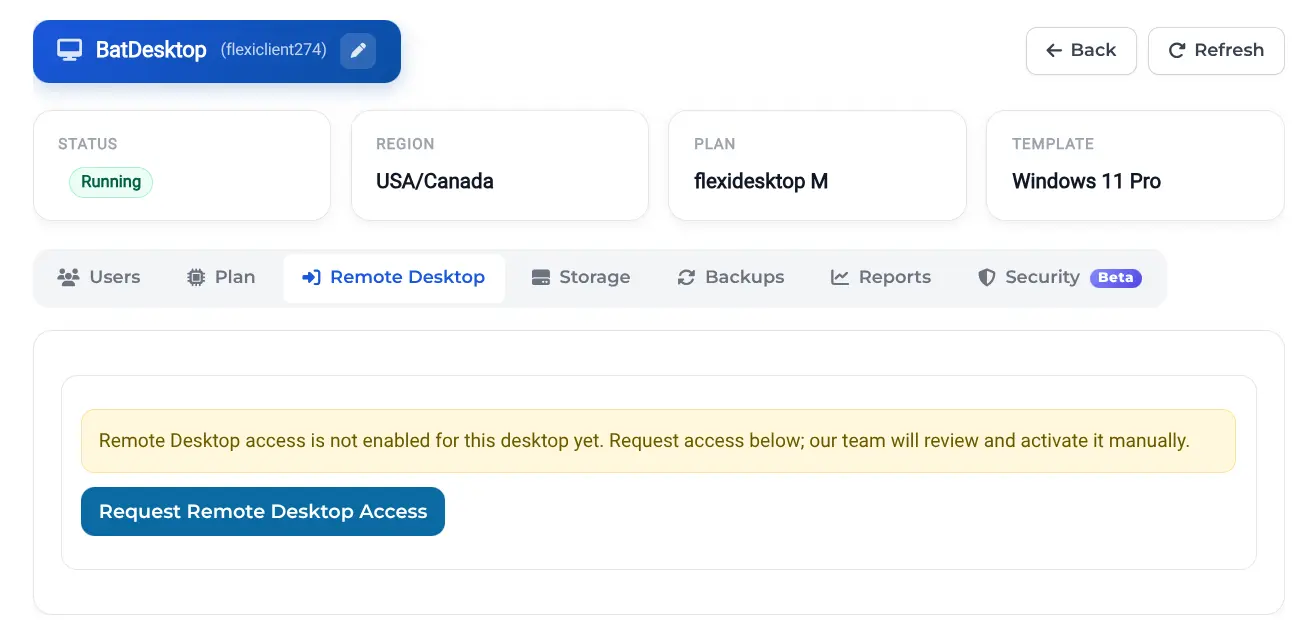
Note: Approval is manual — our technical team reviews every request, so please allow some time before it’s approved.
Once approved, you’ll find a single ZIP file in your user area with everything you need:
.rdp file).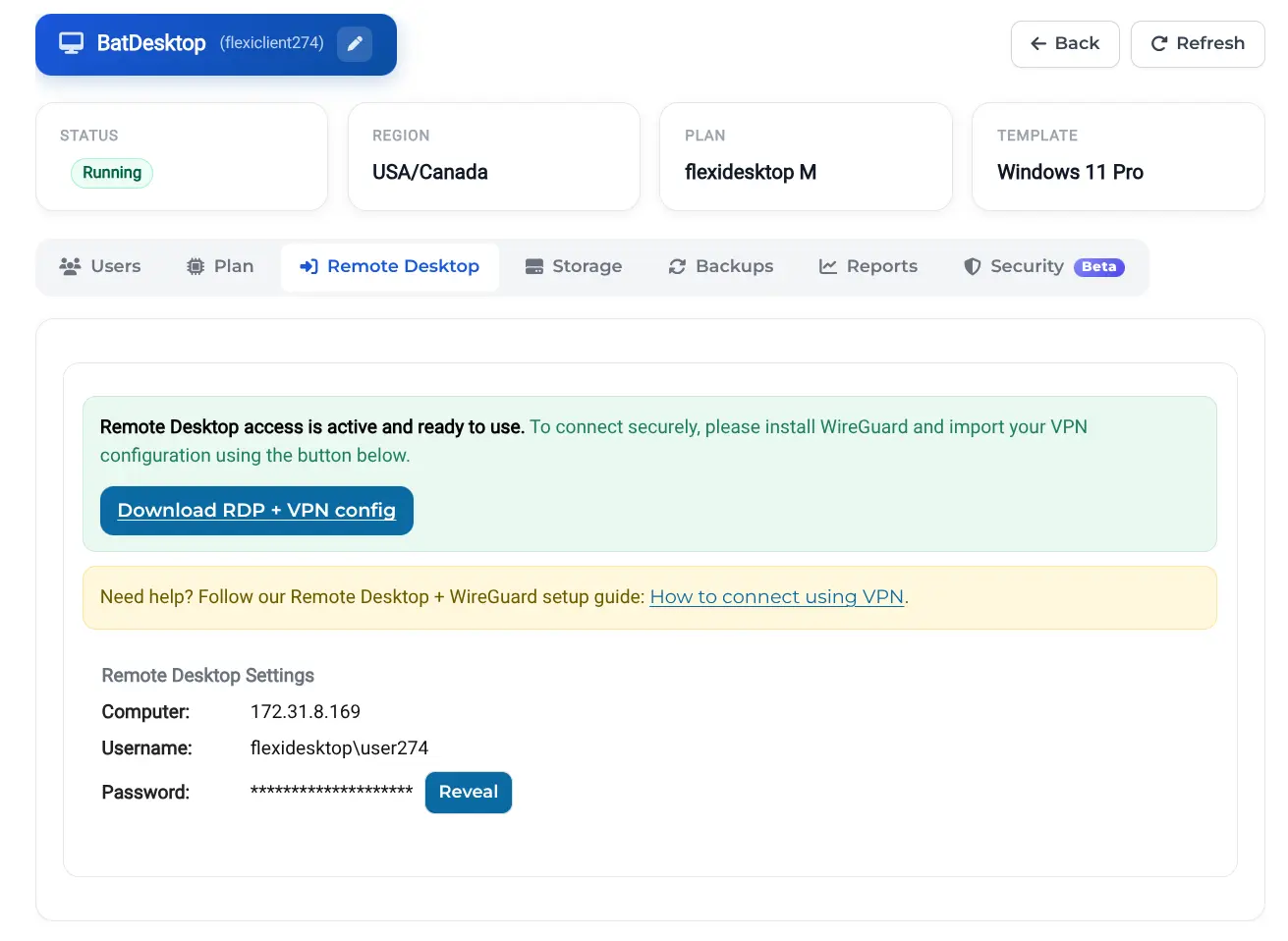

Download and install the free WireGuard app for your platform from wireguard.com. Once it’s installed:

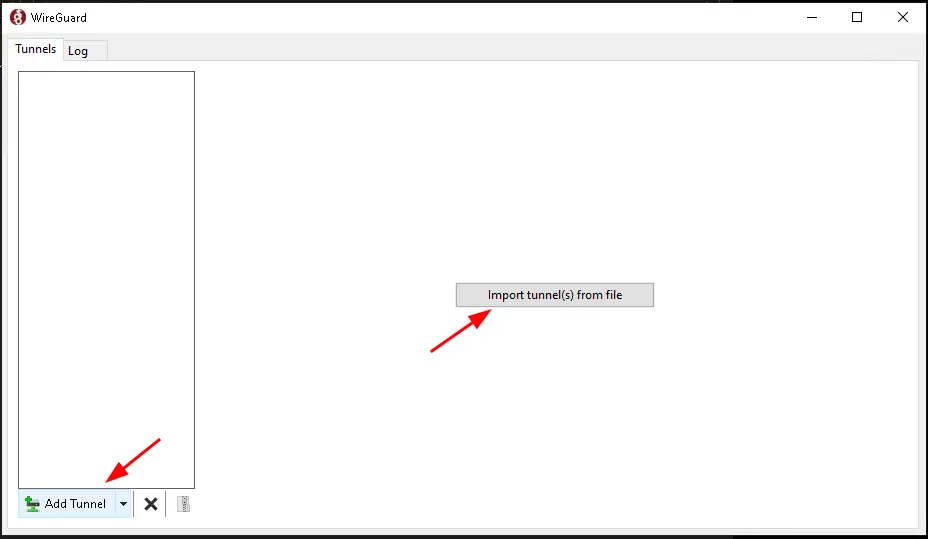
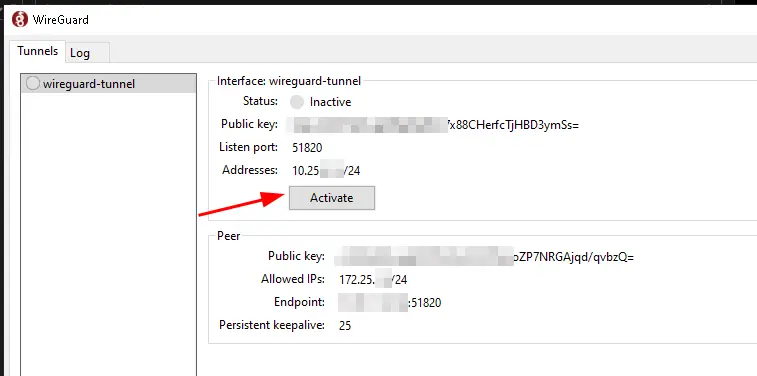
You’re now securely connected to the flexidesktop VPN.
With the VPN active, you’re ready to connect:
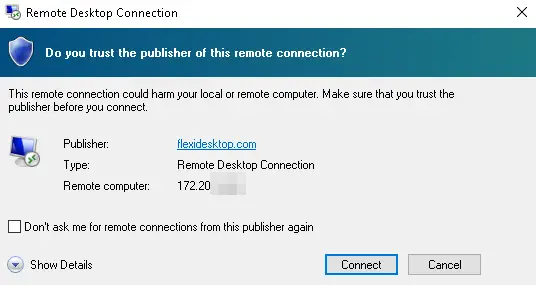
Open the .rdp file from the ZIP you extracted earlier.
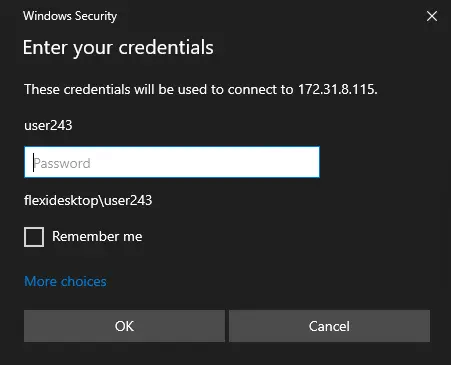
When prompted, enter your Remote Desktop credentials. You’ll find the password in the Remote Desktop tab of Manage — click Reveal next to the password field.
Click Connect, and you’re in — enjoy your virtual desktop with the added security of an encrypted point-to-point VPN tunnel.
Setting up your own VPN and Remote Desktop server means provisioning hardware, configuring the tunnel yourself, and keeping it patched and running. With flexidesktop, that work is already done: your virtual desktop is ready from day one, and Remote Desktop access is just a request away whenever you need the extra performance. Browser access covers everything else — no servers, no maintenance, nothing on your end to manage.
Learn how to create an administrator account in Windows using Computer Management or Command Line. Step-by-step instructions included!

Learn how to extend your C: drive in Windows 10, Windows 11, and Windows Server 2025 — including fixing recovery partition issues. flexidesktop users can instantly upgrade storage and expand OS partitions with just a few clicks.



